YouTube Media Kit Examples: What to Look for and How to Adapt Them
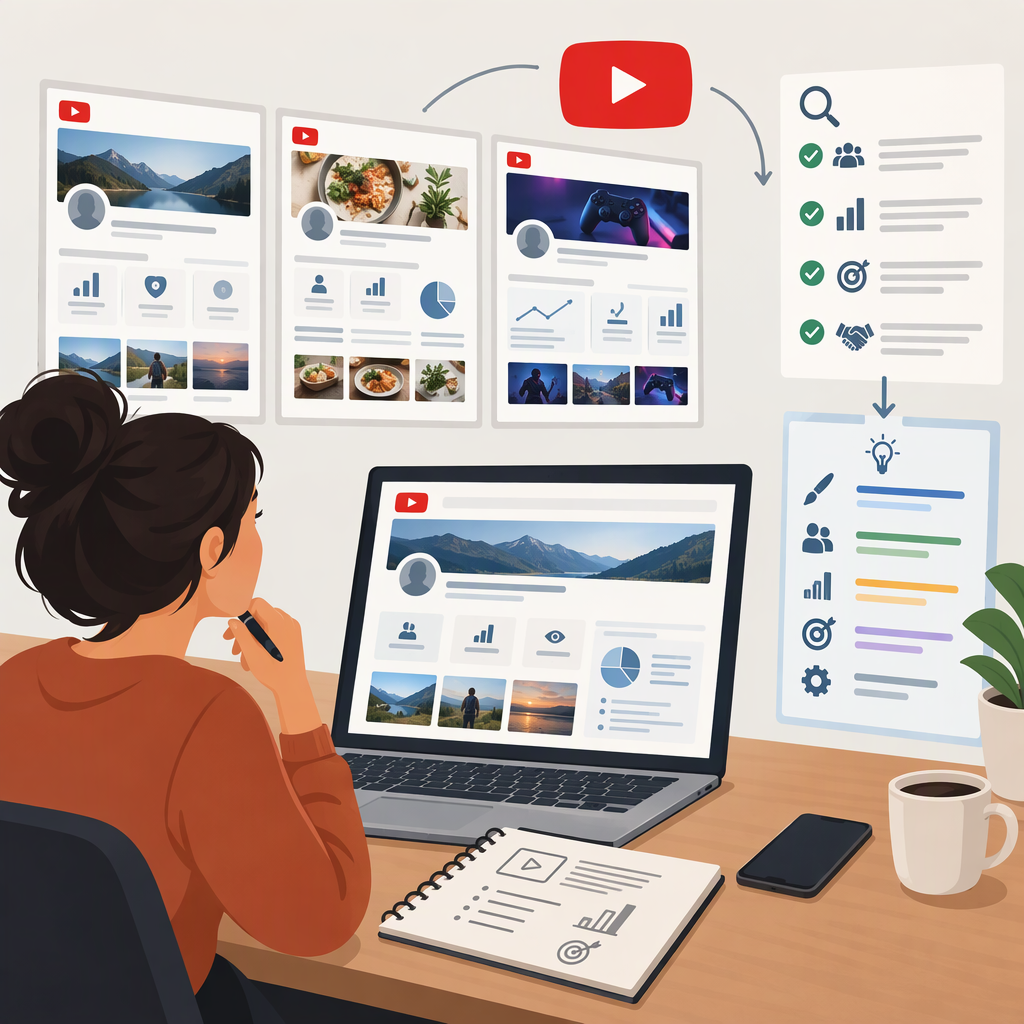
A useful YouTube media kit gives a potential partner a quick picture of your channel, its audience, your relevant work, and what kind of collaboration you are proposing. Public examples can help you see different ways to present that information—but treat a creator’s performance claims as their own, and use your own verified figures when making a kit.
YouTube Media Kit Examples to Inspect
1. CreatorsJet’s YouTube media kit examples gallery. The gallery presents three examples—CashInColor, TheKnottyGarden, and Azizdrives—and describes what readers can look for in each. Its notes point to dedicated videos and licensing for CashInColor, a 60–90-second integration offer for TheKnottyGarden, and channel performance and content for Azizdrives. These are the gallery publisher’s descriptions, not independent assessments. The page says some examples include more than one platform, so select YouTube data when comparing them. (creatorsjet.com)
What you can learn: a kit can foreground different things depending on the work being proposed: a dedicated video, a product integration, or a channel’s content and performance. Open the examples through the gallery and judge the actual presentation for yourself; don’t assume one layout or offer fits every channel.
2. YouTube’s built-in Media Kit. YouTube Help describes a platform-provided kit for creators in the YouTube Partner Program (YPP). It can include a channel banner and bio, audience and shopping categories, channel statistics and demographics, branded-content campaign videos, and top videos. YouTube says eligible creators can view or download it through YouTube Studio on desktop. It’s a useful reference for a platform-generated snapshot, though access is limited to eligible creators and it may not serve every partnership brief. (support.google.com)
3. A clearly labeled fictional sample. Mysocial offers a downloadable filled example and explicitly says its sample channel and numbers are fictional. Use it to inspect how a one-page layout can organize channel positioning, audience context, performance, video links, a collaboration outline, and contact details—not as a real creator case study or a benchmark for your own results. (mysocial.io)
What to Consider Including in Your Own Kit
There is no single required layout in the sources cited here. Choose sections that help explain your channel and the specific collaboration you want to discuss.
- Channel introduction: Your channel name, link, subject, and a short description of your videos. This helps a reader understand what the channel is about. YouTube’s own kit, for eligible creators, includes a banner and bio. (support.google.com)
- Audience context: Include audience information that is relevant and that you are comfortable sharing. YouTube’s built-in kit may include audience categories and demographic information; its documentation notes that audience segments are estimates. Don’t present estimates as exact counts of individual people. (support.google.com)
- Selected videos or past work: Link to videos that show the format, topic, or style most relevant to the proposed partnership. YouTube’s built-in kit can include top videos and branded-content campaign videos. (support.google.com)
- Performance figures, if useful: If you include channel metrics, name them accurately and give enough context—such as the date range and whether a figure refers to videos, Shorts, or another content format. YouTube Analytics reports vary by content and report; for example, YouTube describes impressions as thumbnail appearances on YouTube and explains how those impressions can lead to views and watch time. (support.google.com)
- Proposed collaboration: Briefly describe the kind of placement or content you are open to discussing. Treat this as an outline for a conversation, not a promise that every format is available for every campaign.
- Contact details: Provide a suitable way for a potential partner to reach you. Share only information you want included in a document that may be forwarded.
How to Choose and Adapt an Example
- Start with the purpose. Decide what kind of partnership or content you want the kit to support. A kit for a product integration may need different video examples than one for a dedicated video.
- Pick a useful structure, not someone else’s claims. Use an example to study its organization and presentation. Replace its biography, audience details, metrics, work samples, and offer with your own information.
- Check every number and description. Make sure figures match the source report and stated time period. Don’t copy another creator’s results, audience claims, or campaign outcomes. If a platform figure is estimated, label it appropriately.
- Make the relevant material easy to find. Put the videos and information that best match the proposed partnership where a reader can spot them quickly. A gardening brand, for example, may benefit more from seeing relevant gardening videos than an unrelated list of every upload.
- Review what you’re sharing. Check links, dates, names, figures, and contact details. If you use YouTube’s downloadable Media Kit, YouTube specifically advises creators to be comfortable sharing the data in the PDF with its recipient. (support.google.com)
Before You Send It
Ask yourself: Does this kit make clear what my channel creates, which information is current, and why the selected work fits this conversation? Are my figures and claims my own, accurate, and properly contextualized? A useful example is a starting point for your layout—not evidence for claims about your channel.