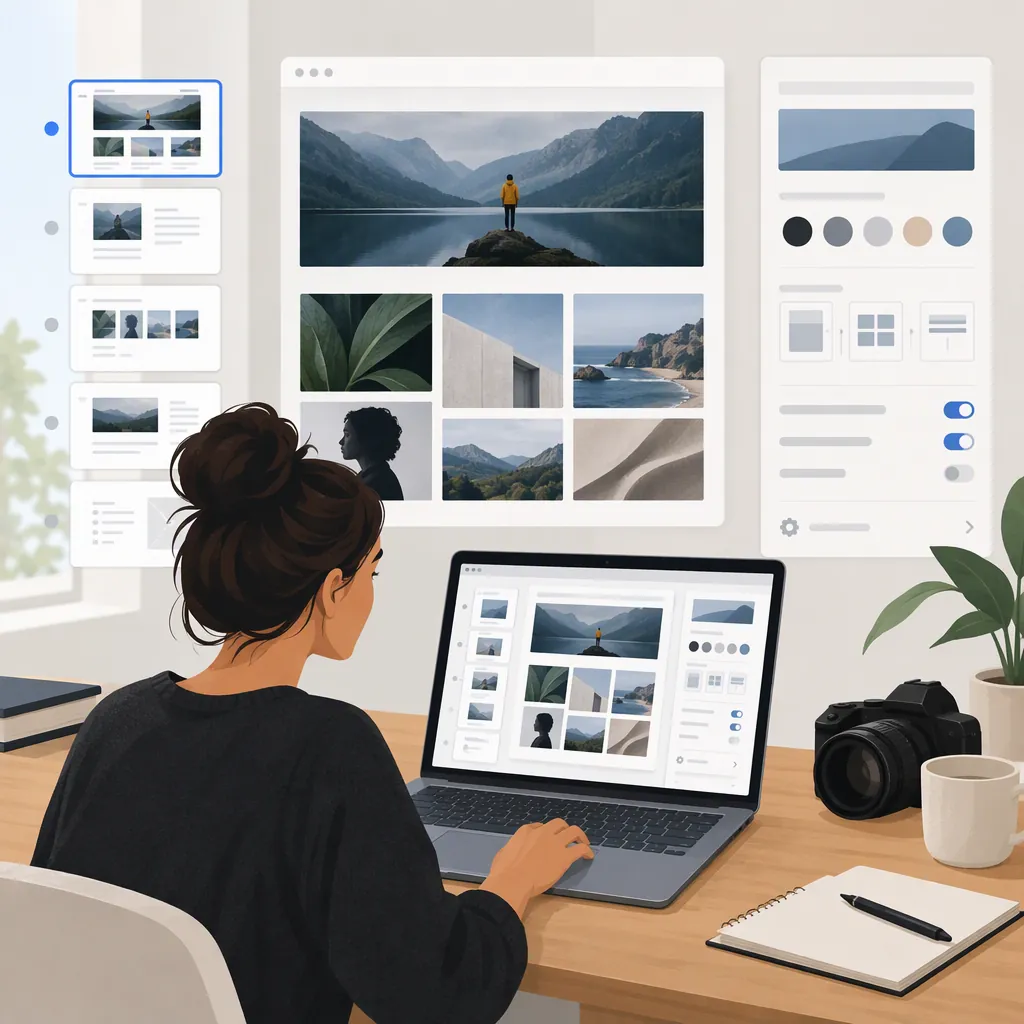
Adobe Portfolio for Creators: Pages and Setup
Adobe Portfolio is a website builder focused on showcasing creative work, according to a January 2024 review. A December 2020 Adobe Community reply outlines a basic setup workflow: choose a theme, add a project page with images and text, upload a project cover, and publish. [citation-1] [citation-2]
This guide uses those dated sources for product information and adds editorial advice for preparing public-facing work. It is a planning outline, not a verified tutorial for today’s interface, subscription terms, or feature limits.
What Adobe Portfolio Is For
For a creator researching Adobe Portfolio, the central distinction is between displaying work and operating a broader business website. The 2024 review characterizes Adobe Portfolio as focused on online portfolios rather than sites with multiple functions such as shops and forms. That is the reviewer’s dated assessment, not a complete statement of current capabilities. [citation-2]
Plan your portfolio around what a visitor needs to understand:
- The work: What did you create?
- Your contribution: Which parts were your responsibility?
- The context: What objective or brief shaped the project?
- The deliverable: What was produced, or what outcome can you substantiate?
If selling products or collecting detailed inquiries is essential, list those as separate requirements to verify before choosing a platform.
The Documented Setup Workflow
The December 2020 Adobe Community reply describes choosing a theme, adding a project page with images and text, uploading a project cover image, and publishing. It also explains that the cover links to the project and appears on a collection or landing page. [citation-1]
Use that sequence as a setup outline:
- Choose a theme. Consider how your work should be grouped and introduced.
- Add a project page. Prepare selected images and accompanying text, then arrange them to explain the work.
- Upload a project cover. Choose an image that accurately represents the project. The historical reply describes this cover as the link to the project from a collection or landing page. [citation-1]
- Review before publishing. Check page names, image order, captions, credits, and public-facing details. This is an editorial checkpoint added to the documented workflow.
- Publish. Publishing is the final action in the 2020 reply. Confirm the current publishing requirements and controls before proceeding; the source does not establish today’s button names or conditions. [citation-1]
Prepare Content for a Project Page
The community workflow explicitly includes images and text on project pages. [citation-1] Prepare them together so visitors do not have to infer the entire story from the images.
Give each project a clear title and a short public summary. Describe your contribution accurately, credit collaborators where appropriate, and select images that help explain the deliverable. Captions can identify what each image shows or why it matters.
Use only information and media suitable for public release. Omit confidential details and check permissions before including client work or collaborators’ material. If an outcome cannot be substantiated, describe the deliverable instead of claiming a result.
Project Page Content Worksheet
This worksheet is a planning aid, not an Adobe Portfolio import format.
Project title:
Public project summary:
My role and contribution:
Context or creative objective:
Selected images, in viewing order:
Caption for each image:
Collaborator credits, where applicable:
Deliverable or substantiated outcome:
Proposed cover image:
Permissions and confidentiality check:
Check Layout and Access Assumptions
Layout and Presentation
The 2024 reviewer reports constraints with theme layouts and photo-grid controls. Treat those observations as reasons to test your intended presentation, not proof that every current layout option is unavailable. [citation-2]
Before committing to a page structure, check whether your selected theme presents these elements clearly:
- Wide and portrait images
- Captions and explanatory text
- Project covers and navigation
- The intended viewing order
Review the presentation at both narrow and wide screen sizes. Note any essential layout requirement you cannot reproduce before preparing the rest of your projects.
Subscription Access
The January 2024 review reported Adobe Portfolio access through a Creative Cloud subscription. It does not establish current plan eligibility or pricing. The older community question’s reference to a “free website” should not be read as a present-day standalone free-plan guarantee. [citation-1] [citation-2]
Where to Verify Current Details
The Adobe Community thread contains a Portfolio help link that replies identify as a support resource; one reply describes it as offering an FAQ and knowledge base. Open the thread and follow that help link as a starting point. The recommendation comes from December 2020, and the help destination’s current content has not been verified for this guide. [citation-1]
Look for answers to these questions:
| Area | What to confirm |
|---|---|
| Subscription eligibility | Does your specific plan currently include Portfolio access, and at what cost? |
| Publishing | What account or subscription conditions must be met to publish? |
| Layout controls | Can the current theme and image controls support your required arrangement? |
| Broader website needs | Are any essential shop or inquiry-form requirements supported? |
The historical help referral does not establish that the destination answers every question. Keep unresolved requirements separate from confirmed capabilities.
FAQ
Is “Adobe Portfolio Creator” a Separate Product?
The Adobe Community thread and the 2024 review identify the website builder as Adobe Portfolio. They do not establish a separate product named “Adobe Portfolio Creator.” [citation-1] [citation-2]
What Should I Prepare for My First Project Page?
Prepare selected images, explanatory text, and a representative cover image. Those materials align with the workflow described in the 2020 community reply. An accurate role description, appropriate credits, and a permissions check are additional editorial recommendations. [citation-1]
How Do I Publish an Adobe Portfolio Site?
Publishing is the final action in the 2020 community workflow, after choosing a theme, adding project content, and uploading a cover. The reply does not establish current button labels or publishing requirements. Review your public content, then verify those details through the help resource linked in the community thread. [citation-1]
Is Adobe Portfolio Free?
The 2024 review describes Adobe Portfolio as included with a Creative Cloud subscription, not as unrestricted standalone free access. Current eligibility and pricing remain unverified by these dated sources. Check whether your specific plan includes access and what conditions apply to publishing. [citation-2]
Sources
-
[citation-1] Adobe Portfolio - website builder | Community
-
[citation-2] Adobe Portfolio review (2024)