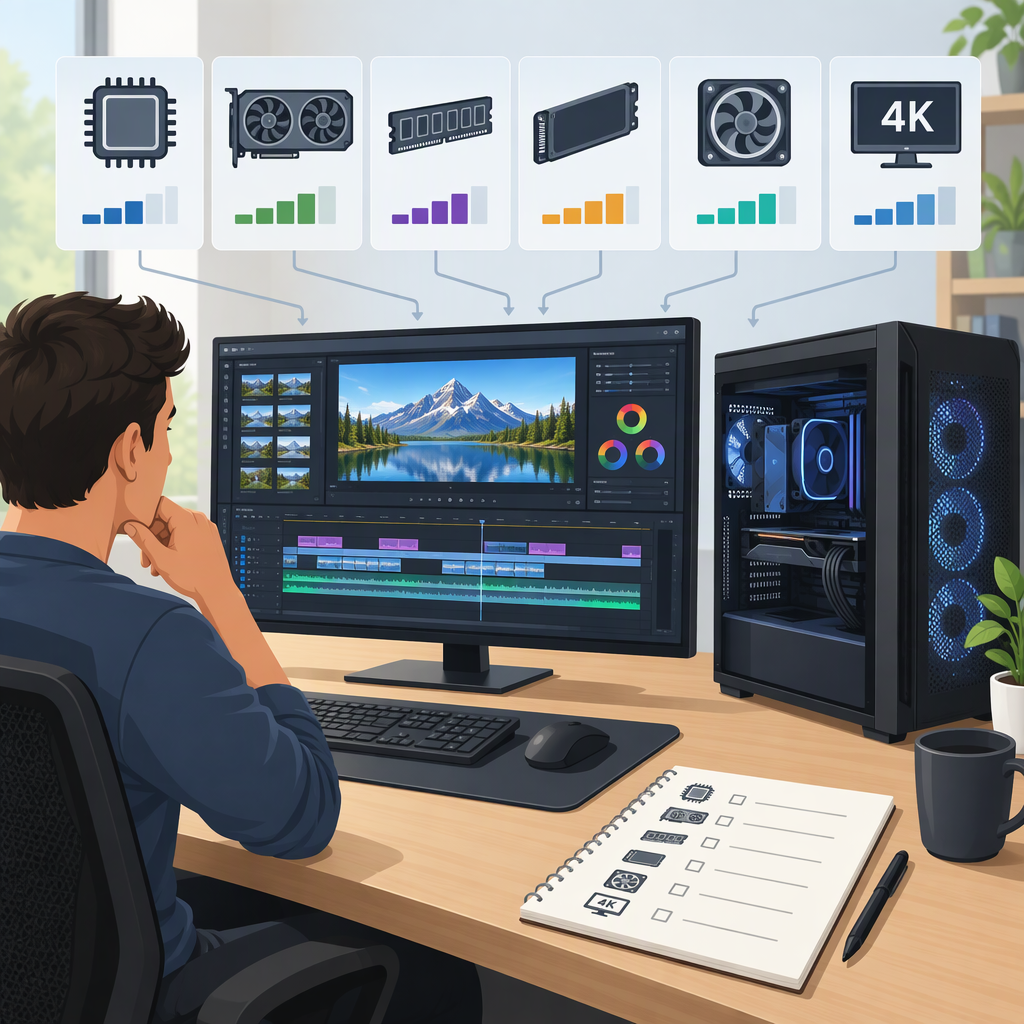
4K Video Editing PC: How to Choose the Right Specifications
The Short Answer
A 4K video editing PC should be chosen for the software and footage you actually use, not just the “4K” label. As a concrete reference, Adobe’s requirements for Premiere version 27.0 recommend 32 GB or more of RAM for 4K and higher, 8 GB of GPU memory, a compatible processor, an internal SSD for the app and cache, and an additional high-speed drive for media. Those are Premiere recommendations—not a guarantee that every 4K project will play smoothly, and not a universal specification for every editing app. Adobe says its minimum specifications are for HD editing, while its recommended specifications cover HD, 4K, or higher. (helpx.adobe.com)
Before buying, check your editing application’s current requirements and confirm that it can accelerate decoding for your camera’s codec, bit depth, and format on the particular hardware you’re considering. Then compare candidate PCs using a representative project or a returnable purchase; do not assume that two machines with similar “4K-ready” labels will behave alike.
Start with the Workload, Not the Resolution
Write down these details before comparing specifications:
- Editing software and version. Requirements and supported hardware features are application-specific. The figures in this article’s example are for Premiere 27.0; do not transfer them automatically to DaVinci Resolve or another editor.
- What your camera records. Check the actual file properties—codec, frame rate, bit depth, and any chroma-subsampling information your software reports. “4K” describes image dimensions, not the whole media format. For example, Adobe documents hardware-accelerated decoding for MP4 files using H.264/AVC and HEVC, and specifies platform-dependent support for some formats. (helpx.adobe.com)
- How you edit. Note whether your typical project uses one camera angle or several, effects, color work, titles, or other demanding operations. Do not treat a configuration suitable for simple cuts as automatically suitable for every complex timeline; check your app’s guidance and test the work you actually do.
- What “smooth enough” means to you. Decide whether you need full-quality playback while editing, whether reduced preview quality is acceptable, and whether you can use proxies. Playback and export are different parts of a workflow: Adobe describes hardware acceleration for supported H.264/H.265 playback and export, but support depends on the hardware platform and format. (helpx.adobe.com)
Why the file details matter: acceleration is not universal across all codecs and systems. Adobe, for example, identifies Intel-platform support for HEVC 4:2:2 10-bit decoding in Premiere and notes that integrated Intel GPU decoding can be limited on systems with 8 GB or less of RAM. That is a specific Premiere compatibility detail, not a rule that every 10-bit file requires one brand of PC. Verify the exact format, application version, processor, graphics hardware, and driver before buying. (helpx.adobe.com)
Premiere 27.0: A Sourced Specification Reference
The following is a practical starting point if you use Adobe Premiere 27.0 on Windows. It summarizes Adobe’s published requirements; it is not a benchmark result or a promise of real-time playback for every project. Adobe’s page has separate operating-system and platform conditions, so check the full requirements for your particular PC before purchase. (helpx.adobe.com)
| Part | Adobe’s published 4K-or-higher guidance for Premiere 27.0 | What to check when comparing PCs |
|---|---|---|
| Processor | Intel 11th Generation or newer with Quick Sync, or AMD Ryzen 3000 Series / Threadripper 3000 Series or newer | Verify the exact CPU model, supported operating system, and whether the media features you need are supported. A CPU family name alone does not confirm format compatibility. |
| Memory | 32 GB or more | Treat this as Adobe’s recommendation for its stated 4K-and-higher use case, not a universal minimum for every editor. |
| Graphics | 8 GB of GPU memory | Check the exact GPU and current driver requirements, plus acceleration support for your media and effects. Do not choose by GPU-memory number alone. |
| Storage | Fast internal SSD for the application and cache, plus an additional high-speed drive for media | Plan room for source footage, cache, proxies, project files, and exports. Adobe does not specify a capacity in this recommendation, so calculate it from your own footage and project-retention needs. |
| Shared network storage | Adobe lists 10 Gigabit Ethernet for a 4K shared-network workflow | Relevant when editing from shared network storage; it is not a blanket requirement for a single-computer local-drive setup. |
Adobe lists 16 GB RAM for HD media and 32 GB or more for 4K and higher in its recommended specifications. It also lists 8 GB of GPU memory and a separate high-speed media drive. Its minimum specifications are explicitly described as being for HD video, so do not mistake that minimum table for a suitable 4K target. (helpx.adobe.com)
This is a software-specific baseline, not a ranking of all possible parts. If your editor is Resolve, another version of Premiere, or another application, use that application’s current official requirements instead. A PC that meets a published recommendation may still need a different balance for a particular codec, effect stack, or multi-camera project.
How to Compare the Main Components
Processor and Media Decoding
Start with the processor guidance for your editing application, then confirm codec support. In Premiere, Adobe documents hardware acceleration for H.264 and H.265 playback and export, and its supported-codec guidance identifies particular platform support for some formats. This is why checking the exact media is more useful than buying solely by CPU core count or clock speed. (helpx.adobe.com)
Trade-off: a system may have strong general-purpose specifications but lack the particular decoding support your footage benefits from. If you shoot a less-common or demanding format, check the editor’s current codec documentation and test sample footage before committing.
Graphics Hardware
For Premiere, Adobe says the GPU can accelerate decoding, timeline rendering for playback and export—including effects and compositing—and encoding for certain formats. The practical value of a stronger GPU therefore depends on the operations and formats you use; the published 8 GB recommendation alone does not predict performance for every timeline. (helpx.adobe.com)
Trade-off: compare the exact GPU, memory, drivers, and software support. If the project relies on a specific effect or format, check that use case rather than assuming a GPU upgrade will fix every playback problem.
Memory
For Premiere 27.0, Adobe recommends 32 GB or more for 4K and higher. This gives you a concrete comparison point when evaluating a Premiere PC, while leaving room to check requirements for other applications and workflows. (helpx.adobe.com)
Trade-off: extra memory may be useful if your editor, project, or other applications need it, but the cited Premiere guidance does not establish that simply adding RAM will resolve a codec-decoding or GPU-related limitation.
Storage
Adobe recommends an internal SSD for the app and cache plus an additional high-speed drive for media. Keep your source media, cache, project files, and exports in mind when estimating capacity; capacity is a workflow calculation, not a single number established by Adobe’s cited recommendation. For shared 4K network workflows, Adobe lists 10 Gigabit Ethernet. (helpx.adobe.com)
Trade-off: separate drives can help organize application/cache and media, but the recommendation does not specify a required drive capacity or promise a particular speed improvement. Choose capacity based on your expected footage volume, proxy use, backups, and how long you retain projects.
A Practical Method for Choosing a PC
Use this sequence to compare options without inventing a one-size-fits-all “4K build”:
- Look up the current requirements for your editing software and operating system. Separate minimum requirements from recommended ones, and note which resolution or workload the vendor says they cover.
- Inspect representative footage. Use a clip from the camera and settings you actually use. Record its codec, frame rate, bit depth, and other media properties available in the editor or file information.
- Check acceleration compatibility. Look up support for that exact format and platform in the application’s documentation. Confirm any relevant GPU, processor, or driver conditions.
- Map your project to the published recommendations. Include timeline complexity, effects, number of simultaneous sources, and desired playback quality. If the vendor does not publish a tier for your exact workload, do not invent one—use the next step to compare real candidates.
- Test a representative project where possible. On each candidate, use the same source clips, timeline, effects, playback resolution, and export settings. Observe whether playback meets your needs and compare export time only if export speed matters to your workflow. Treat this as your own test, not a result that can be generalized to every project.
- Check storage, connections, and upgrade plans. Confirm you can attach the drives and peripherals you already use, and that the PC has the storage capacity and expansion options you actually need. Verify port and upgrade details on the manufacturer’s specification sheet for the exact model.
Example: Turning a Workload into a Shortlist
Suppose you edit in Premiere 27.0 and your usual projects use 4K MP4 footage. First, identify whether the clips are H.264/AVC or HEVC and check Adobe’s supported-decoding guidance for the exact platform. Then use Adobe’s 4K recommendation—32 GB or more of RAM, 8 GB of GPU memory, a compatible CPU, an internal SSD for the app and cache, and an additional high-speed media drive—as a shortlist filter. Finally, test a representative project with your own effects and playback settings. This method narrows the field without claiming that a particular PC will deliver a particular frame rate or export time. (helpx.adobe.com)
If your usual clips use a format whose acceleration support you have not confirmed, resolve that compatibility question before paying extra for a component based on a generic “4K editing” label. If smooth editing remains difficult on a compatible system, consider an application-supported proxy workflow as another option.
Pre-Purchase Checklist
Before ordering, confirm each item for the exact PC model and software version:
- Application: Does the PC meet the current requirements for your editor and operating system? Are the cited numbers for minimum operation or the resolution/workload you plan to edit?
- Media: Does the application support your camera’s codec, bit depth, and format on the proposed hardware? Are there platform or driver conditions?
- Memory and GPU: Does the configuration meet the application’s recommendation for your target workload? Are you checking the exact GPU model and its memory rather than only a broad product family?
- Storage: Is there enough space for the source media, cache, proxies if used, project files, and exports? Are the drives appropriate for how you plan to work—locally or over shared storage?
- Ports and peripherals: Does the exact model have the ports needed for your media drives, card readers, displays, audio devices, and other equipment? Check the manufacturer’s model-specific specification sheet.
- Upgradeability: If you expect to add memory, drives, or other components later, verify what is replaceable or expandable in that desktop or laptop model. Do not assume that all models in a product line have the same options.
- Return or evaluation terms: If performance with your exact footage is uncertain, understand the seller’s evaluation and return terms before purchase so you can test your own workflow.
When Proxies Are a Sensible Alternative
A more expensive PC is not the only way to address difficult playback. Adobe describes Premiere proxies as lower-resolution copies used for editing, particularly with large or resource-intensive media, and its proxy workflow lets you switch back to original media for final export. Adobe also notes that the media must be online and that proxy creation has eligibility limits, including that clips with captions and growing files cannot be proxied using the described workflow. Check the current instructions for your Premiere version before relying on proxies. (helpx.adobe.com)
Proxies can be a useful option when smoother editing matters more than editing directly from camera originals at full resolution. They do add a preparation and media-management step, so compare that trade-off with buying a PC that better matches your footage and playback expectations.
Bottom Line
Choose a PC by matching software requirements, actual camera media, project complexity, and desired playback. For Premiere 27.0, Adobe’s published 4K reference is 32 GB or more of RAM, 8 GB of GPU memory, a supported processor, and fast storage for the application/cache and media. Use those as application-specific guidance—not a universal guarantee—and verify codec acceleration and exact model compatibility before buying. (helpx.adobe.com)