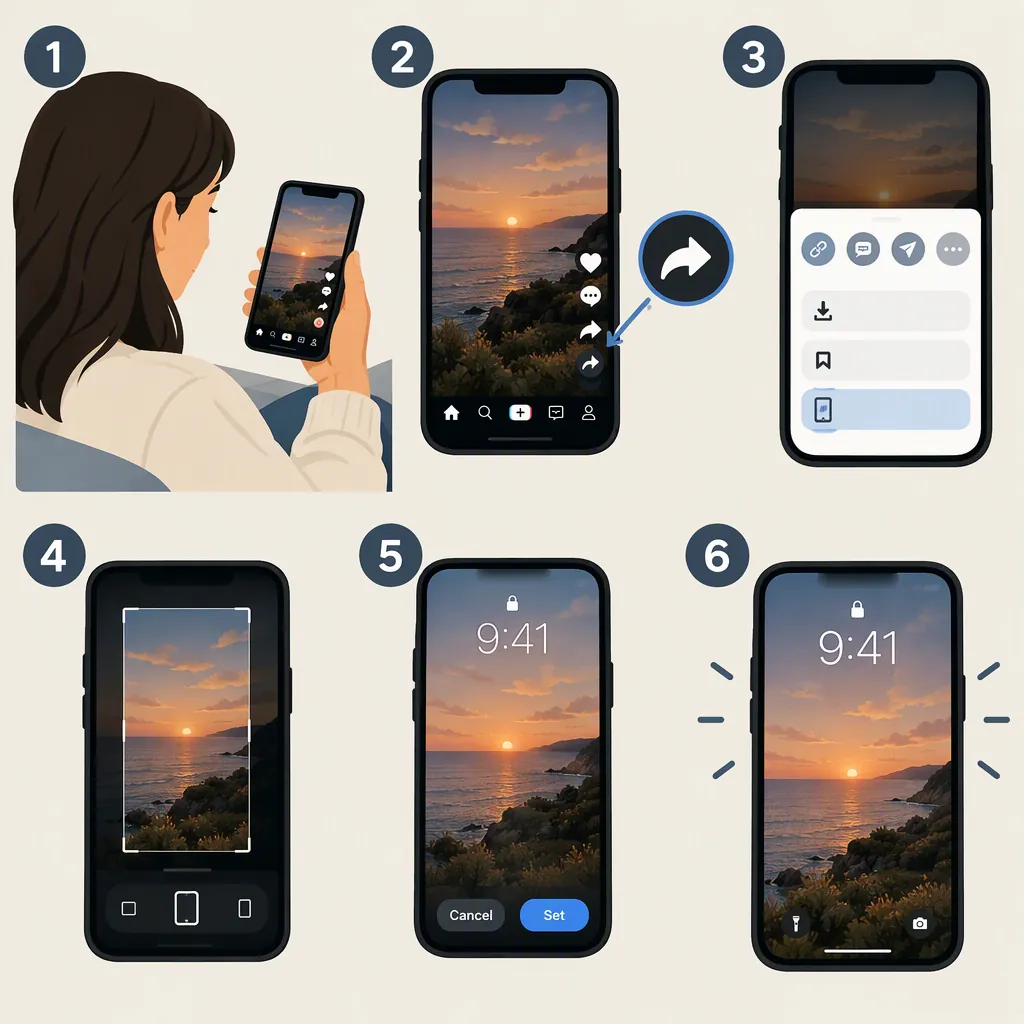
How to Make a TikTok Video Your Wallpaper
To make a TikTok video your wallpaper, open the video, tap Share, and look for Live Photo. The documented Android method uses TikTok Wall Picture to apply the exported video. On iPhone, the guide describes saving a Live Photo and choosing it as a lock-screen wallpaper—but saving the photo does not establish that it can animate on your device. The creator must allow downloads for this export method. [c1]
Compatibility note: These steps are based on a wikiHow guide updated April 5, 2025. Its iPhone instructions use an older settings sequence and press-and-hold playback. Current iOS compatibility, menu labels, and playback behavior are not confirmed here. The Android steps also depend on the app and wallpaper options being available on your phone. [c1]
Before You Start
Open the TikTok video you want to use and check its Share menu. You may need to scroll across the sharing actions to find Live Photo. If the option is grayed out, the guide attributes that to the creator disabling downloads; choose another video that permits export rather than bypassing the restriction. [c1]
Also distinguish the two goals:
- Saving a Live Photo exports the TikTok video for use in the documented wallpaper workflow.
- Applying an animated wallpaper requires your phone to support that exported item as a moving background. The guide describes different wallpaper destinations on Android and iPhone. [c1]
Set a TikTok Video as Wallpaper on Android
The guide’s Android workflow uses TikTok Wall Picture. If that app and the relevant options are available on your device, follow these steps: [c1]
- Open the Google Play Store, search for TikTok Wall Picture, and install it.
- Open your chosen video in TikTok.
- Tap Share.
- Scroll through the sharing actions if necessary, then tap Live Photo. The guide says this saves the export to TikTok Wall Picture.
- Open TikTok Wall Picture if it does not open automatically.
- Select the wallpaper you just saved to view its preview.
- Choose an available wallpaper destination and apply it. [c1]
The documented choices are the home screen or both the home and lock screens. The guide says lock-screen-only placement is not available in this workflow; that is a limitation of the described method, not a verified rule for every Android device. [c1]
Use a TikTok Live Photo on iPhone
The following is the reference guide’s recorded workflow, not a confirmed tutorial for current iOS. Complete the export stage first, then check whether your phone offers a usable wallpaper stage. The guide describes animated lock-screen wallpaper, not an animated home-screen background. [c1]
Stage 1: Export the TikTok as a Live Photo
- Open the video in TikTok.
- Tap Share.
- Find Live Photo, scrolling across the sharing actions if needed.
- Tap it if available. The guide says this saves the video as a Live Photo. [c1]
At this point, the export stage is complete. It does not prove that animated wallpaper is supported on your iPhone.
Stage 2: Try the Guide’s Recorded Lock-Screen Workflow
The guide gives this exact older sequence:
- Open Settings → Wallpaper.
- Tap Choose a New Wallpaper.
- Open Live Photos.
- Select the exported TikTok Live Photo and review its preview.
- Tap Set → Set Lock Screen. [c1]
Only follow that sequence if those options are present. If your menus differ, use the checks below rather than treating the older button names as current instructions.
The guide also describes pressing and holding the locked screen to play the image. That playback behavior falls within the compatibility limitation noted above; it is not a confirmed test for current iOS. [c1]
Troubleshoot Missing Options or a Still Wallpaper
Check where the process stopped before repeating the whole workflow.
1. Was the Live Photo Exported?
- Live Photo is not immediately visible: Scroll across TikTok’s sharing actions. [c1]
- Live Photo is grayed out: Use a different video that allows downloads. The guide identifies download restrictions as the cause. [c1]
- You selected Live Photo: Check for the exported item in TikTok Wall Picture on Android, or among your Live Photos on iPhone—the locations described by the guide. [c1]
Do not proceed as though wallpaper setup succeeded if you cannot locate the exported item.
2. Can You Select the Exported Item as Wallpaper?
On Android, check whether the saved item appears in TikTok Wall Picture and opens in its preview. On iPhone, check whether the saved Live Photo appears in the wallpaper-selection flow available on your phone. These are separate checks from the initial TikTok export. [c1]
If the item is saved but your wallpaper interface does not let you select it, the documented workflow has reached its limit. This article’s evidence does not establish a current alternative menu sequence.
3. Is There a Usable Animated Preview or Motion Option?
If your wallpaper interface offers a motion control or animated preview, inspect it before applying the wallpaper. If neither is available, or the preview remains still, do not count the result as confirmed animated wallpaper.
A selectable still image and a working animated background are different outcomes. The reference describes Live Photo wallpaper on the iPhone lock screen and a still home-screen image, but does not resolve current device compatibility. If animation is your goal and the relevant options are missing, stop here rather than assuming another export will fix it. [c1]
FAQ
Should I Repeat the Export If My Wallpaper Is Still?
First check whether the exported Live Photo is already saved and selectable. If it is, focus on the wallpaper stage rather than repeating the download. The guide separates exporting the Live Photo from applying it; its older iPhone instructions do not establish why a particular current device displays only a still image. [c1]
Can I Put the TikTok Video Only on My Lock Screen?
It depends on the documented platform workflow. The Android method offers the home screen or both screens, but not the lock screen alone. The iPhone method describes lock-screen placement, subject to the compatibility limitation above. [c1]
Does Every Android Method Require TikTok Wall Picture?
The method covered here requires TikTok Wall Picture to preview and apply the export. The reference does not establish that every possible Android wallpaper method requires that app. [c1]