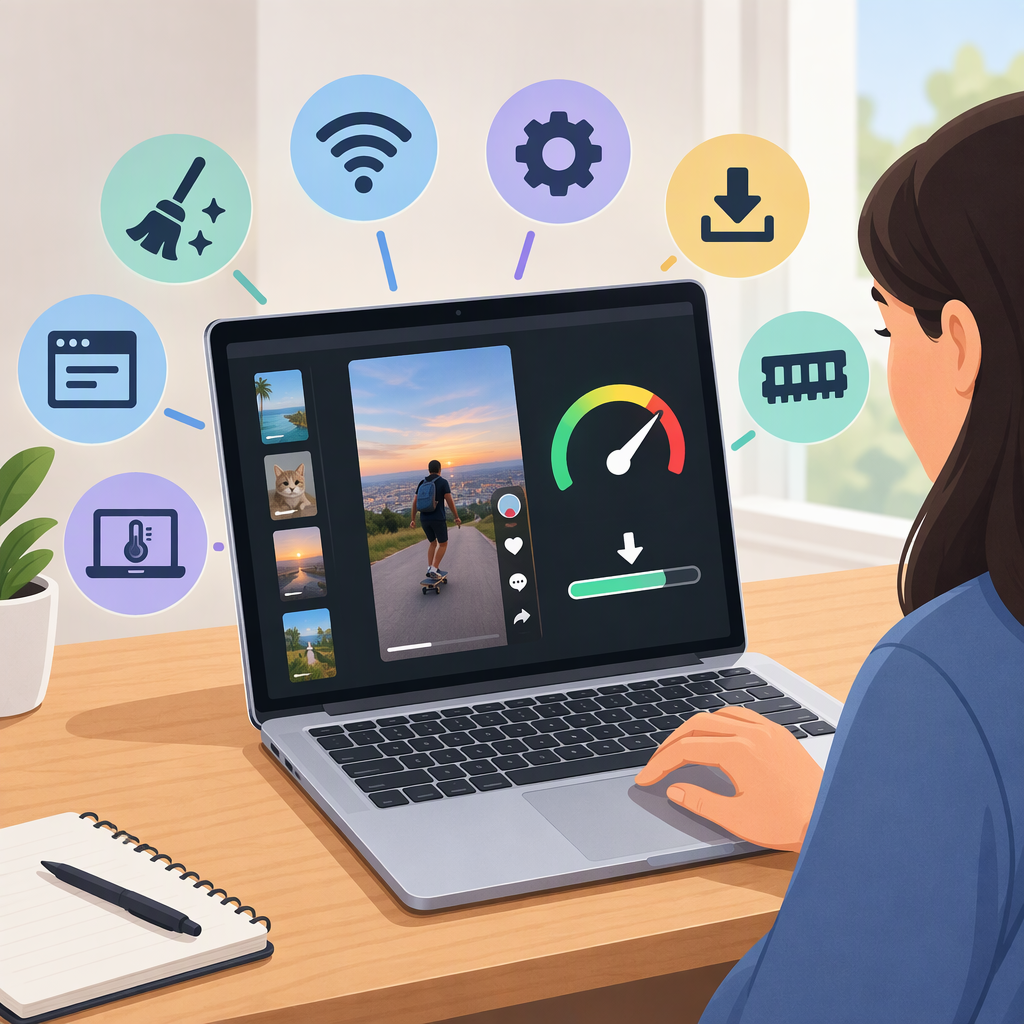
How to Make Your Laptop Faster for TikTok: Fix Slow Browsing or Downloads
If your laptop feels slow when you use TikTok, first check whether other apps and websites are slow too. If they are, start with laptop performance. If only TikTok or one browser is affected, troubleshoot that app or browser. If pages load normally but a file downloads slowly, check the download and connection separately. TikTok is not necessarily the cause.
First, Identify What Is Slow
Try these checks before changing settings:
- Use a non-browser task. Open a local document or another app you normally use. If it also responds slowly, the issue may affect the laptop beyond TikTok.
- Compare websites. Open a few unrelated sites in the same browser. If they are slow too, the issue may involve the browser or internet connection. If other sites work but TikTok does not, focus on TikTok or that browser’s settings.
- Compare browsers. Try TikTok in another browser. If it works there, the first browser is a more likely place to investigate.
- Separate loading from downloading. If pages load normally but one file is slow, try another legitimate download. If only one file is slow, its source or server may be involved; if multiple downloads and sites are slow, check the connection. If available, compare another device on the same Wi-Fi.
These comparisons help narrow down the likely category; they do not prove the cause. Browser loading can be affected by the device, browser, network, or website itself. (support.google.com)
If the Laptop Is Slow Beyond TikTok
Try one change at a time, then repeat the same task that felt slow. This makes it easier to tell whether a step helped.
On Windows 10 Or 11
- Close apps and browser tabs you are not using. Recheck the task. If responsiveness improves, keep fewer demanding tasks open while you use TikTok.
- Review startup apps. Open Settings → Apps → Startup and turn off only apps you recognize and do not need to launch automatically. Restart and compare startup and app responsiveness. Startup apps can affect boot time and overall performance. (support.microsoft.com)
- Check available storage. Open Settings → System → Storage. If the drive is nearly full, use Windows’ storage recommendations or remove files you no longer need. Review items before deleting them, and keep a backup of important files. Low storage can contribute to slower performance and can cause trouble installing updates. (support.microsoft.com)
- Check whether a process is using unusually high resources while the slowdown happens. Press Ctrl + Shift + Esc to open Task Manager. Look at CPU, Memory, and Disk use, and note whether a particular app is consistently near the top. Save your work before closing an app; avoid ending unfamiliar Windows processes. Microsoft identifies consistently high CPU, memory, or disk use as a possible sign of performance trouble. (support.microsoft.com)
Microsoft notes that several factors can contribute to slow Windows performance, and older hardware may not improve substantially from software changes. (support.microsoft.com)
On a Mac
- Quit apps and browser tabs you are not using, then repeat the task that felt slow.
- Check activity in Activity Monitor. Open Activity Monitor and review CPU and Memory while the slowdown is happening. This can show whether an app is using substantial resources; do not quit a process unless you recognize it and understand what it does. Activity Monitor reports how apps use processor and memory resources. (support.apple.com)
- Check memory pressure rather than judging by “free” memory alone. In Activity Monitor, select Memory and look at the Memory Pressure graph. Apple says green indicates memory is being used efficiently; yellow or red can indicate increasing memory pressure. (support.apple.com)
- Check storage. Choose Apple menu → System Settings → General → Storage and review the recommendations. Before deleting anything, make sure you know what it is and retain copies of important files. Apple also notes that an app may need more memory than is readily available. (support.apple.com)
Check Whether It Helped
After each step, repeat the same action—for example, opening the same set of apps or loading the same page. If the laptop remains slow across unrelated tasks, note when the slowdown occurs and which resource appears busy. Avoid “cleaner” utilities or changes to system processes unless you can verify what they do.
If Only TikTok or Your Browser Is Slow
If TikTok is slow in one browser but other sites work, try the following:
- Reload the page and restart the browser. Recheck TikTok and another site.
- Try a private window as a comparison. If TikTok loads better there, review extensions or stored browser data in your regular window. In Chrome, Google recommends testing an affected site in Incognito and, if the problem clears, proceeding to check extensions or browsing data. (support.google.com)
- Temporarily disable extensions you recognize, one at a time. Test TikTok after each change, then re-enable extensions that made no difference. Chrome’s help guidance says unwanted extensions can be turned off or removed to address browser slowness. (support.google.com)
- Try another browser. If TikTok is slow in multiple browsers while other websites work, the issue may be specific to TikTok or its service rather than one browser. TikTok provides troubleshooting help and a way to report technical problems. (support.tiktok.com)
If you mean the TikTok mobile app rather than TikTok in a laptop browser, use TikTok’s in-app troubleshooting guidance; don’t assume app instructions apply to the website. And if you mean downloading TikTok videos, that is different from slow general downloads—the steps below address download speed, not how to save TikTok content.
If Downloads or the Internet Are Slow
- Try more than one site or file. A slow download from one source does not establish that the laptop is slow. Compare another legitimate download, and note whether ordinary web pages load at their usual speed.
- Compare another device on the same Wi-Fi, if available. If both devices are slow, investigate the network or internet service; if only the laptop is affected, focus on its browser or connection settings. This is a comparison to narrow the issue, not a definitive diagnosis.
- For Chrome connection or loading problems, Google lists possible causes across device settings, browser issues, network equipment, and the website itself. Follow its connection troubleshooting steps rather than deleting files or changing security settings at random. (support.google.com)
- Treat browser download warnings as security signals. If Chrome says a file is blocked, do not bypass the warning just to test speed; check the file source and Chrome’s explanation of the specific download error. (support.google.com)
If the Problem Persists
Write down what is slow (the whole laptop, one browser, TikTok alone, or downloads from multiple sources), when it happens, and what you compared. For TikTok-specific problems, use TikTok’s support or report-a-problem route. For persistent whole-device slowness, consult Microsoft or Apple support for your operating system and device. Avoid assuming the laptop needs an upgrade or that TikTok is at fault until the comparisons point that way.