How to Make a TikTok Video Where You Change Clothes
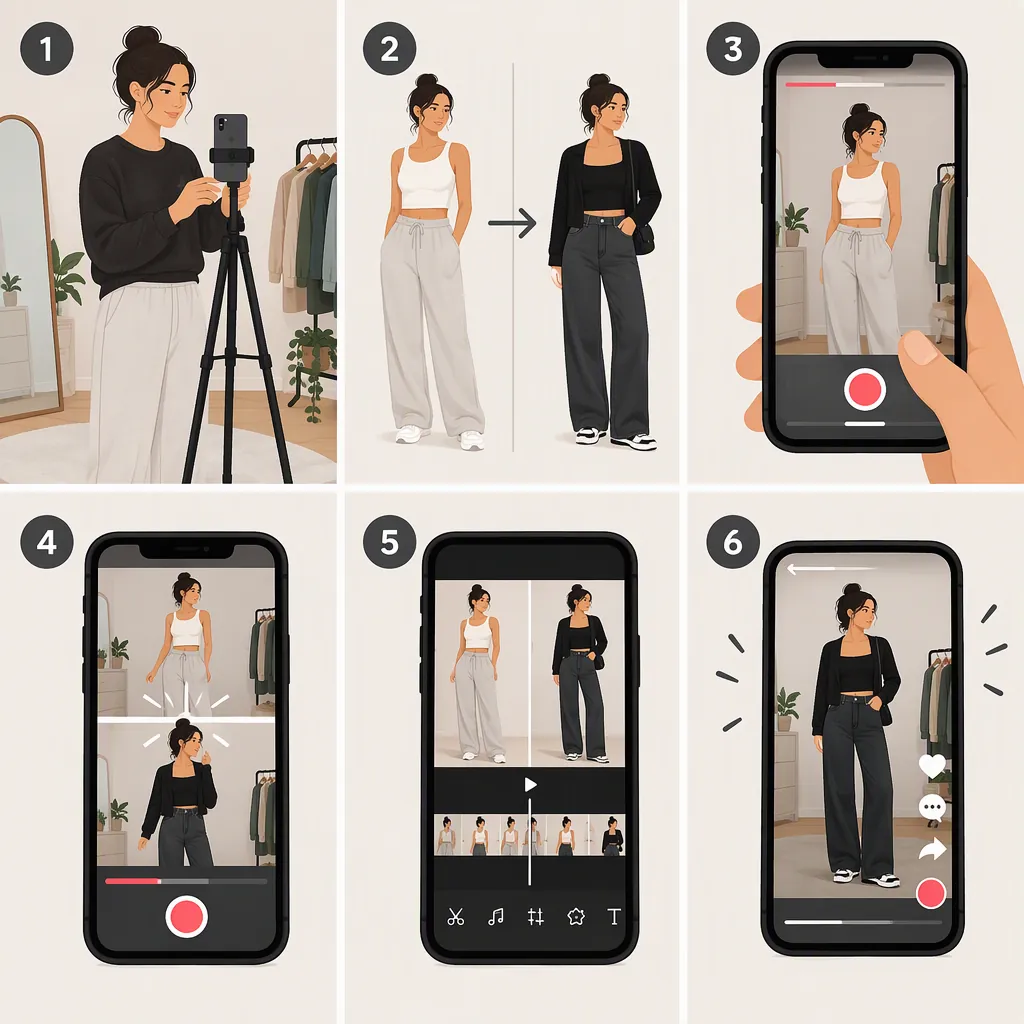
To make a TikTok clothes-change video, record yourself in one outfit, stop recording, change clothes, and begin the next clip in the same position. Repeat for each outfit, then trim and join the clips at the changeover. You can use TikTok’s recording timer or record separate clips and edit them together. The supplied tutorial describes both approaches, though its app instructions date to January 2023. [c1]
Plan the Outfit Change
The outfit changes between recordings, not during a continuous take. The supplied tutorial describes using a timer to record separate segments and matching the start of each new recording to the end of the previous one. [c1]
For a first attempt, use two outfits and one repeatable movement. A jump or a quick arm movement can serve as your changeover. Choose a moment you can reproduce in both outfits rather than trying several different movements at once.
Treat the steps below as a suggested filming workflow, not a guarantee of a seamless result. The final effect depends on how closely the clips match and where you cut them.
Two-Outfit Shot Plan
1. Outfit A: stand in your starting position and pause briefly.
2. Perform your chosen changeover movement.
3. Stop recording and change into outfit B.
4. Return to the same position and repeat the movement.
5. Hold the final pose briefly so you have room to trim.
Keep the Camera and Pose Consistent
Matching your position is the central filming instruction in the source. It also suggests marking your spot if you need to leave it to fetch another outfit. [c1]
For a practical setup, keep the camera in one place, leave the framing unchanged, and use a removable floor marker outside the visible shot. Keep your outfits nearby so you can change without disturbing the setup.
Before each take, compare your feet, shoulders, hands, and gaze with the previous clip. Try to keep the lighting and background unchanged as well. These are suggested continuity checks to reduce distractions at the cut.
Continuity Checklist
- Camera position and framing are unchanged.
- Feet return to the same floor position.
- Shoulders face the same direction.
- Hands begin at a comparable height.
- Gaze points in the same direction.
- Lighting and background remain consistent.
- Clothing and floor markers do not create a tripping hazard.
Record with a Timer or Separate Clips
The source describes two options: recording successive segments with TikTok’s Timer function, or recording separate outfit clips and combining them in an editor. [c1]
Timer approach: If your current TikTok interface offers a recording timer, use it to give yourself time to get into position. Record the first outfit segment, stop, change clothes, and record the next segment from the matching position.
Separate-clip approach: Record each outfit as its own video. Repeat the same movement in each take and keep a little footage before and after it so you have room to adjust the cut later. Save the clips together and arrange them in outfit order when editing.
The supplied tutorial was published in January 2023. It does not establish the current layout or availability of TikTok controls, so this guide avoids treating a particular button sequence as universal. [c1]
Trim the Clips at the Changeover
Place your clips in sequence and trim their adjoining ends. The source recommends arranging the clips one after another, cutting them for a seamless transition, and using a 9:16 canvas for a TikTok-oriented video. It also describes adding an audio track and muting the original recording when needed. [c1]
For a simple pose match, end the first clip on your chosen pose and start the next on the closest matching pose. For a jump, try cutting between frames where your body is at a comparable height. These are editing starting points: preview the join and move either trim point until the movement feels less interrupted.
If you want the reveal to land on a musical beat, align the clip boundary with that beat and replay the sequence. Listen for unwanted room noise before deciding whether to mute the recorded audio.
Cut-And-Review Procedure
1. Put outfit A before outfit B on the editing timeline.
2. Find the changeover movement in both clips.
3. Trim the end of A and the beginning of B to comparable poses.
4. Play across the cut at normal speed.
5. Adjust one trim point at a time.
6. Review the join again with your chosen audio.
7. Repeat for any additional outfits.
Troubleshoot the Transition
If the change looks abrupt, start by checking position matching—the source identifies this as important to making the transition seamless. [c1]
Use these checks to decide whether to adjust the edit or record another take:
- Your body shifts sideways: Compare your floor position and camera framing.
- Your hands appear to jump: Look for closer hand positions in the two clips before changing the cut.
- The motion pauses at the reveal: Try shortening the still footage around the changeover.
- The background shifts: Check whether the camera moved between takes.
- The reveal misses the beat: Move the clip boundary, then replay it with the audio.
If no pair of frames matches well enough, another take may be more useful than further trimming. Before exporting, watch the full sequence at normal speed and check the framing, clip order, audio, and final pose. These troubleshooting steps are practical suggestions rather than outcomes verified by the supplied source.
FAQ
Do I Need to Change Clothes While the Camera Is Recording?
No. The supplied workflow records one segment, pauses for the clothing change, and records the next segment. Matching the positions across those segments creates the changeover when they are joined. [c1]
Do I Need a Special Outfit-Change Effect?
Not for the basic method described here. The source explains making the transition with separate recordings, matching positions, and trimming clips rather than requiring a dedicated outfit-change effect. [c1]
Can I Record the Clips Outside TikTok?
Yes. The supplied tutorial describes recording several videos in different outfits, combining them in an editor, and saving the finished video for upload. Its recommendation for a TikTok-oriented canvas is 9:16. [c1]
Why Does My Outfit Change Look Like a Jump Cut?
First check whether the end of the first clip and the beginning of the next show you in the same position. That matching step is emphasized in the source. If your position matches, try adjusting the trim points to make the movement more continuous; this is a suggested editing check, not a guaranteed fix. [c1]