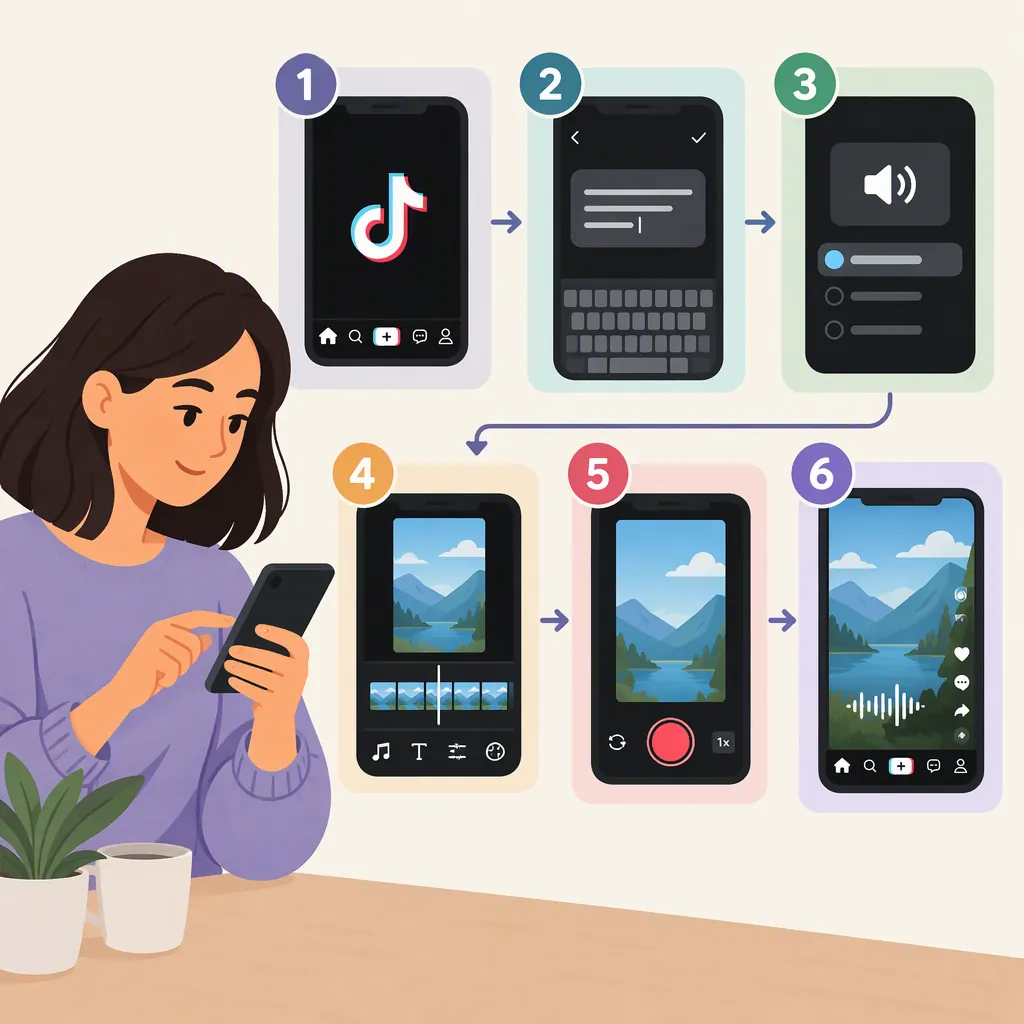
How to Make a Text-To-Speech Video on TikTok
To make a text-to-speech video on TikTok, record or upload a video, tap the text tool labeled “Aa,” and type your narration. Tap the text and choose “Text-to-speech.” Select a voice if options appear, adjust the text’s timing with “Set duration,” and preview before proceeding to the publishing screen. This workflow comes from a December 2024 third-party guide; menus and available voices may differ in your app. [c1]
Add Text-To-Speech to Your Video
TikTok’s text-to-speech feature turns written text into automated spoken narration over a video. It is different from transcribing speech into captions: here, you supply the words you want the voice to say. [c1]
The supplied guide describes this mobile-app workflow:
- Record or upload a video. Open TikTok and record a new clip or select one from your camera roll.
- Add your words. In the editing interface, tap the text tool labeled Aa and type a short line of narration.
- Enable narration. Tap the text to open its options, then select Text-to-speech.
- Choose a voice if available. The guide describes a speaking-head icon for voice selection, but available options can vary by region.
- Preview the result. Listen to the narration and check the video before tapping Next to reach the publishing screen. [c1]
These instructions are based on a third-party guide updated December 20, 2024, not a current TikTok help document. Treat the labels as a starting point rather than a guarantee that your interface will look identical.
Match the Text and Narration to the Clip
After adding narration, tap the text and look for Set duration. The guide says this control lets you adjust when the text appears and how long it remains visible. It also describes adding separate text elements at different points in the video. [c1]
For a longer explanation, try one short text element per idea rather than placing the entire script in a single block. The guide recommends dividing longer messages into smaller segments for pacing. [c1]
During your preview, check the visible text and the spoken audio separately. Do not assume that changing the text’s display duration will necessarily change the voice’s speaking speed; the supplied reference does not establish that behavior. If a line feels rushed or extends beyond the relevant action, try shortening the wording and previewing again.
Three-Part Narration Template
Use this original example as a planning template, not as a required TikTok setting:

- Opening shot: “Here is the finished paper bookmark.”
- Demonstration shot: “Fold the corner inward.”
- Final shot: “Press the fold flat.”

Place each line with its matching shot, apply text-to-speech, and preview the transitions. Revise any line that does not fit the action.
Troubleshoot Missing Text-To-Speech Options
If Text-to-speech or a preferred voice is missing, do not assume you have skipped a step. The supplied guide notes regional differences in voice availability and possible temporary app issues. It suggests updating TikTok, restarting the app, clearing its cache, and reporting persistent problems through in-app support. These are troubleshooting suggestions, not guaranteed fixes. [c1]
Try the lower-disruption checks first:
- Confirm that you have added text and opened that text element’s options.
- Check your app store for an available TikTok update.
- Close and reopen TikTok, then check the text options again.
- If the problem persists, look for Report a problem in TikTok’s settings. The guide places it under Support & About, though the current menu may differ. [c1]
The reference does not establish a universal voice list or a guaranteed way to restore a particular voice. Avoid changing account type solely on the assumption that it will unlock one.
Review the Video Before Publishing
The guide recommends previewing the video before proceeding to the publishing screen. [c1] Use that preview to assess the actual output rather than relying only on the words in the text editor.
The following checklist is an editorial recommendation. It is not a statement about TikTok requirements or a guarantee of accessibility.
Pre-Publishing Checklist
- Play the full video with sound on.
- Check that every intended line is spoken.
- Listen for unclear pronunciation, especially names and abbreviations.
- Check that each line accompanies the relevant visual.
- Make sure music or other audio does not obscure the narration.
- Review the visible text with sound off for readability and placement.
- Correct spelling and preview again after edits.
FAQ
Do I Need to Record My Own Voice?
No. In the workflow described by the supplied guide, TikTok generates automated narration from the text you enter, so recording your own voice is not required. [c1]
Can I Choose a Different Text-To-Speech Voice?
The guide describes voice selection through a speaking-head icon in the text-editing menu, where available. It also notes that some voices may not be available in every region. It does not establish which voices your account will currently show. [c1]
Can I Add Narration at Different Points in the Video?
Yes, according to the supplied guide: add separate text elements, apply text-to-speech to them, and position them at different points in the video. Preview the result to check the sequence and pacing. [c1]
Does Set Duration Change the Voice’s Speaking Speed?
The supplied guide describes Set duration as controlling when text is visible and for how long. It does not establish that this control changes narration speed. Check the audio in preview instead of assuming the two are linked. [c1]