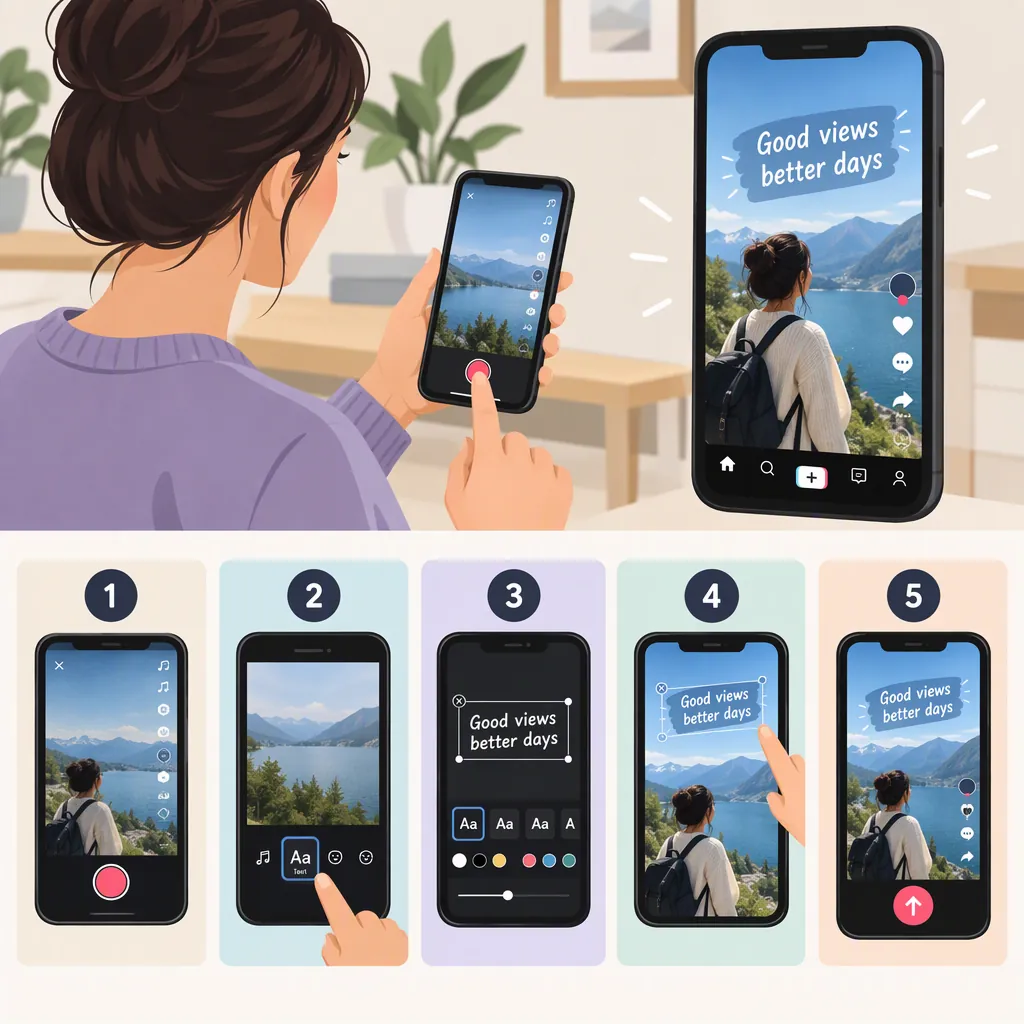
How to Make a TikTok with Text Overlays
To make a TikTok with text, record or upload a video, open the editing screen, and select Text. Type your message, adjust its appearance, and drag it into position. Tap the text box and choose Set duration to control when it appears, then preview the video before posting. These steps follow Riverside’s published guide; exact controls may differ from those shown in your app. [c1]
Add Text to Your TikTok Video
For words that appear over your footage, use the video editor’s text tool—not TikTok’s separate text-post format.
Riverside’s guide describes this workflow: [c1]
- Create or upload a video. Open TikTok and tap the + icon. Record your clip or upload existing footage, then proceed to the editing screen.
- Select Text. Open the text tool and type the words you want viewers to see.
- Style the text. Use the available controls to adjust the font, color, size, or other styling.
- Position the text. Drag the text box to the desired place in the frame.
- Revise the wording. Tap the text box and select Edit if you need to make changes.
Start with one short message, such as a title or a label for the action on screen. Add more text only where it helps explain the clip.
The provided video-editing instructions come from a third-party guide, not current TikTok Help Center documentation. Treat the button names as a guide rather than a guarantee of your app’s exact layout.
Set When Each Text Box Appears
To show a label only during the relevant part of your video, tap that text box and choose Set duration. Riverside describes dragging the ends of the duration slider to set its start and end points, then confirming with the check icon. [c1]
For several messages, add separate text boxes and adjust each one’s timing. The guide also describes a timeline editing option for matching text to specific moments. Text boxes can appear in sequence or overlap. [c1]
As an editing practice, match each label to the action it describes. Preview the full sequence and give yourself enough time to read each message comfortably. If a label feels rushed, shorten the wording or extend its duration.
Example Text Timing Plan
Use this illustrative plan for a 12-second tutorial, adjusting it to your footage:

- 0–3 seconds: A short title describing the task.
- 3–7 seconds: A label for the first action.
- 7–10 seconds: A label for the next action.
- 10–12 seconds: A brief result or summary.

Preview once while reading every label. Shorten or retime any text you cannot finish comfortably.
Check Readability Before Posting
Before publishing, preview the video with its text overlays. Riverside’s guide states that on-screen text is no longer editable once the video is live, making this review important. [c1]
Use the checklist below as a practical editing aid, not as a platform requirement. Keep text away from important visual details, choose a color that remains readable as the background changes, and avoid stacking several messages in the same area.
If the video includes speech, distinguish a short title or label from a transcript of what is said. A few summary words should not be treated as a complete substitute for the spoken information.
Pre-Publish Text Checklist
- Read every text box for spelling and accuracy.
- Watch each label appear and disappear at the intended moment.
- Check that the text does not cover the action being explained.
- Check contrast across changing backgrounds.
- Watch once without sound to identify missing context.
- Review the final preview before publishing.
Text Overlays, Text-To-Speech, and Text Posts
These options serve different purposes:
- Text overlays place written words over video footage. Riverside describes controls for styling, placement, and timing. [c1]
- Text-to-speech reads written text aloud. Riverside describes selecting a text box and choosing Text-to-speech, then choosing a voice. Availability and controls should be checked in your app. [c1]
- Text posts are a separate publishing format. TikTok’s July 2023 announcement describes choosing Text from the Camera page and writing a post, with options such as background colors, stickers, and sound. That announcement does not establish the exact current interface. [c2]
If your goal is words over a recorded clip, follow the video-overlay workflow. If the written message itself is the post, the separate text-post format is the relevant option.
FAQ
Can I Add Different Text at Different Times?
Yes. Riverside’s guide describes adding multiple text boxes and setting their timing individually so they appear in sequence or overlap. Use a separate box for each message you want to time independently. [c1]
How Do I Change the Font or Color?
Select the text box and open its editing controls. Riverside describes options for changing the font, color, and style. The exact controls may differ from the guide’s layout. [c1]
Can I Change the On-Screen Text After Posting?
According to Riverside’s guide, on-screen text is not editable once the video is live. Check the wording, placement, and timing in the preview before publishing. This statement concerns text inside the video, not the post’s written description. [c1]