How to Make a Video Faster on TikTok
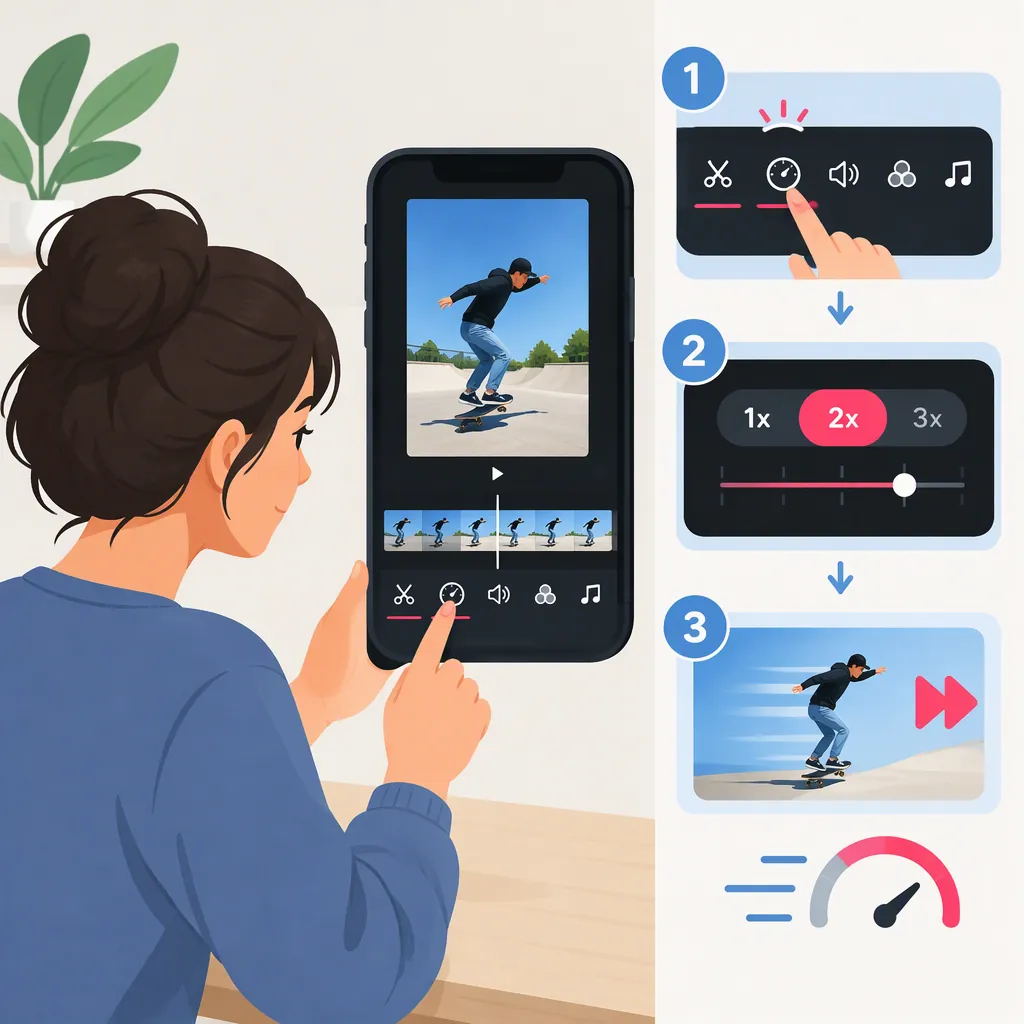
To make a new TikTok video faster, the referenced Android tutorial describes tapping + and choosing 2x or 3x before recording, if your creation screen offers Speed or speed multipliers. For a saved video, check whether the upload editor has a speed adjustment; if not, change the clip’s speed in a video editor, export it, and upload the edited file. The tutorial describes both in-app and external editing approaches. [c1]
Source limitation: These TikTok workflows come from one third-party tutorial, not official TikTok documentation or a verified test of the current app. Exact controls and availability are not established for every device. Use the options visible in your app rather than assuming the tutorial’s menu layout matches yours.
Speed up a New Recording
The tutorial’s recording instructions are for TikTok on Android. If the speed options appear on your creation screen, follow this workflow: [c1]
- Open TikTok and tap +.
- Look for Speed or the speed multipliers.
- Select 2x or 3x, if available.
- Record a short test clip.
- Preview it before recording the full video.
Try 2x first. If important movements become difficult to follow, choose a lower multiplier if offered. To accelerate only one part of a video, use a clip editor that supports adjusting individual sections.
Speed up a Saved Video
The tutorial also describes an upload-speed workflow. Treat the following as a conditional check of your available controls, not a verified menu sequence for every current TikTok interface. [c1]
- Tap + and choose the upload option.
- Select your saved video.
- Check the available clip-editing controls for a speed adjustment.
- If one is available, select a faster multiplier and preview the clip.
- Confirm that the footage actually plays faster before continuing.
Do not assume that a speed selection used for recording also changes an uploaded clip. Check the preview.
If TikTok Does Not Offer a Suitable Speed Control
External editing is an alternative described in the tutorial. [c1] The steps below are a general video-editing workflow, not TikTok menu instructions; control names depend on the editor you use.
- Import the original video into an editor with speed controls.
- Select the clip or section you want to accelerate.
- Open its speed setting and choose a multiplier above 1x, such as 2x if supported.
- Preview the result, checking the action, audio, text timing, and new duration.
- Export the edited video as a new file, keeping the original.
- Upload the exported file to TikTok and preview it again before posting.
If you have already accelerated the exported file, avoid applying another speed increase unless you intentionally want it to play even faster.
Preview Checklist
- Confirm that the action is visibly faster.
- Check that important movements remain understandable.
- Listen to speech and original audio.
- Make sure text stays on screen long enough to read.
- Check the final duration.
- Keep the original file until you are satisfied with the result.
Choose a Speed That Fits the Clip
For an existing clip played at a constant speed:
New duration = original duration ÷ speed multiplier.
For example, assuming no other edits:
| Original duration | At 2x | At 3x |
|---|---|---|
| 15 seconds | 7.5 seconds | 5 seconds |
| 30 seconds | 15 seconds | 10 seconds |
| 60 seconds | 30 seconds | 20 seconds |
These are calculated durations, not measured TikTok results. They apply to footage accelerated after recording, not necessarily to the time you spend capturing a new clip.
Choose the speed by previewing the content, not just by targeting a shorter duration:
- Demonstrations: Keep key steps slow enough to understand.
- Speech-heavy clips: Consider trimming pauses instead of accelerating all the dialogue.
- Mixed footage: If your editor supports it, speed up less important sections while leaving essential moments at normal speed.
- Clips with text or audio: Review both after changing speed rather than assuming their timing remains suitable.
Editing Speed Versus Playback Speed
Editing speed changes the video you are preparing to upload. Playback speed changes how you watch an existing video.
The tutorial describes a separate viewing method: press and hold a TikTok video, look for a speed option, and select 1.5x or 2x if offered. That is a viewing control, not a way to edit your own upload. [c1]
For the goal of making your video faster on TikTok, use the recording or saved-clip workflows above.
FAQ
Should I Choose 2X or 3X?
Both appear in the tutorial’s Android recording instructions, if those controls are available in your app. [c1] Start with 2x and preview the result; try 3x only if the important action stays clear.
What If I Cannot Find a Speed Control for My Upload?
Use a video editor with speed adjustment: import the clip, select it, change the multiplier, preview, export, and upload the edited file. External editing is an alternative described in the tutorial. [c1]
Does 2X Make a Saved Video Half as Long?
Yes—if the entire existing clip is played at a constant 2x speed with no other edits. A 30-second clip becomes approximately 15 seconds. The tutorial lists 2x as a faster-speed option, but this duration example is a calculation rather than a tested TikTok result. [c1]
Will Changing Playback Speed Make My Upload Faster?
No. The tutorial distinguishes viewing-speed controls from recording and upload workflows. To prepare a faster video of your own, change its recording or editing speed, not the playback setting used while watching. [c1]