How to Make a Slideshow on TikTok: Photos or Video
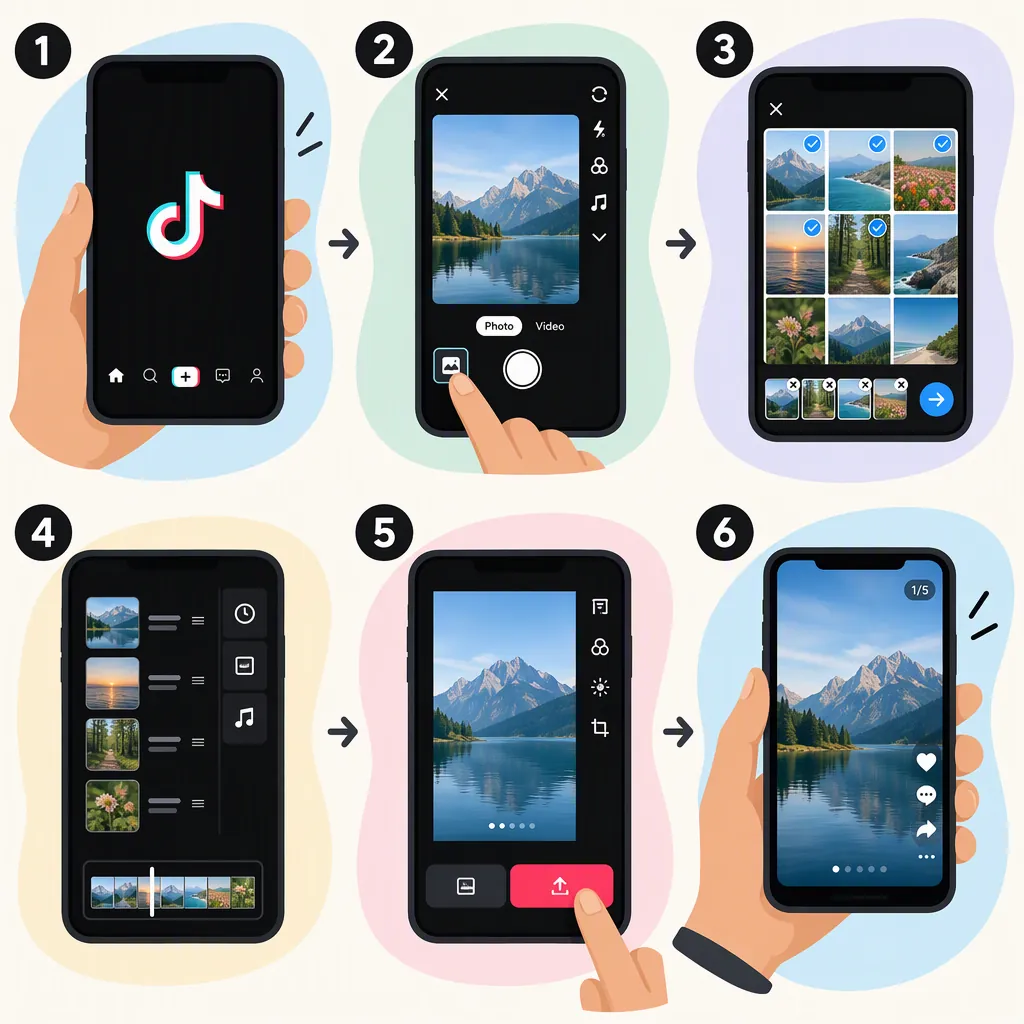
To make a swipeable slideshow on TikTok, tap +, choose Photo or Upload, enable Select multiple if needed, and select your pictures in order. Choose Photo Mode rather than a video template, add text or sound, preview the post, and complete the publishing screen. For pictures that play as a video, use a slideshow template instead. Labels and feature availability may vary by account, device, and region. [src_1]
Choose Between Swipeable Photos and a Picture Video
A TikTok “slide” usually means one image in a multi-photo post. Before selecting pictures, decide how you want viewers to move through them:
- Swipeable photo carousel: Use Photo Mode so viewers can move between pictures at their own pace.
- Picture-based video: Use a slideshow template for images that advance automatically with preset effects and sound.
The provided guide distinguishes Photo Mode carousels from template-based, non-swipeable slideshows. An automatically playing preview alone is not a reliable reason to assume you have chosen the wrong format; check the selected format too. [src_1]
As an editorial choice, a swipeable carousel suits instructions that readers may need time to study. A picture video suits a sequence where you want to set the pace.
Source limitation: This walkthrough is based on the supplied Shopify guide, not TikTok’s official documentation. Treat button names and positions as a guide rather than a guaranteed match for your screen. The source notes that feature availability can differ across accounts, devices, and regions. [src_1]
Make a Swipeable TikTok Photo Slideshow
Follow the Photo Mode workflow described in the supplied guide: [src_1]
- Open TikTok and sign in. Allow access to the pictures you intend to upload. Selected-photo access is an option described by the source if you do not want to share your entire library.
- Tap + to create a post. Look for Photo and Upload. The exact arrangement may differ on your screen.
- Select your pictures. Enable Select multiple if it appears, then choose the photos in the order you want viewers to see them.
- Confirm Photo Mode. If the pictures load as a video-style slideshow, look for a Photo or carousel option. Avoid choosing a template if swiping is your goal.
- Edit the sequence. Where available, use the arrange controls to reorder images and the text tools to add explanations. Add or change the sound if desired.
- Preview and finish. Check the image order, text, and audio. Tap Next, add a caption, review the publishing options, and post only after checking the result.
Keep each slide focused on one idea. For example, an instructional sequence could show the materials, the first action, the next action, and the finished result. This is a suggested layout, not a TikTok requirement.
Pre-Publishing Review Checklist
- [ ] The selected format matches the intended viewing experience.
- [ ] The pictures appear in the intended order.
- [ ] Each image and its text are readable in the preview.
- [ ] Important details are not cropped out.
- [ ] Any selected sound is appropriate for the intended use.
- [ ] The caption is accurate and contains no unintended personal information.
- [ ] The publishing settings have been reviewed.
Make a TikTok Video with Pictures and Music
For an automatically advancing slideshow, the supplied guide describes this template-based route: [src_1]
- Tap + and look for Template in the creation options.
- Browse the templates and read the displayed image-count and aspect-ratio requirements.
- Choose a template, upload the required pictures, and continue to the preview.
- Review the preset effects and music. Use Add sound, where available, to choose a different track.
- Make any supported text or filter changes, then preview the full sequence before completing the publishing screen.
A template may not accept every photo you want to include. Choose a different template or reduce the selection to meet its displayed requirements. Templates are generally designed to play like videos rather than offer manual swiping. [src_1]
Do not assume that a song available in the app is cleared for every use. The supplied guide warns that trending music may not be licensed for commercial use and points businesses toward TikTok’s Commercial Music Library. Check the applicable usage terms for the audio you select. [src_1]
Troubleshoot Common Slideshow Problems
The supplied guide suggests these checks for common problems. They are troubleshooting steps, not guaranteed fixes. [src_1]
| Problem | What to Check |
|---|---|
| Photo Mode is missing | Update TikTok, close and reopen the app, then check the creation menu again. Availability may still differ by account or region. |
| The slideshow is not swipeable | Check whether you selected a video template rather than Photo Mode. Look for a Photo or carousel option before posting. |
| Some pictures do not appear in Upload | Check whether TikTok has permission to access those specific photos. |
| A template rejects your selection | Read its displayed photo-count and aspect-ratio requirements. |
| Pictures look blurry | Try higher-resolution originals rather than screenshots or previously compressed downloads. |
| Uploading stalls | Check your connection, restart the app, and confirm that it is updated. |
If Photo Mode remains unavailable, a template-based picture video is a different format—not a way to guarantee a swipeable carousel. Avoid repeatedly rebuilding the same post expecting a template to become swipeable. [src_1]
FAQ
How Do I Make TikTok Slides Swipeable?
Upload multiple pictures and select Photo Mode or the carousel option rather than a video template. The supplied guide describes templates as generally non-swipeable. If the Photo option is missing, update and restart the app, but access is not guaranteed for every account. [src_1]
How Do I Add Text to TikTok Photo Slides?
After uploading the photos, look for Text in the editing screen. Add your explanation and check which image or part of the sequence it appears on. Text and timing controls depend on the selected format and available editor, so verify the result in the preview rather than assuming the same controls exist everywhere. [src_1]
Do I Need Another App to Make a TikTok Slideshow?
No separate editor is required for the native workflows described in the supplied guide. TikTok provides Photo Mode for photo posts and templates for picture-based videos, where those features are available. [src_1]