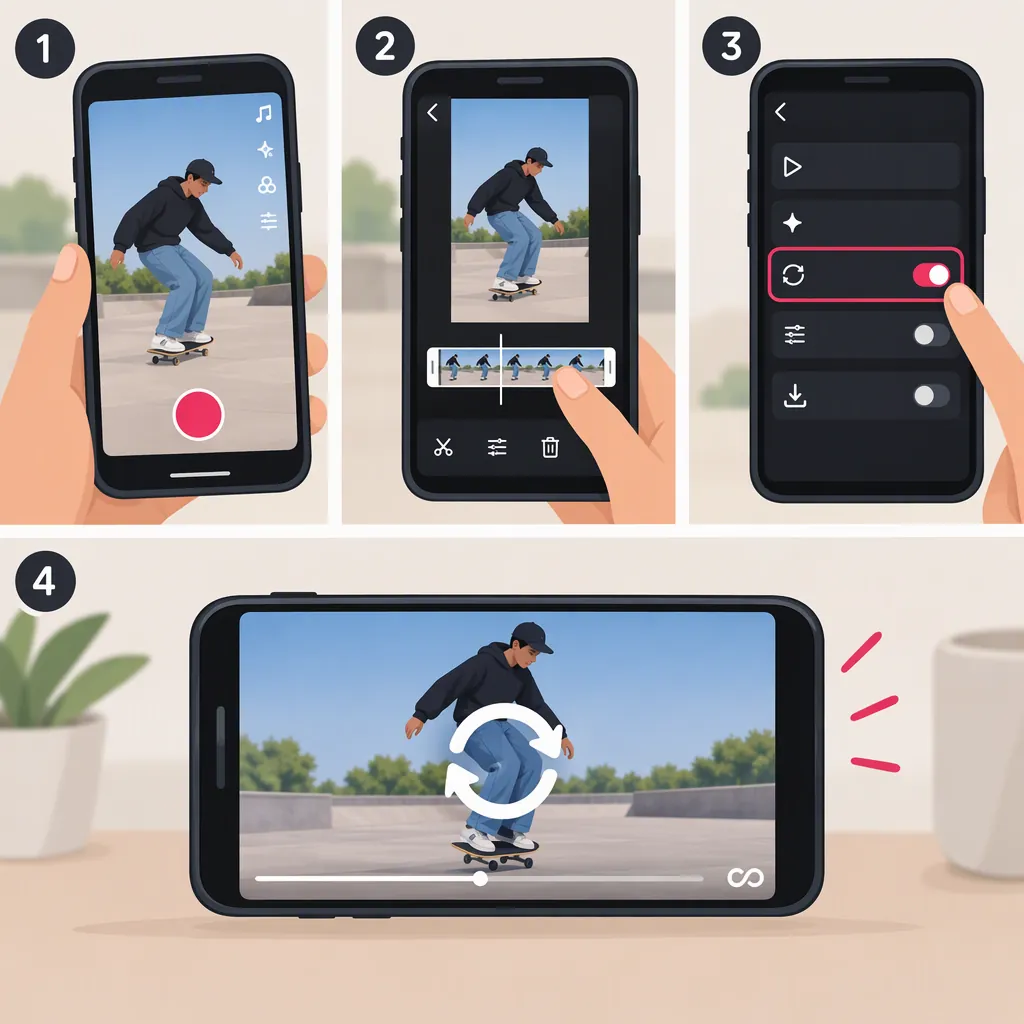
How to Make a Loop on TikTok
To make a seamless TikTok loop, edit your video so its ending connects naturally to its beginning. Record an action that returns to its starting position, trim one complete cycle, and place two copies back to back in an editor to test the join. Then export the intended number of cycles, import the finished video into TikTok, and check the sound, text, and effects before preparing it for publication.
A note on TikTok controls: AdvertiseMint’s August 2023 tutorial describes importing a video, selecting and trimming music, and previewing the result. It is a third-party, audio-focused guide—not current official documentation—and does not verify a dedicated video-loop button. The workflow below therefore relies on preparing the loop in an editor rather than on a particular TikTok control. [c1]
1. Choose the Type of Loop You Want
There are two different goals:
- A seamless video loop: The ending connects to the beginning without an obvious jump.
- Repeated footage or audio inside one file: A segment appears more than once in the exported video.
For a seamless loop, focus on the end-to-start transition. For several repetitions inside one file, duplicate the finished cycle in an editor that supports clip duplication.
These approaches can overlap: you can export several copies of a seamless cycle. Neither approach depends on assuming that TikTok’s preview will continuously replay the video.
Loop Planning Checklist
Before recording, decide:
- What action will return to its starting point?
- What pose or object position will mark the beginning and ending?
- How will you keep the camera and lighting consistent?
- Where should the audio reconnect?
- Do you want one cycle or several repetitions in the exported file?
2. Record a Beginning and Ending That Match
Choose a simple, repeatable action: rotate an object, move a hand in a circle, or step out of and back into the same pose.
- Keep the camera in one position for the take.
- Mark the subject’s or object’s starting position.
- Record the action and return to that position.
- Leave extra footage before and after the action so you have room to adjust the cut.
Match more than the subject’s position. The direction and pace of movement should also connect across the boundary. For a first attempt, avoid changing the lighting, camera angle, or background during the take.
Practice Shot: One Full Rotation
Place an object on a marked spot and record it turning through one full rotation at a steady pace. Finish in its original orientation.
In your editor, look for two moments when the object has the same orientation and is moving in the same direction. Those moments are candidate boundaries for one cycle—not necessarily the final trim points.
3. Trim and Test the End-To-Start Transition
Open the footage in an editor with trimming and timeline controls.
- Set the opening at a clearly identifiable pose or object position.
- Find a closing moment that matches it as closely as possible.
- Trim away the extra footage.
- Temporarily place a duplicate immediately after the clip, with no gap.
- Play across the join at normal speed.
- Adjust the trim points and test again.
The two-copy test is the key check: it lets you see the ending followed immediately by the beginning without relying on TikTok’s playback behavior.
Example: Finding One Cycle on the Timeline
Suppose a rotating object faces forward near the start of a take and faces forward again after one complete turn. Use those two positions to identify roughly one cycle, then place two copies of that cycle back to back.
If both the final frame and the next opening frame show the same position, the duplicated boundary may look like a brief hold. Try trimming a frame from one side and replaying the join. This is a hypothetical example, not a fixed-duration rule; the right cut depends on the footage.
Troubleshoot the Join
| What you notice | What to try |
|---|---|
| A brief pause | Check for duplicated boundary frames and try trimming one frame. |
| A visible jump | Compare the subject’s position and movement direction on both sides. |
| A sudden speed change | Choose boundaries with a more consistent movement pace. |
| A change in brightness or framing | Find closer-matching moments or record another take. |
| Overlapping or ghosted images | Try a direct cut instead of a dissolve. |
Start with a direct cut. Use a short dissolve only if the visible overlap suits the footage.
For a single-cycle export, remove the temporary duplicate after testing. Keep duplicates only when you want repeated footage inside the file.
4. Make the Audio Fit the Loop
Treat the audio boundary separately from the visual boundary. A smooth picture transition can still feel abrupt if a word, beat, or background sound cuts off.
Choose a segment with a clear rhythmic boundary, or prepare repeated audio in an editor that supports audio duplication. Listen to the ending followed immediately by the beginning—not just the middle of the clip.
AdvertiseMint’s guide describes selecting a TikTok sound, adjusting its segment with trimming controls, and previewing it. Although it calls the trimming step “Set the Loop,” it does not clearly explain a separate operation that repeats the excerpt throughout the video. Choosing a sound segment is not the same as repeating that segment. [c1]
Audio Boundary Checklist
Listen across two consecutive copies of the prepared clip and check for:
- An unfinished word or lyric.
- An unintended gap or sudden silence.
- A click or abrupt volume change.
- A beat that reconnects awkwardly.
Move the audio boundary and listen again if needed. If you plan to add a TikTok sound after importing the video, check that selected segment against the finished footage rather than assuming it will match the visual loop.
5. Export and Bring the Finished Loop into TikTok
First, review the exported file. Confirm that it contains one cycle or the exact repetitions you intended, with no extra frames or gaps.
Then complete the TikTok-side review:
- Import the finished video into TikTok’s creation workflow. The AdvertiseMint guide describes choosing an existing video from the gallery; exact controls may differ from its 2023 description. [c1]
- Check the sound. If you select a TikTok sound, preview its timing and volume against the video. Listen for unwanted overlap with any audio already in the exported file. The guide describes sound selection, volume adjustment, and previewing. [c1]
- Review any text, stickers, or effects you add. Watch the opening and closing moments for abrupt changes that could undermine the transition. The guide describes adding creative elements during preparation. [c1]
- Confirm the intended duration and repetitions. Check that the prepared video still contains the cycles you meant to include.
- Finish publication preparation. Review the caption and audience settings before deciding whether to publish. These preparation steps are also described in the guide. [c1]
Use TikTok’s available preview to check the prepared video, but do not assume it can demonstrate a continuous end-to-start join. Confirm that join with the two-copy test in your editor before export.
Final Loop Checklist
- The ending connects to the opening.
- Movement stays consistent across the boundary.
- Audio reconnects without an unintended interruption.
- Text and effects do not create an unwanted jump.
- The export contains only the repetitions you intended.
- The imported video has been reviewed in TikTok.
- The caption and audience settings have been checked.
FAQ
Is There a Loop Button in TikTok?
A dedicated video-loop button is not verified by the AdvertiseMint tutorial; it describes music selection and trimming instead. Prepare a matching end-to-start transition in your footage rather than depending on an unverified control. [c1]
Does Trimming a TikTok Sound Make It Repeat?
Do not assume so. Selecting an excerpt determines which part of the sound you use; the AdvertiseMint guide does not clearly establish a separate step for repeating that excerpt. If repetition is essential, prepare and test it in an editor with suitable audio controls. [c1]
How Can I Fix a Visible Jump at the Loop Point?
Place two copies back to back in your editor and inspect the join. Match the subject’s position, movement direction, and pace more closely, then adjust the trim points. If the transition pauses, try removing a boundary frame. If framing or lighting differs substantially, consider recording another take.
Should I Export One Cycle or Several Copies?
Export one cycle if you only need a video whose ending matches its beginning. Export several copies if you want the action to repeat within the file itself. Remove any temporary testing duplicate unless it is part of the repetitions you intend to keep.
Can I Check the Entire Loop in TikTok’s Preview?
Use the available preview to check sound timing, overlays, effects, and the prepared video’s duration. For the end-to-start transition, use two adjacent copies in your editor first. That test does not depend on whether TikTok’s preview continuously replays the clip.