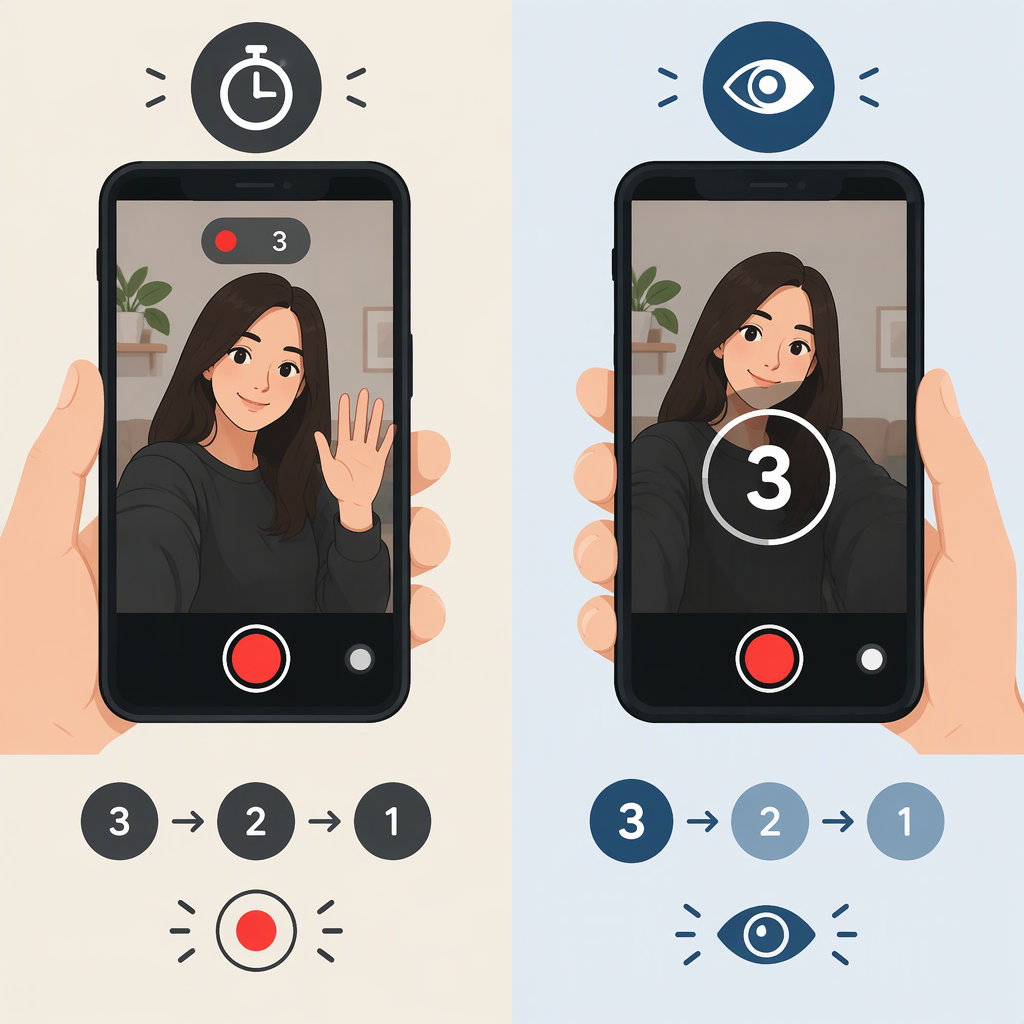
How to Make a Countdown on TikTok: Recording Timer Vs. Visible Countdown
How to Make a Countdown on TikTok
If you want viewers to see a countdown in your video, add countdown numbers as timed text—or create the countdown in a separate video editor and upload the finished clip. TikTok’s Timer is different: it delays the start of recording so you can get ready; it is not itself a countdown graphic in the finished video. (support.tiktok.com)
Make a Visible Countdown with Timed Text
TikTok supports adding text to a recorded or uploaded video. Its enhanced editing tools also support setting text duration, though controls can vary with the editing flow or app version. (support.tiktok.com)
- Tap Add post (+) and record a clip or upload a video.
- On the editing or preview screen, tap Text and enter the first number, such as 3. Position and style it so it is easy to read.
- Tap the text. If Set duration appears, choose when the number should appear and disappear, then save the timing.
- Repeat for 2 and 1, placing each number immediately after the previous one. Preview the sequence to check that the numbers appear in order and do not overlap.
- Continue with your main video, then save as a draft or proceed to the posting screen.
A simple example is 3 → 2 → 1 → opening line or action → main content. The numbers and their timing are choices for your edit, not a preset duration recommended by TikTok. TikTok’s Help Center documents adding and positioning text; TikTok’s newsroom describes tools for setting text duration. (support.tiktok.com)
If “Set duration” isn’t available: Use a separate video editor to place the numbers over the opening and export the completed video, then upload it to TikTok. That makes the countdown part of the video itself; it is an editing alternative, not a TikTok recording-timer feature.
Use TikTok’s Timer to Start Recording Hands-Free
To use the recording timer, tap Add post (+), select a video length, tap Timer on the side panel, choose a countdown delay, adjust the recording limit if needed, and tap Start countdown. TikTok describes this tool as a way to record without holding the record button. Use it to prepare to film—not as a substitute for countdown numbers that viewers should see. (support.tiktok.com)
Fit the Countdown into an Intro or Outro
A straightforward structure is countdown → first line or action → main video. For instance, after 3, 2, 1, begin speaking or show the action that starts the video. An outro is optional: if you want one, add a separate closing message after the main content. Preview the whole video before posting to confirm the countdown is legible, ordered correctly, and followed by the intended opening. No particular countdown or outro length is required for this structure.