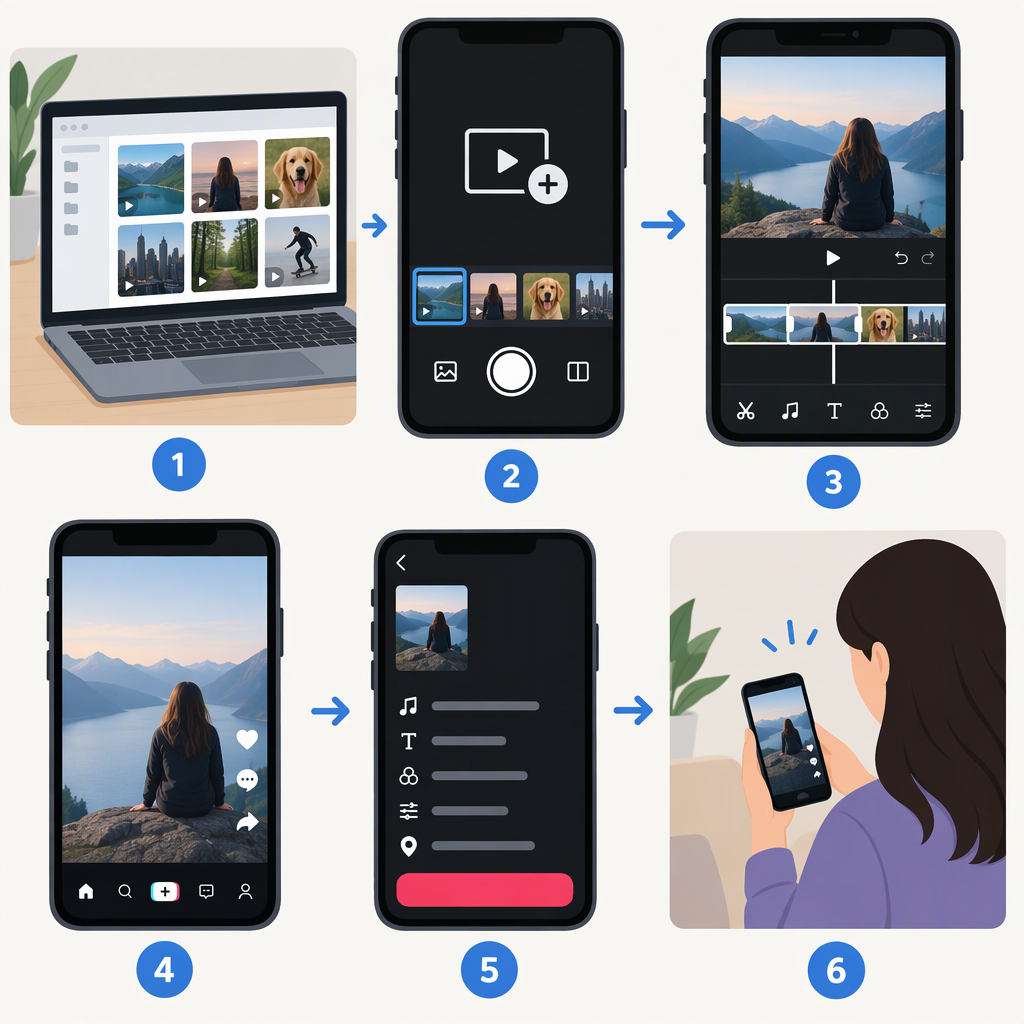
How to Put Existing Video Clips on TikTok
To put saved video clips on TikTok, open the app, tap Add post (+), and choose the option to upload from your device. Select your clip or clips, continue into editing, then move to the post screen to review your video and publish. TikTok’s Help Center confirms that Add post (+) is the starting point for uploading or recording, but the exact picker labels and multi-clip controls may vary. (support.tiktok.com)
Upload a Video Saved on Your Device
- Open TikTok and tap Add post (+) at the bottom of the screen.
- Choose the upload option to browse videos saved on your device. If prompted, allow TikTok to access the media you want to use.
- Tap the video you want to post. If the picker offers multi-select, choose the clips you want in the same post.
- Tap the button to continue into the editor. TikTok’s documented creation flow proceeds from upload or recording to editing, then to Next and the post details. (support.tiktok.com)
If the app asks for media access and your videos don’t appear, review TikTok’s access to photos or videos in your device settings. The wording and steps for changing that permission depend on your device; this guide does not assume the same settings screens on iOS and Android.
Combine Clips into One TikTok Video
If TikTok lets you select more than one clip, select them together in the upload picker and continue to the editor. Review the assembled video before posting. Use the editing controls that appear in your version of the app to adjust the result; TikTok’s documentation confirms that editing is available after uploading, but the sources cited here don’t establish a universal multi-select limit or a consistent method for reordering or trimming clips. (support.tiktok.com)
If you can’t select multiple clips: Combine them into one video file using a video editor available to you, save the finished file to your device, and upload that single file to TikTok. This avoids relying on a multi-clip option that may not be available in your app. TikTok says uploaded videos can be up to 60 minutes long; that is an upload limit, not a recommendation for how long your post should be. (support.tiktok.com)
Review and Publish
- Preview the full video from beginning to end. Check that the clips play in the order you intend and that the start and finish look right.
- Make any edits you want using the controls shown in your editor. TikTok documents adding text, stickers, or emojis after uploading, and says you can choose a cover on the post screen. (support.tiktok.com)
- Tap Next to reach the post details, if shown. Review the description and any audience or other posting settings presented before publishing. TikTok’s documented creation flow includes moving to Next to add a description or make additional edits; the exact controls can vary. (support.tiktok.com)
- Tap Post to publish, or choose Drafts if you’re not ready. TikTok’s Help Center documents both options for a post. (support.tiktok.com)
If a button or editing option in these steps isn’t visible, don’t assume you’ve missed a universal control: the available options can differ across app experiences. Try uploading one finished video file instead if your goal is to publish several clips together.