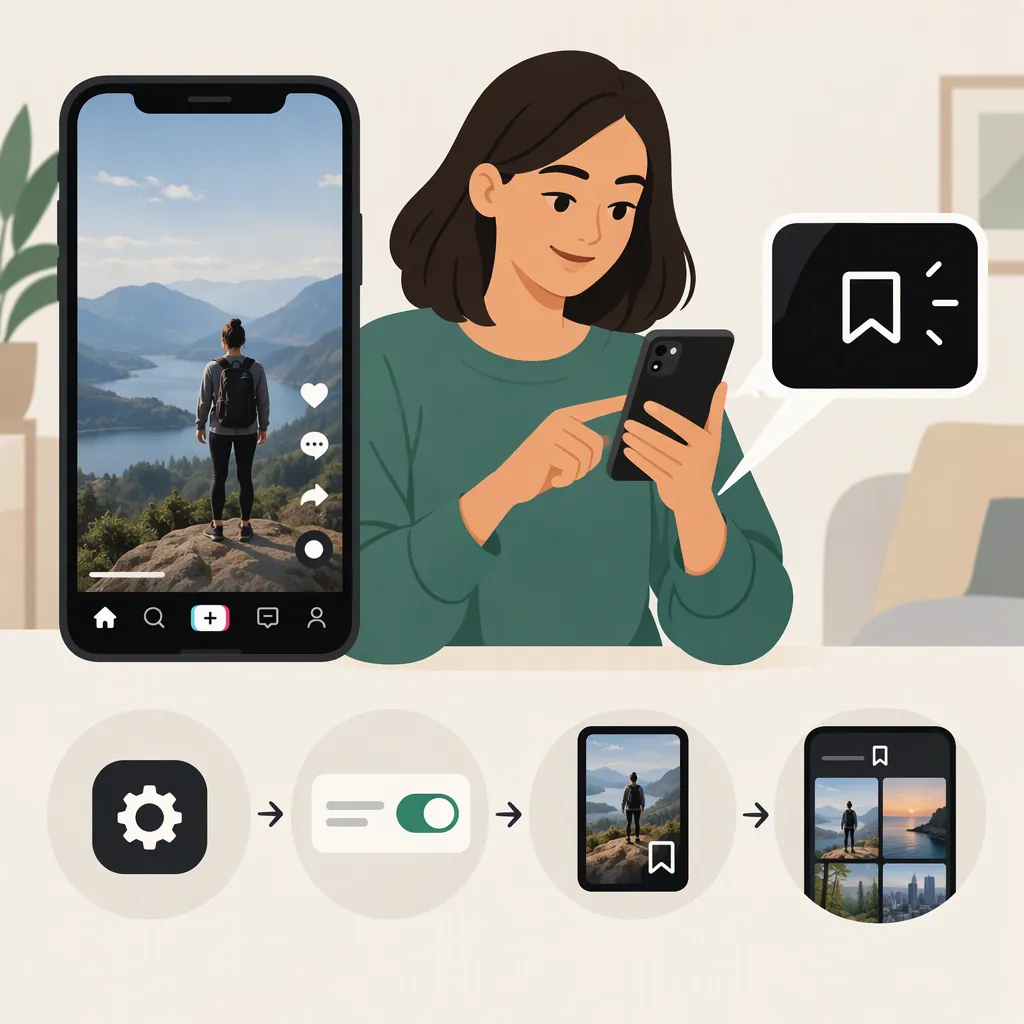
How to Make Your Videos Savable on TikTok
To let viewers save your TikTok videos to their devices, check your app’s privacy controls for a permission governing other people downloading your videos. Enable it if available and consistent with your privacy preferences, then verify that an intended viewer can download the post. Saving your own video or keeping a draft does not verify viewer-download access.
Evidence boundary: The available reference explains saving your own creations. It does not document TikTok’s current download-setting menu path, account eligibility, or the rules connecting visibility, sharing, and downloads. The instructions below are therefore a verification checklist, not a confirmed current menu walkthrough. [c1]
Check and Verify Viewer Download Access
Start with the post you want viewers to save. Keep its intended audience unchanged while checking the controls.
- Look in TikTok’s settings and privacy controls for a download permission. Read the description to confirm that it concerns viewers downloading your videos—not saving your own copy during creation or posting.
- Review any conditions displayed in the app. If the control is available, enable it only if you want the download access it describes.
- Check the intended viewer’s access to the post. Ask someone within your chosen audience to open it. Do not broaden the audience merely to troubleshoot downloads.
- Check for an in-app save or download action. Have that viewer inspect the actions available on the post.
- Verify the saved file. If the action is available, have the viewer use it and check that a playable video file appears on their device.
Treat these as separate checkpoints: finding a permission, enabling it, seeing a download action, and obtaining a file. Completing one does not verify the others.
What to Do If Downloads Are Not Available
| What you find | Next step | What remains unresolved |
|---|---|---|
| You cannot locate a download permission | Use TikTok’s in-app help to look for video-download settings and the conditions applicable to your account. | The current setting location and whether your account can use it. |
| The control is unavailable or cannot be changed | Read any explanation beside the control and check in-app help. | The reason for the restriction; do not assume a technical fault. |
| The intended viewer cannot open the post | Review the post’s audience selection without expanding it beyond your privacy preference. | Viewer access must be checked before testing downloads. |
| The viewer can watch but finds no download action | Recheck the permission’s description and any conditions stated in the app. | Watching the post does not verify download availability. |
| A download is attempted but no file is found | Check the viewer’s gallery or device file storage and whether the file plays. | The download has not yet been verified as successful. |
When seeking help, describe the exact checkpoint that failed: a missing setting, an unavailable control, a missing viewer action, or a missing file. This is more precise than reporting only that the video is “not savable.”
Check Sharing Separately from Downloading
For this guide, sharing means passing along a post or its link; downloading means saving a video file to a device.
If you want viewers to do both, verify both outcomes:
- Check whether the intended viewer can use the sharing action you want to allow.
- Separately check whether an in-app download action produces a playable file.
Do not infer download access from the presence of a sharing action. This checklist does not establish which TikTok controls govern each action or whether changing a download permission affects sharing.
If You Only Want to Save Your Own Video
Keeping a personal copy is a different task. The third-party guide describes two approaches; confirm that the relevant controls exist in your app before relying on them. [c1]
- Keep a draft: Choose Drafts instead of Post to retain the creation for later work. A draft should not be treated as proof that a separate file exists in your device’s gallery. [c1]
- Save through a private post: The guide describes selecting Only Me visibility and enabling device saving before posting. This still involves posting to TikTok; it is not a no-upload method. Check that the resulting file exists and plays before deleting anything. [c1]
Neither workflow establishes that other viewers can download your posts.
FAQ
Where Exactly Do I Turn on TikTok Video Downloads?
An exact current menu path cannot be verified from the available reference, which covers personal-saving workflows rather than viewer-download settings. [c1] Look for the relevant permission in your app’s privacy controls, or use TikTok’s in-app help to find the applicable instructions. Confirm that the control refers to other people downloading your videos.
Why Can’t I Find the Download Setting?
The reference does not establish account eligibility or the reasons a download control may be missing. [c1] Check any explanation shown in the app and consult in-app help. A missing control alone is not enough to diagnose a technical problem, and changing your audience is not a verified fix.
Does Letting Someone Share My Video Mean They Can Save It?
Do not use sharing as proof of download access. Test the sharing action and the file-download action separately. The available reference does not document TikTok’s permission rules linking these actions. [c1]
Can I Save My Own TikTok Video Without Posting It Publicly?
The guide describes keeping a draft or using Only Me visibility with device saving enabled. A private post is still a post, while a draft is not proof of a gallery file. Verify the available controls and any saved file before relying on either method. [c1]