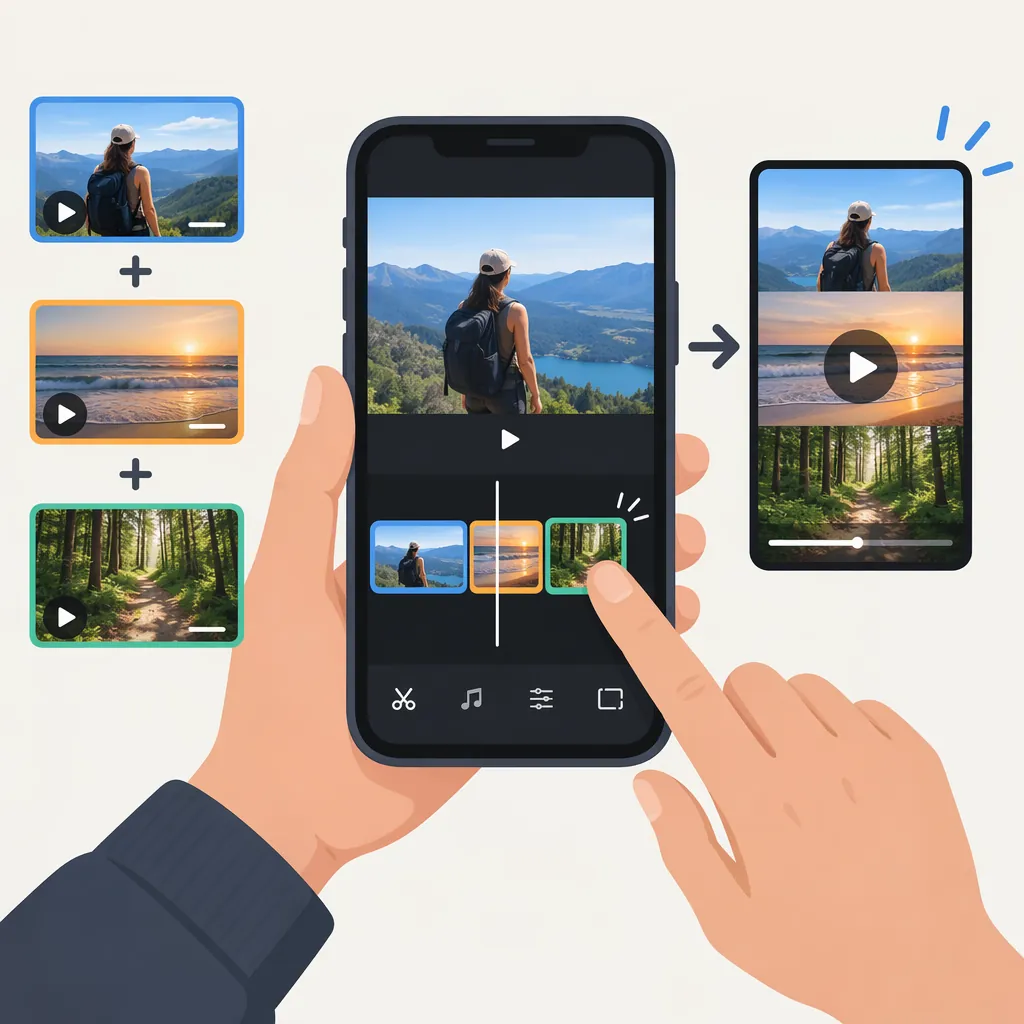
How to Clip Together Videos on TikTok
If your TikTok creation screen offers Upload and multiple selection, tap +, choose Upload, select the videos you want to combine, and continue to editing. Check their playback order, trim unwanted footage where clip editing is available, and preview the combined sequence. For new footage, another workflow is to record several segments in one camera session and adjust them afterward. [c1]
Interface and source note: These workflows come from Wondershare’s third-party tutorial, not independently verified current TikTok documentation. Button names and locations may differ. The tutorial’s stated 60-second limit should not be treated as a current platform rule. [c1]
Combine Videos Already on Your Phone
Start with the original video files saved on your phone. The tutorial describes uploading multiple videos and assembling them into one sequence. [c1]
- Open TikTok and tap + to enter the creation screen.
- Choose Upload to open your phone’s media picker.
- Look for Select Multiple, or an equivalent multi-selection control.
- Select the videos in your intended playback order. The tutorial says clips are assembled in selection order; confirm that order in the preview.
- Tap Next to continue to editing.
- Review the sequence and use the clip-editing controls, if available, to remove unwanted footage.
- Preview the combined video before continuing. [c1]
To put two videos together, select both files in this workflow and check the cut between the first and second clip. If multiple selection is unavailable, use the separate-editor workflow below.
Trim Each Clip: A General Editing Process
Combining places clips in a sequence; trimming changes where each clip starts and ends. The tutorial supports trimming uploaded footage and adjusting camera recordings, but it does not establish the exact current controls for selecting and trimming each uploaded clip. [c1]
The steps below are therefore a general trimming process, not verified TikTok-specific gestures or button locations:
- Find the clip-editing view. After uploading or finishing your recording, look for the available clip-adjustment control. For camera recordings, the tutorial names it Adjust clips. [c1]
- Select a segment, if individual selection is available. Work on one clip at a time so you can judge its beginning and end.
- Choose the first moment to keep. Use the editor’s trimming control to remove setup footage, silence, or an unwanted opening.
- Choose the last moment to keep. Remove footage after the action or sentence finishes, without cutting off a word or movement.
- Preview and confirm. Watch the retained portion, then confirm the adjustment if the editor requires it. The tutorial describes Done after adjusting camera recordings. [c1]
- Repeat, then review the full sequence. Check the cuts between clips as well as the complete video.
Cannot find individual clip editing? The supplied evidence does not establish another button or gesture to reveal it. If you need to trim each segment separately, use the original files in a separate editor, combine them there, and upload the exported video. The tutorial describes this alternative workflow. [c1]
A Short Checklist for Clean Cuts
Use this general editing checklist while previewing; it is not a claim about TikTok features or engagement:
- Start and end: Does each clip keep the useful action without extra setup or trailing pauses?
- Speech: Are words complete on both sides of the cut?
- Continuity: Does the next shot logically follow the previous one?
- Pacing: Is there a repeated moment or unnecessary gap?
- Sound: Are there abrupt volume changes, or music that obscures speech?
For example, when joining an introduction to a demonstration, keep the complete introductory sentence and begin the next clip where the demonstration becomes useful. Watch both sides of the cut together before trimming further.
Record Several Clips in One Session
If you have not filmed your footage yet, the tutorial describes recording multiple segments with TikTok’s camera and adjusting them together afterward. [c1]
- Tap + to open the camera.
- Record your first segment, then stop recording.
- Repeat for the remaining segments.
- Finish the recording session using the confirmation control, described in the tutorial as a checkmark.
- Open Adjust clips, or the available clip-adjustment control.
- Review the segments, make your adjustments, and confirm them. [c1]
Use the trimming process and cut checklist above to review the result. Recording segments in one session is different from merging separately saved drafts.
Combine Clips in a Separate Editor
If TikTok does not show multiple selection—or you cannot find the editing controls needed to trim individual clips—the tutorial describes combining footage outside TikTok and uploading the result. This is an alternative workflow, not a recommendation for a particular product. [c1]
Use this tool-neutral process:
- Import the original files into an editor that supports combining and trimming clips.
- Arrange the clips in the intended playback order.
- Trim each clip’s beginning and end.
- Preview the joins and listen to the audio.
- Export the sequence as one video file.
- In TikTok, open the creation screen, choose Upload if available, and select the exported video. [c1]
This avoids depending on TikTok’s multi-selection or individual clip-editing controls, but still requires an available upload option.
Handle Separate Drafts Carefully
The tutorial’s draft instructions include posting with a private audience setting, but they do not clearly establish a direct way to merge separate drafts inside TikTok. Do not treat that process as a verified native draft-merging feature. [c1]
This article does not recommend posting drafts merely to combine them. If you still have the original video files, use those for the multi-video upload workflow or combine them in a separate editor first.
FAQ
How Do I Put Two Videos Together on TikTok?
If Upload and multiple selection are available, tap +, choose Upload, select both videos, and continue to editing. Confirm which plays first, trim unwanted footage where the controls allow it, and preview the join. This follows the third-party tutorial; exact current controls are not independently verified here. [c1]
What If I Cannot Find Select Multiple or Individual Clip Editing?
The tutorial does not establish a solution for every TikTok interface. Its alternative is to combine and trim the original files in a separate editor, export one video, and upload that file to TikTok. [c1]
Is Recording in Separate Clips the Same as Merging Drafts?
No—the workflows described in the tutorial are distinct. Its camera method records several segments in one session and uses Adjust clips afterward. That does not establish a method for merging separately saved drafts. [c1]
Can I Merge Two TikTok Drafts Directly?
The available evidence does not clearly establish a direct draft-merging feature. The tutorial’s proposed draft workflow includes private posting, so it should not be treated as a verified native merge method. If you have the original video files, use those instead. [c1]