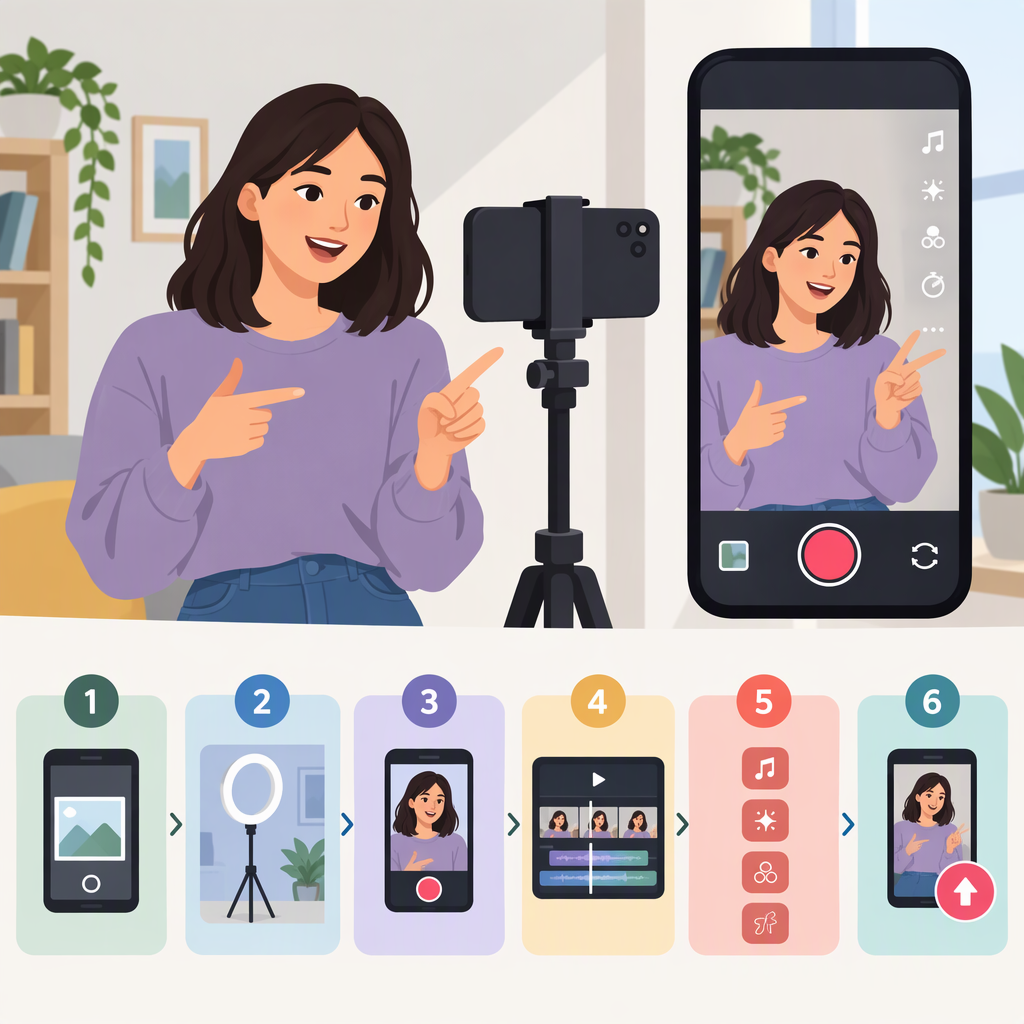
How to Make a TikTok Video: A Beginner’s Guide
To make and publish a TikTok video, plan one simple idea, record in the TikTok app or upload a clip, make any edits you need, then review the post details and tap Post. TikTok’s public instructions also describe uploading through a web browser; the app and browser workflows differ, so use the route that fits how you want to create and edit.
1. Plan One Small Idea
Before you start recording, decide what the video is about and what a viewer should see or understand by the end. A simple outline can keep filming manageable:
- Beginning: Show the subject or introduce the question.
- Middle: Demonstrate a few steps or share the main information.
- Ending: Show the result or give a brief closing thought.
For example, a houseplant video could open with the plant and the goal, show a few repotting steps, then end with the finished pot. That’s just an illustrative way to organize an idea—not a TikTok rule or a guaranteed formula.
2. Record in the App or Upload a Video
In the TikTok app, tap Add post (+). Choose a maximum video length, then tap Record. When you’re finished, tap Continue to move on to editing. TikTok also says you can tap Upload to choose a video already on your device. (tiktok.com)
If you’re recording, a simple approach is to capture the main action in short sections and pause between them. If you already have a clip, select it from your device instead. The steps here reflect TikTok’s published app workflow; exact labels or available tools can vary as the app changes.
Using a web browser instead? TikTok’s instructions say to click Upload, then Select video to upload or Select file. TikTok notes that browser upload sends the entire video; use the app if you need to change the video’s length there. (tiktok.com)
3. Make a Basic Edit and Review It
After recording or uploading, TikTok’s described workflow lets you add options such as a filter, sound, text, stickers, or effects, and it also points to advanced editing tools. You don’t need to add every option: choose only what helps the video make sense. (tiktok.com)
Before moving on, play the video back and check that the main action or message is easy to follow. If you add text, make sure it’s readable and doesn’t cover something viewers need to see. These are general review tips, not claims that a particular edit will improve performance.
To add a sound through the app, TikTok’s Help Center describes tapping Add post (+), then Add sound on the recording screen. You can preview a sound and select one of the options shown there; TikTok also says sound can be added from the editing screen. Treat sound as optional—your video can use its recorded audio or no added sound. (support.tiktok.com)
4. Add Post Details and Publish
When you’re ready, tap Next to reach the additional editing and post-details steps. TikTok lists options that may include a description, hashtags, tagging people, a location, a link, and privacy settings. Review the options shown for your post, then tap Post to publish or Drafts to save it for later. TikTok says drafts are visible only to you on your profile. (tiktok.com)
Before publishing, check who can view the post. TikTok says new posts retain the privacy setting used for the previous post, so don’t assume the audience has reset. The audience choices and visibility depend on your settings; check the control shown for this video and select the audience you intend. (tiktok.com)
If you want to choose a cover, TikTok’s Help Center says you can select Select cover on the video thumbnail on the post screen, move the frame, and save it. This is optional. (support.tiktok.com)
Quick Pre-Publish Checklist
- Does the video show the idea you planned?
- Have you watched it back and checked that it’s understandable?
- Are any added text or sound choices intentional?
- Have you reviewed the description and any other post details you want to include?
- Is the audience setting right for this video?
Once those checks are done, tap Post. If you aren’t ready, choose Drafts instead; TikTok says drafts are only visible to you until you post them. (tiktok.com)