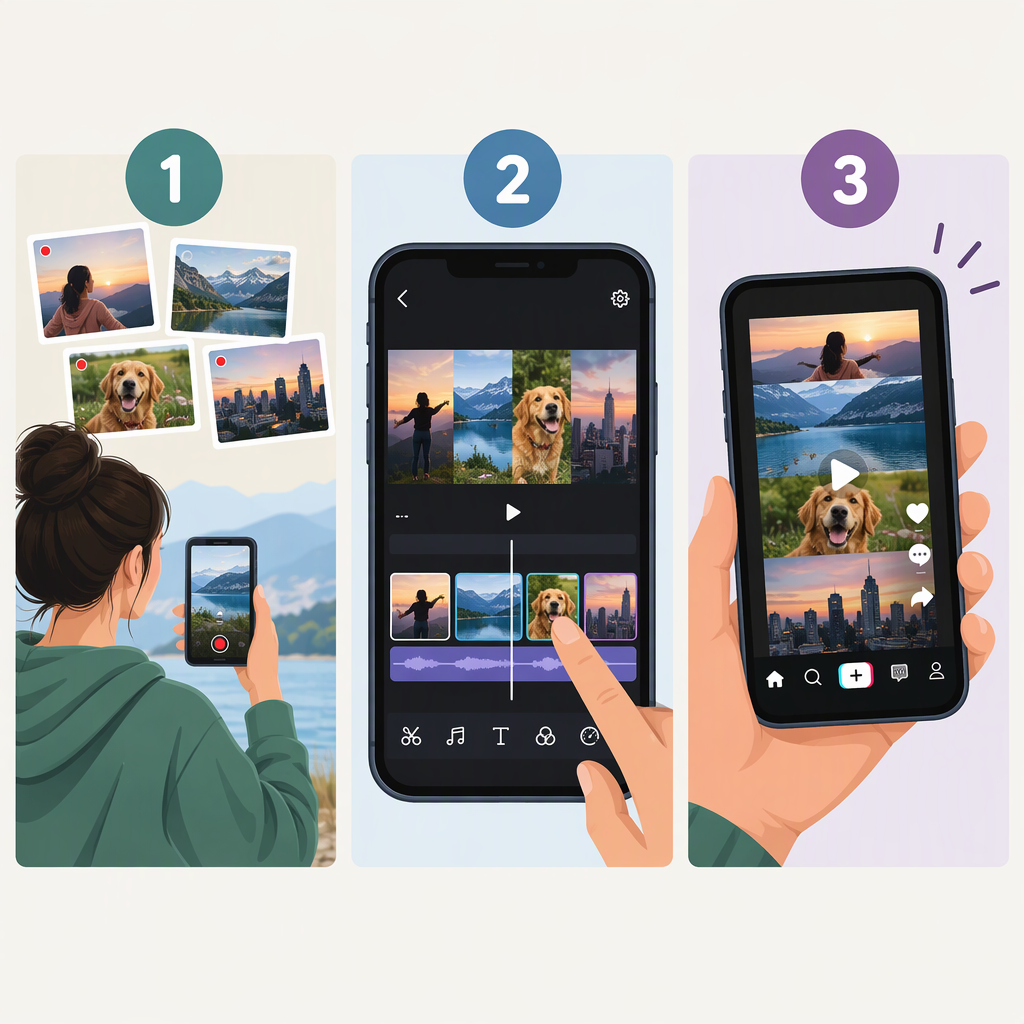
How to Make a Montage on TikTok
To make a montage on TikTok, open the creation screen, record or upload your clips, then use TikTok’s editing tools to arrange and trim them. Add sound or text if needed, watch the whole edit, and continue to the post screen. TikTok’s Creator Academy says you can reach editing tools by tapping +, recording or uploading content, and tapping Next; it also describes tools for rearranging, trimming, and swapping sections. (tiktok.com)
TikTok’s interface and available tools can vary. If a label below doesn’t match what you see, look for the equivalent editing or upload option in your current app rather than assuming every account has identical controls.
Make the Montage in the TikTok App
- Plan a simple sequence. Pick a theme or progression—such as setup, action, result—and choose clips that support it. This is editing guidance, not a required TikTok feature.
- Start a post. In the TikTok app, tap +. Record footage, or choose the upload option to use clips already on your device. TikTok documents both recording and uploading as ways to start a video. (tiktok.com)
- Continue to editing. After recording or selecting footage, tap Next or the on-screen continue control to reach the editing tools. The precise label can depend on the screen you’re on. (tiktok.com)
- Arrange and trim the clips. Use the editing controls to put the sections in the order you want and remove unwanted material from their beginnings or ends. TikTok describes its in-app edit feature as supporting rearranging and trimming; its enhanced editing tools have also included stacking, trimming, and splitting clips. (tiktok.com)
- Add sound or text if it helps. You can add a sound from the recording screen or editing screen. If you add text, keep it readable and make sure it doesn’t cover the important action. TikTok’s help information describes adding sound and placing text after recording or uploading. (support.tiktok.com)
- Preview the whole montage. Watch from beginning to end. Check that the order makes sense, cuts don’t remove important moments, and any text and sound fit the footage.
- Go to the post screen. Continue to the posting controls, review the video and its details, then tap Post when ready. You can also save a draft from the post page if you want to return to it later. (support.tiktok.com)
Recording Several Moments in One Take
If you want to film clips directly in TikTok, use the Record button to start and stop recording sections, then continue to edit. TikTok’s camera-tools instructions describe starting and stopping recordings with the Record button and continuing to edit afterward. (support.tiktok.com)
Uploading Clips You Already Filmed
If your clips are already on your device, start from + and choose the upload route. TikTok’s editing guidance confirms that uploaded content can proceed into its editing flow. The exact media-picker controls may look different across app versions, so follow the on-screen prompts to select and continue with your footage. (tiktok.com)
Make the Sequence Feel Coherent
Use this quick editing checklist:
- Give the montage a clear progression. Put the clips in an order that tells a small story or shows a change.
- Trim to the useful moment. Remove pauses or repeated action that don’t add information. TikTok’s Creator Academy says its edit feature supports trimming and rearranging sections. (tiktok.com)
- Choose transitions with a purpose. A straight cut is often enough; try a transition when it helps connect two different moments. TikTok describes transitions as an available editing element, but you don’t need one between every clip. (tiktok.com)
- Match sound to the edit. Listen through the full sequence and adjust the sound clip if needed. TikTok’s sound guidance says a sound can be added and adjusted during creation or editing. (support.tiktok.com)
- Keep text brief and readable. Check it against every shot where it appears. TikTok provides text placement and styling controls after recording or uploading. (support.tiktok.com)
Example sequence: For a quick cooking montage, you might show ingredients first, preparation second, and the finished dish last. That’s an illustrative sequence—not a TikTok preset or a tested result.
Review and Post
Before publishing, play the montage once more and check:
- The clips appear in the intended order, with no accidental gaps or unwanted sections.
- The sound is audible and fits the sequence.
- On-screen text is readable and doesn’t hide important details.
- You’re comfortable with the finished video and its cover, if you choose one. TikTok says a cover can be selected from a frame on the post screen. (support.tiktok.com)
Then continue through the post screen and tap Post when ready. If you’re not finished, TikTok says you can save the edit as a draft; drafts are saved to the videos tab on your profile and may be lost if the app is uninstalled or you move to another device. (support.tiktok.com)
If the Montage Is Already Edited
If you’ve combined the clips into one finished video elsewhere, upload that finished video through TikTok’s creation flow instead of assembling the clips individually in TikTok. TikTok’s camera-tools page distinguishes recorded videos from uploaded videos and documents a different maximum length for each, so check the current in-app limits for your upload. (support.tiktok.com)