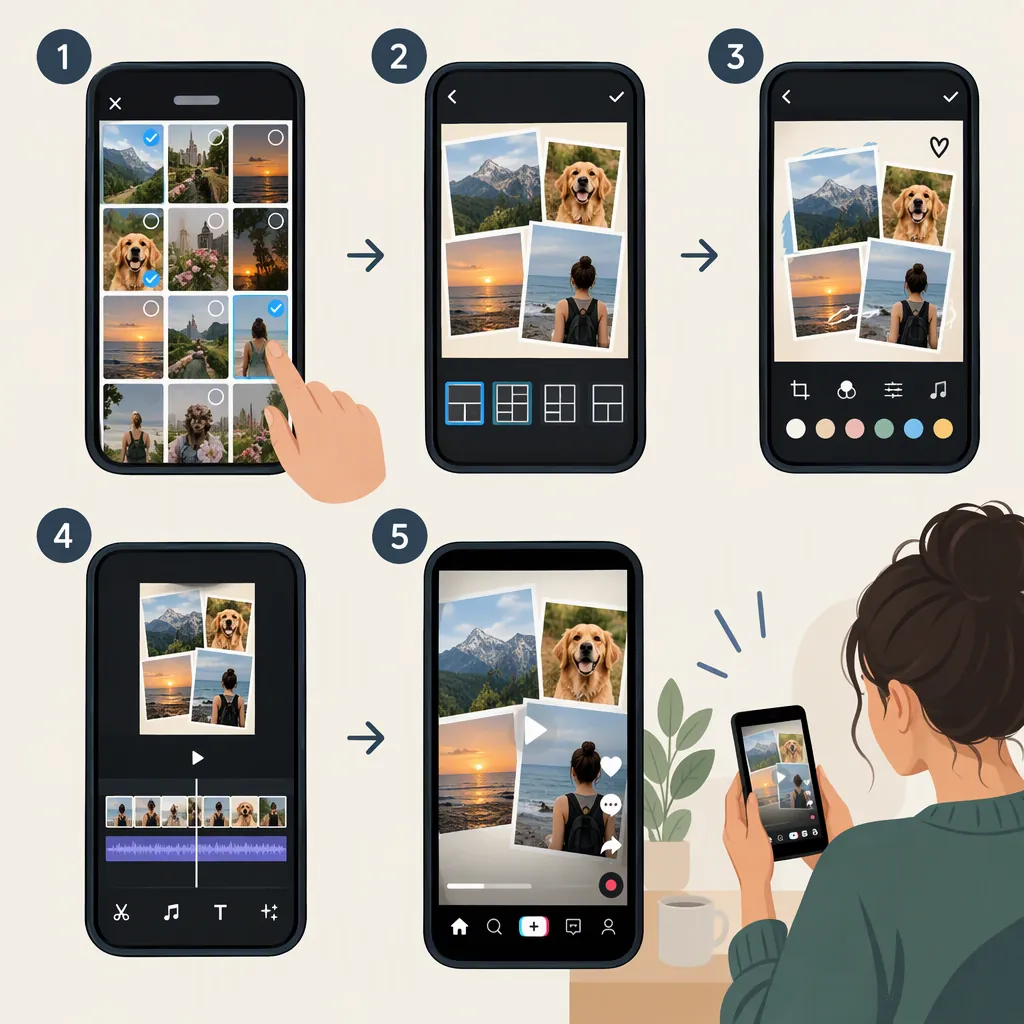
How to Make a TikTok Collage Video or Split-Screen Edit
To make a TikTok collage video with multiple items visible at once, use a video editor with layers or picture-in-picture controls. Start with a vertical 9:16 canvas, add your photos and videos, arrange them into panels, adjust their timing, and export the finished video for upload. For a sequence of photos and clips rather than a simultaneous collage, the provided guide also describes TikTok’s native upload workflow, though it notes that mixed-media selection may not always work. [c1]
Choose a Collage or a Sequential Edit
First, decide what you mean by “collage.” This determines how to build the edit:
- Sequential montage: Show one photo or clip after another.
- Split screen: Place two clips in separate panels so they appear together.
- Layered collage: Arrange several photos or clips on one canvas, possibly with overlapping frames.
The provided guide distinguishes adding media as timeline scenes from adding it as picture-in-picture layers. Its native TikTok upload instructions describe combining photos and videos, not a verified split-screen layout tool. For a simultaneous collage, follow the layered-editing approach below. [c1]
Combine Photos and Videos in TikTok
If you want a montage rather than simultaneous panels, the supplied guide describes this native workflow: [c1]
- Open TikTok’s creation screen using the + button.
- Choose Upload to access your camera roll.
- Select the videos and photos you want to combine, using the available media tabs.
- Tap Next and review the resulting sequence.
- Make the available edits and preview the result before posting.
Limitation: The guide notes reports of mixed photo-and-video selection being unavailable or the preview remaining on a loading screen. These instructions come from a third-party guide, not official TikTok documentation, so do not assume every account or app version will show the same controls. If the mixed selection is unavailable, assemble the media in a separate editor and upload the finished video instead. [c1]
Build a Split-Screen Collage with Layers
For a layout with multiple items visible at once, use an editor that offers layers or picture-in-picture placement. The supplied guide demonstrates a 9:16 project with media added as layers; it does not establish 9:16 as a mandatory TikTok upload requirement. [c1]
Use this suggested editing sequence:
- Create a vertical canvas. Start with 9:16 for this layout.
- Import your media. Choose two clips for a simple split screen, or a small set of photos and clips for a collage.
- Add separate layers. Avoid placing everything end to end if you want it to appear simultaneously.
- Arrange the panels. Try two stacked panels or two side-by-side panels. Resize and reposition each item using your editor’s available controls.
- Check each crop. Keep the subject visible rather than forcing every image into the same framing.
- Overlap the timing. Set the layers to appear during the same portion of the timeline. Extend a still image if it should remain visible while a clip plays.
- Review the whole composition. Play it from the beginning and check what happens when a shorter layer ends.
These are layout recommendations, not verified button-by-button instructions for every editor. Control names and available crop options depend on the tool you use.
Two-Panel Planning Template
Layout: stacked or side by side.
Panel A: choose the main photo or clip.
Panel B: choose the supporting photo or clip.
Shared start: decide when both panels appear.
Shared end: decide when the layout ends.
Crop check: keep the subject visible in each panel.
Audio choice: decide which track, if any, should be heard.
Refine Timing, Audio, and Text
Treat the following as editing recommendations:
- Give the layout a clear focus. If every panel moves constantly, try keeping one image still while another clip plays.
- Choose the audio deliberately. Listen for competing voices or overlapping sound. Where your editor permits it, mute tracks you do not need.
- Keep text readable. Use short labels and inspect them at phone-screen size.
- Use effects selectively. Add transitions or motion only when they help explain the relationship between the panels.
- Preview without sound. Check whether the arrangement still makes sense visually.
The provided guide discusses optional text, music, filters, image animation, and speed adjustments, but it does not supply a universal formula for their timing or placement. [c1]
Export and Check the Finished Video
After arranging the collage, export or download the finished video and upload it to TikTok. The supplied guide describes downloading an externally edited video for sharing on TikTok. [c1]
Before posting, inspect both the exported file and the upload preview. Look for clipped subjects, missing panels, unexpected blank areas, unreadable text, and audio that starts or ends abruptly. If something is wrong in the exported file, return to the editor rather than assuming the upload will fix it.
Evidence limit: The only supplied reference is a third-party tutorial focused partly on its publisher’s editor. It supports the general mixed-media and layered-editing workflows, but it does not verify current TikTok controls, upload limits, or exact export settings.
Pre-Upload Review Checklist
- Play the exported video from beginning to end.
- Confirm that the intended panels appear together.
- Check faces, captions, and important objects for cropping.
- Listen for competing audio and abrupt cuts.
- Review the TikTok upload preview separately.
- Correct problems in the editor before posting.
FAQ
Is Combining Photos and Videos the Same as Making a Split Screen?
Not necessarily. Photos and videos can play one after another as a montage. A split screen needs multiple items visible at the same time. The supplied guide distinguishes timeline scenes from picture-in-picture layers, which is the relevant approach for a simultaneous collage. [c1]
Can I Combine Photos and Videos Directly in TikTok?
The provided guide describes selecting both through TikTok’s Upload workflow. It also notes reported cases where mixed selection does not work or the preview fails to load. Treat this as a workflow to check in your app, not a guarantee of current availability. [c1]
What Canvas Shape Should I Use for a TikTok Collage?
A vertical 9:16 canvas is the starting point demonstrated in the supplied guide. Use it as a layout choice for this workflow, not as proof of a mandatory upload specification. Check the finished composition in TikTok’s upload preview. [c1]