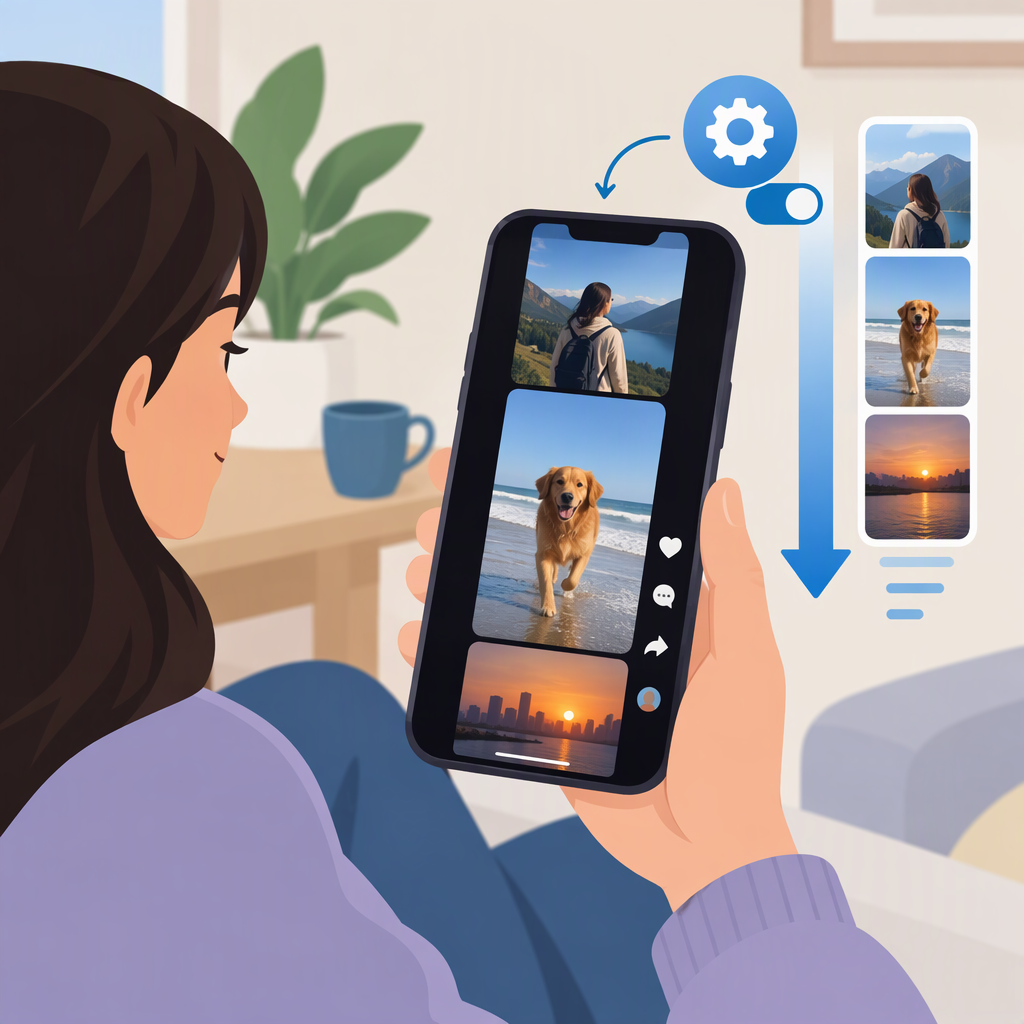
How to Make TikTok Videos Scroll Automatically
TikTok’s Auto scroll option has been reported as a way to move through videos hands-free, but TikTok’s public Help Center does not document it as a standard setting for every account. To check, open the For You feed and press and hold a video. If Auto scroll appears, select it; if it doesn’t, the option may not be available to your account. TikTok documents a separate accessibility feature—Feed navigation buttons—for moving between posts when VoiceOver or TalkBack is enabled. (techcrunch.com)
Auto-Scroll and Autoplay Aren’t the Same
Auto-scroll advances from one post to another. Autoplay means a video starts playing; by itself, that doesn’t mean TikTok will move to the next post. The Auto scroll behavior described by TechCrunch is hands-free movement through the feed. (techcrunch.com)
Check for TikTok’s Auto Scroll Option
- Open TikTok and go to For You.
- Press and hold the video.
- If Auto scroll appears in the menu, tap it. The reported feature advances through videos without a manual swipe.
- To return to manual scrolling, press and hold a video again and choose Manual scroll, as described in TechCrunch’s guide. (techcrunch.com)
TikTok’s public accessibility guidance documents feed navigation buttons, but doesn’t list Auto scroll as a standard setting. So if the option isn’t in the press-and-hold menu, don’t assume you missed a universal setting or that a particular app version or region is guaranteed to have it. The Auto scroll steps above are reported by TechCrunch, not confirmed in TikTok’s official Help Center. (techcrunch.com)
TikTok’s Documented Next-Post Controls
TikTok’s Feed navigation buttons can move to the next or previous post and pause or play videos. TikTok says these buttons appear when your device’s screen reader—VoiceOver on iPhone or TalkBack on Android—is enabled. To manage the TikTok setting, go to Profile → Menu ☰ → Settings and privacy → Accessibility → Feed navigation buttons. TikTok says you can turn the setting off there; if the screen reader remains on, the buttons won’t appear. This is an accessibility control, not automatic feed advancement. (tiktok.com)
Try a Voice Command for Hands-Free Scrolling
iPhone or iPad: Voice Control
Apple says Voice Control works on iOS 13 or later and iPadOS, though it isn’t available in every country or region. Set it up at Settings → Accessibility → Voice Control → Set up Voice Control. Apple also documents custom commands that run a recorded gesture. You can create one at Settings → Accessibility → Voice Control → Customize Commands → Create New Command, enter a phrase, choose Action → Run Custom Gesture, record an upward swipe, choose whether the command applies in TikTok, and save it. Try the phrase while TikTok is open; a swipe may move to the next post, but Apple’s instructions don’t guarantee how TikTok will respond on your device. (support.apple.com)
To stop the microphone from listening temporarily, say “Go to sleep”; say “Wake up” to resume. To turn Voice Control off, use Settings → Accessibility → Voice Control, the Accessibility Shortcut, or Siri. (support.apple.com)
Android: Voice Access
Google documents “Scroll down” as a Voice Access command for Android screens. Start Voice Access using its app, activation button, or—if enabled—“Hey Google, start Voice Access.” With TikTok open, try “Scroll down” and check whether it advances the feed on your device. This is a general screen-scrolling command, not a TikTok-specific auto-scroll setting, so its effect can depend on the screen. To stop Voice Access, say “Stop Voice Access.” (support.google.com)
Which Option Should You Use?
- Want TikTok to advance videos on its own? Check the For You video’s press-and-hold menu for Auto scroll. If it’s absent, TikTok’s public guidance doesn’t establish that the option is available to your account.
- Want a documented way to move between posts? TikTok’s Feed navigation buttons are designed for screen-reader use and provide next- and previous-post controls, but don’t automatically advance the feed.
- Want to try voice-operated scrolling? Apple Voice Control and Android Voice Access can issue gestures or scrolling commands. Try them one action at a time and stop or disable the feature when finished.
Sources
- TikTok Help Center: Accessibility for watching videos
- TikTok: Accessibility
- Apple Support: Use Voice Control
- Apple Support: Customize Voice Control commands
- Google Accessibility Help: Use Voice Access commands
- TechCrunch: How to activate auto scroll on TikTok