How to Make a TikTok Video Without the App
To make a video without the TikTok app, record footage with a separate camera, edit it in a desktop or browser editor, and save the finished video file. Treat publishing to TikTok as a separate step. A 2021 guide describes a browser editor inside TikTok Ads Manager, but it does not verify today’s interface or a current personal-account publishing workflow. [src_1]
Choose an App-Free Workflow
First, decide what “without the app” means for your project:
- Without the TikTok mobile app: Record and edit elsewhere, then keep a finished file for a separate publishing step.
- Without installing any editing app: Choose a browser editor that supports importing your footage and downloading the finished video. Verify those functions before starting.
- Without using TikTok at all: Finish and save your video independently. Making the file does not require you to publish it.
The supplied Social Media Examiner guide documents an additional route: editing in a desktop browser through TikTok Ads Manager. However, that guide was published on April 26, 2021, and concerns advertising creative—not a verified current workflow for ordinary personal posts. Do not assume its account setup steps or buttons remain unchanged. [src_1]
Editor Selection Checklist
- [ ] Accepts my recorded footage and images.
- [ ] Provides a vertical canvas or a suitable crop control.
- [ ] Supports trimming and arranging clips.
- [ ] Lets me add readable text and adjust audio.
- [ ] Lets me save a finished file, rather than only a project link.
- [ ] Has acceptable export costs, watermark rules, and upload privacy terms.
Plan and Record Your Footage
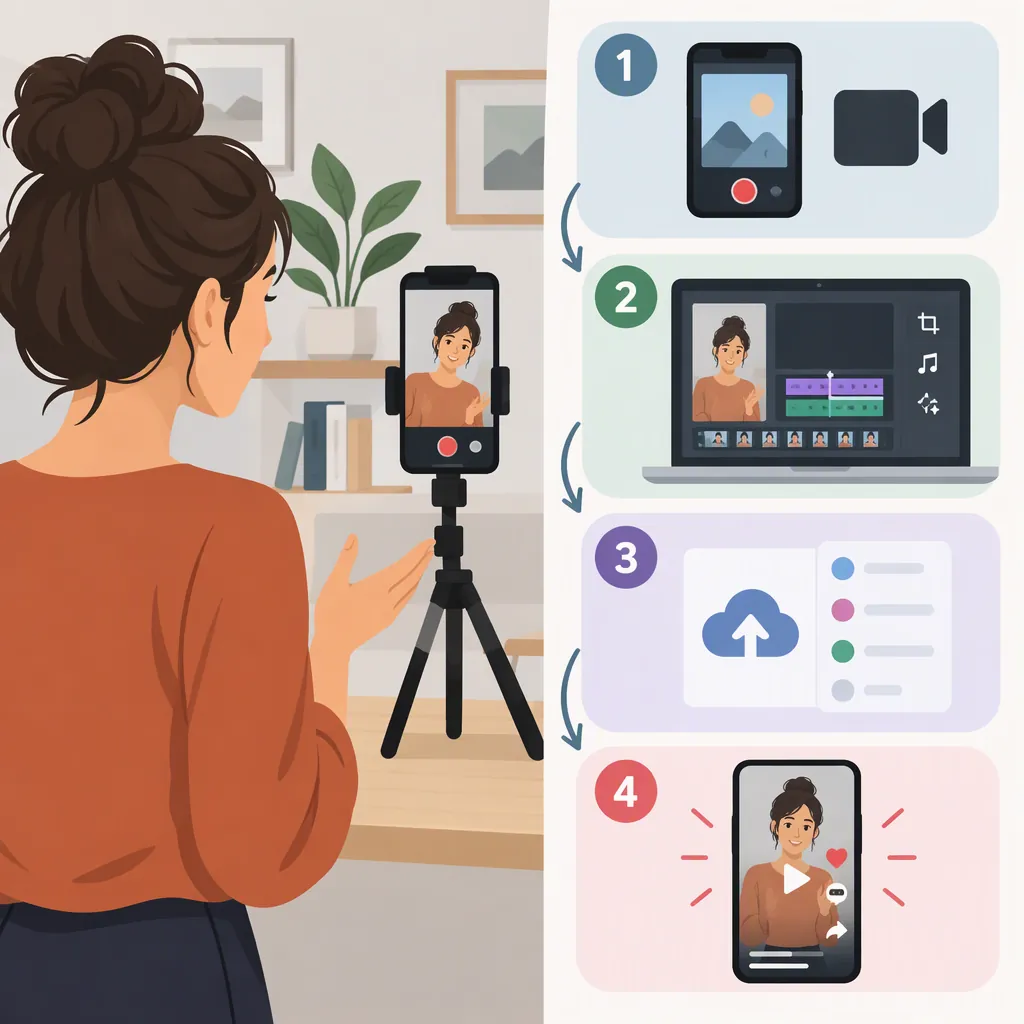
Use a simple sequence: introduce the subject, show the action or explanation, and finish with the result. Write the essential spoken lines before recording so you can remove repetition during editing.
For a vertical version, frame the subject upright and leave room around important details. Keep essential text away from the extreme edges. The supplied guide recommends vertical framing and explains that TikTok interface elements can cover parts of a video; its examples are from the advertising editor described in 2021. [src_1]
Record with a separate camera or a device’s camera software rather than TikTok. Make a short test recording, then check the picture and speech before filming the full sequence. Use footage you created or have permission to use.
Three-Part Recording Plan
Subject: [What the video explains or shows]
Opening shot: [Introduce the subject]
Main shots: [Show the steps or action]
Closing shot: [Show the result or summarize]
Spoken lines: [Draft the essential wording]
On-screen text: [List labels or captions]
Permissions: [Record the source and permission for borrowed material]
Edit and Save the Finished Video
In your chosen editor, use this sequence as a practical starting point:
- Import your material. Add the clips, images, and audio you intend to use.
- Arrange the story. Put the clips in order and trim mistakes, empty pauses, and repeated explanations.
- Check the framing. Preview any crop so faces, demonstrations, and labels remain visible.
- Add captions or labels. Review spelling, timing, contrast, and readability at a small viewing size.
- Balance the audio. Listen through the whole sequence and adjust music so it does not overwhelm speech.
- Save the finished file. Use the editor’s export or download function, then open the resulting file outside the editor.
Only add music or other material whose permissions cover your intended use. Do not assume that access to a track establishes permission to publish it everywhere. The 2021 guide specifically describes music notices concerning use of videos on other channels. [src_1]
These are suggested editing steps, not verified current TikTok upload specifications. The provided sources do not establish today’s accepted file formats, file-size limits, or duration limits.
Finished-File Review Checklist
- [ ] The saved file opens and plays from beginning to end.
- [ ] The crop preserves important details.
- [ ] Captions are accurate, readable, and synchronized.
- [ ] Speech is understandable throughout.
- [ ] There are no unintended gaps or leftover test clips.
- [ ] Permissions cover the intended use of included material.
- [ ] A copy of the editable project is saved separately.
Keep Creation, Publishing, and Viewing Separate
A finished video file is the output of the creation workflow. It is not evidence that the video has been posted to TikTok. Before publishing, check the options and file requirements actually available in your account; the supplied references do not verify a current browser-upload procedure for personal posts.
Likewise, viewing tools are not substitutes for an editor. WatchWithout describes opening shared TikTok URLs for viewing without the app. Its provided page does not document recording, editing, or publishing features, and it states that it is not affiliated with TikTok or ByteDance. [src_2]
For an app-free creation project, focus on getting a complete, reviewed file first. Keep any later publishing requirements separate from the editing checklist.
FAQ
Can I Make the Video Without a TikTok Account?
For a file-only workflow, record and edit outside TikTok and save the result. That is separate from posting it. The supplied TikTok-specific editing guide describes an Ads Manager account workflow, not an account-free TikTok editor. [src_1]
Does TikTok Have a Browser Video Editor?
The supplied April 2021 guide documents one inside TikTok Ads Manager, with music, text, transitions, and effects. This historical source does not establish its current availability, interface, or suitability for personal-account posts. [src_1]
Can Watchwithout Make a TikTok Video?
Its supplied page describes viewing videos through shared TikTok URLs, not making them. The reference does not document recording, editing, exporting, or publishing functions. [src_2]