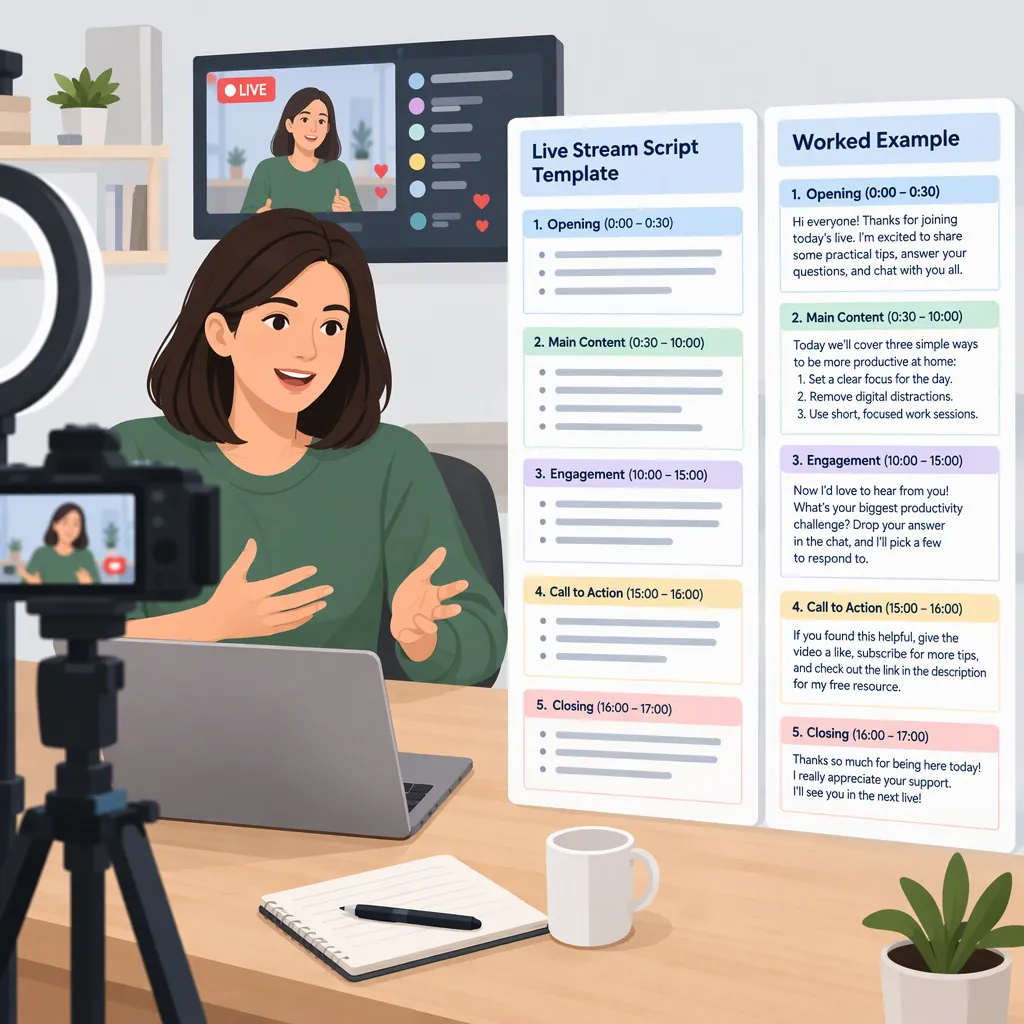
Live Stream Script Template with a Worked Example
A practical live stream script template pairs timed segments with host wording, audio/visual cues, audience prompts, and fallback actions. Script the opening, transitions, and closing; use talking points for demonstrations and discussion. The template below adapts the audio/visual planning format described in the provided video-scripting reference, adding suggested fields for live interaction and contingencies. [c1]
What to Include in a Live Stream Script
Start with one sentence describing what the session will cover. Then divide the available time among an opening, context, main content, questions, and a closing summary.
The provided video-scripting guide separates what viewers hear from what they see, including dialogue, music, shots, and graphics. That distinction is a useful starting point for planning a broadcast. [c1]
For this live-stream adaptation, add these fields:
- Time window: When the segment starts and when it should end.
- Host wording: Exact lines where precision matters, with bullets elsewhere.
- Production cues: Camera, screen share, slide, microphone, and graphic changes.
- Audience interaction: The question to ask and when to review responses.
- Fallback: What to do if the demonstration, guest connection, or chat is unavailable.
- Owner: Who speaks, switches the view, monitors questions, or watches the clock.
For a solo broadcast, one person may own every task. Keep the cue list short enough to follow while presenting.
Evidence limitation: The supplied substantive reference covers general video scripting, not a validated live-broadcast workflow. The live-specific template, timings, and sample dialogue below are original planning suggestions, not platform requirements or evidence of improved performance.
Copyable Live Stream Script Template
Replace the placeholders before rehearsal. Treat the timings as a working schedule rather than a requirement to fill every second. Keep production directions separate from words the host should say.
The example schedule totals 20 minutes. For a shorter session, reduce the main-content block and question period before removing essential context or the closing summary.
20-Minute Live Stream Script Worksheet
SESSION DETAILS
Topic: {topic}
Audience: {audience and assumed knowledge}
Session objective: {what the session will explain or demonstrate}
Scheduled duration: 20 minutes
Host: {name}
Production and question monitoring: {name or solo host}
Materials: {slides, demonstration files, notes}
Fallback materials: {prepared screenshot or verbal walkthrough}

00:00–02:00 — OPENING
Host: “Welcome. I’m {name}. Today we’ll cover {topic}. By the end, we’ll have walked through {specific outcome}.”
Visual: Host camera; display the session title if available.
Audience prompt: “What part of {topic} would you like clarified?”
Cue: Review responses at the next planned pause, not during the opening.

02:00–04:00 — CONTEXT
Host: “Before we begin, here is the situation we’re working with: {context}. This example assumes {assumptions}.”
Talking points: {definition}; {scope}; {what is outside scope}.
Visual: Agenda or example materials.
Transition: “With that context in place, let’s work through the example.”

04:00–12:00 — MAIN CONTENT
Step 1: {action, explanation, and visual cue}.
Step 2: {action, explanation, and visual cue}.
Step 3: {action, explanation, and visual cue}.
Audience prompt: “Which step needs another explanation?”
Checkpoint: At 10:00, decide whether to skip {optional detail}.
Fallback: If the live demonstration fails, use {prepared material} and explain what it does and does not show.

12:00–17:00 — QUESTIONS
Host: “Let’s pause for questions about what we just covered.”
Question handling: Read or summarize each selected question before answering.
If chat is quiet: Discuss {prepared common question}; identify it as prepared.
If an answer is uncertain: “I don’t have enough information to answer that accurately here.”
At 16:00: Take one final question or move to the summary.

17:00–20:00 — SUMMARY AND CLOSE
Host: “The main points were {point one}, {point two}, and {point three}. This example covered {scope}; it did not cover {limitation}.”
Optional final clarification: {brief correction or unresolved issue}.
Closing line: “That concludes today’s session. Thank you for spending this time with us.”
Production cue: Finish the closing line, then end the broadcast using the platform controls.
Worked Example: A Weekly Planning Workshop
This fictional educational session demonstrates how to turn the worksheet into usable host notes. It does not describe a real broadcast or actual audience responses.
Topic: Building a weekly task plan.
Audience: People new to organizing tasks on a calendar.
Scope: A paper-based example, not a recommendation for a particular tool.
| Time | Host Script or Talking Points | Visual and Interaction Cues |
|---|---|---|
| 00:00–02:00 | “Today we’ll turn a short task list into a weekly plan. We’ll separate fixed commitments from flexible work, then leave room for changes.” | Show the host and a blank weekly grid. Ask which part of planning viewers find unclear. |
| 02:00–04:00 | “This is a made-up example with three tasks and two fixed appointments. Your available time may be different.” | Display the sample task list. Explain that the task durations are assumptions for this exercise. |
| 04:00–07:00 | “First, mark commitments that already have a set time. In this example, those are Tuesday’s meeting and Thursday’s appointment.” | Mark both appointments on the grid. Describe each change aloud. |
| 07:00–10:00 | “Next, place the flexible tasks in the remaining spaces. I’m giving the longer task its own block rather than splitting it in this example.” | Add the three tasks. Explain the choice without presenting it as a universal rule. |
| 10:00–12:00 | “Now let’s leave one block unassigned. For this exercise, that block gives us somewhere to move work if the plan changes.” | Highlight the open block. Pause to review questions. |
| 12:00–17:00 | “Which part of the example should we revisit?” If no questions appear: “Here is a question I prepared: what if a task takes longer than expected?” | Revisit the relevant part of the grid. For the prepared question, demonstrate moving one task into the open block. |
| 17:00–20:00 | “We marked fixed commitments, placed flexible tasks, and left an open block. This was a small example; it did not address every scheduling constraint. That concludes the workshop.” | Show the completed grid, return to the host, and end the broadcast after the closing line. |
If the session runs late, omit a second scheduling example rather than rushing through the explanation of the first.
Prepare Fallback Lines for Live Changes
Write a small contingency block beside the main script. Choose wording that describes the situation without promising a repair, restart, or follow-up that has not been arranged.
Do not portray prepared questions as messages from viewers. If a question cannot be answered accurately, acknowledge the uncertainty rather than improvising a factual answer.
Live Broadcast Contingency Cue Card
DEMONSTRATION DOES NOT LOAD
Host: “The demonstration is not loading. I’ll use the prepared screenshot to explain this step. It shows the planned example, not the current live result.”
Action: Switch to the fallback material or give a verbal walkthrough.

GUEST CONNECTION IS LOST
Host: “We’ve lost the guest’s connection. I’ll summarize the points already covered while we check whether they can rejoin.”
Action: Avoid answering on the guest’s behalf. Continue only with material the host can explain accurately.

NO QUESTIONS ARE VISIBLE
Host: “I don’t see a question to address right now, so I’ll use one I prepared for this topic.”
Action: Read the prepared question and answer it within the allotted time.

A QUESTION NEEDS VERIFICATION
Host: “I’m not certain of that answer, and I don’t want to guess.”
Action: State what remains unresolved. Mention follow-up only if a real process has been arranged.

THE SESSION IS RUNNING LATE
Host: “We have time for one final question before the summary.”
Action: Skip the marked optional material and retain the closing summary.

THE BROADCAST CANNOT CONTINUE
Host, if still able to transmit: “We’re unable to continue this session reliably, so we’ll stop here.”
Action: End the broadcast. Do not promise a replay or restart unless confirmed.
Rehearse the Words and Production Cues
The reference recommends reading a script aloud to identify awkward wording and timing issues. [c1] For this live-stream worksheet, extend that rehearsal to the planned view changes, question pauses, and fallback material.
- Read the opening, transitions, and closing aloud.
- Time the demonstration with the actual materials rather than estimating from word count alone.
- Check that each production cue has an owner.
- Make placeholder names, dates, and topic details final before going live.
- Rehearse a switch to fallback material.
- Mark optional content that can be omitted if time runs short.
- Check what is visible in any screen share and remove material not intended for public viewing.
- Keep the final summary available even if earlier segments change.
Use the rehearsal to revise the schedule. The 20-minute allocation here is illustrative, not a guarantee of the finished duration.
FAQ
Should I Script Every Word of a Live Stream?
For this template, use exact wording for the opening, important explanations, transitions, and closing. Use concise talking points for demonstrations and discussion. Keep audience answers flexible, and distinguish host dialogue from production directions.
How Long Should a Live Stream Script Be?
Choose a session duration first, then allocate time to speaking, demonstrations, questions, and transitions. Do not treat the full runtime as continuous speech. Rehearse the actual activities to check the schedule; the 20-minute example here is only a starting point.
What Should I Do If Nobody Asks a Question?
Use a prepared question, clearly introduced as one you wrote before the session, or move to the summary. Do not invent viewer messages or imply that a prepared question came from the audience.
How Is This Different from a Standard Video Script?
The reference’s audio/visual format plans what viewers hear and see. This original adaptation also includes time windows, audience-question pauses, task owners, optional cuts, and fallback wording for live changes. Those additions are planning suggestions rather than requirements established by the reference. [c1]