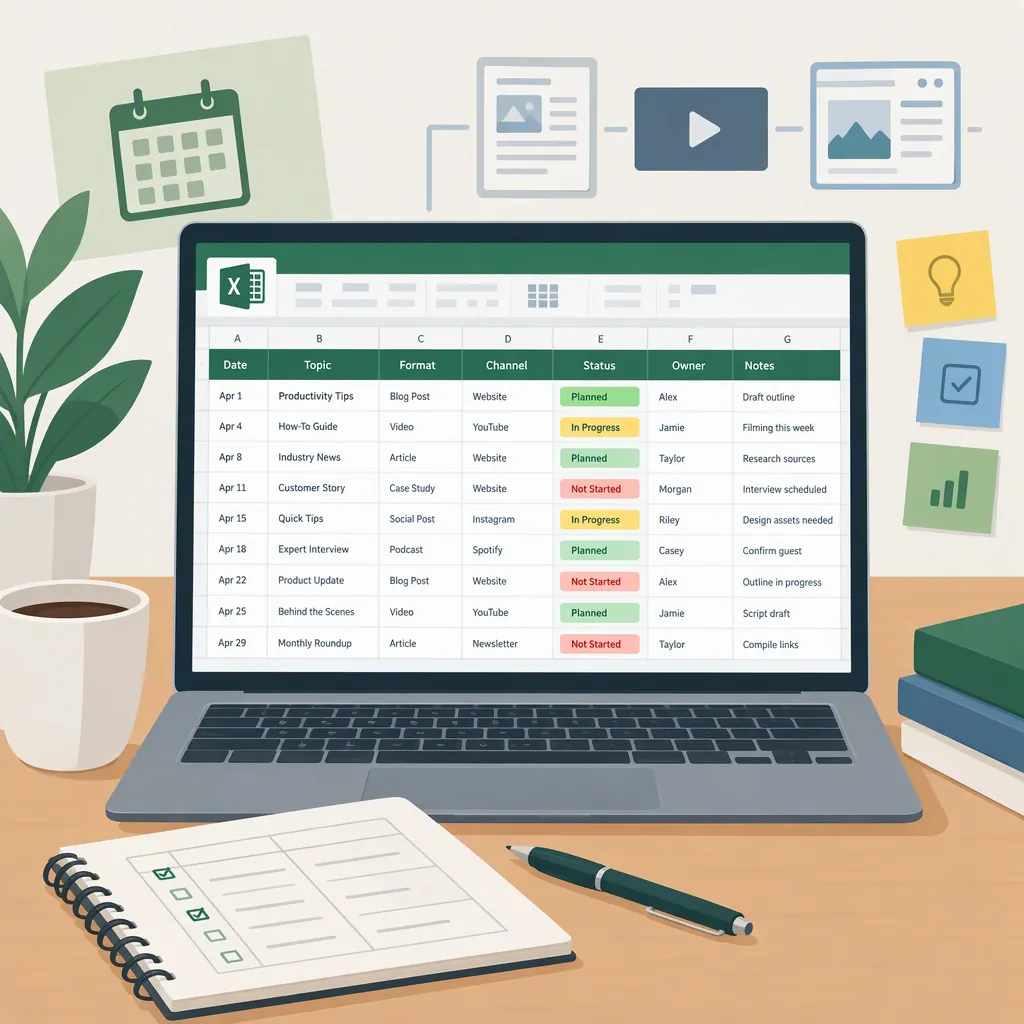
Editorial Plan Template for Excel: Content and Review Schedule
An editorial plan template for Excel should record each content item’s topic, audience, owner, editing deadline, review status, and planned publication date. The copyable layout below is an original workbook design, not a publisher’s downloadable file. For existing Excel templates, Smartsheet lists content planning calendars and video content plans; Hootsuite describes an Excel-customizable social media calendar. [c1] [c2]
Define the Workbook’s Purpose
Use this workbook to plan content and record editing handoffs—not to edit the content itself. Keep drafts, footage, and finished assets in their working locations, and record those locations in the plan.
The proposed workbook has three sheets:
- Editorial Plan: One row per deliverable, from its brief through publication.
- Status Key: Definitions for the stages used in the plan.
- Published Log: A record of released items and any later corrections or review dates.
This structure is an original recommendation. Its core planning fields draw on Smartsheet’s description of a content planning calendar, which includes titles, descriptions, themes, ownership, key dates, and status. The separate editing and review fields below extend that structure for editorial work. [c1]
Copy the Editorial Plan Template into Excel
Create a worksheet named Editorial Plan and paste the tab-separated block below into cell A1. The second row contains placeholders explaining what belongs in each column; replace it before using the plan.
Keep one row per deliverable. If a video and its accompanying article have different owners or publication dates, give them separate rows and use the same campaign name to associate them.
Use date values for the deadline columns and display them consistently, such as yyyy-mm-dd. Leave unknown dates empty rather than entering a guessed deadline. Save the working workbook as an .xlsx file.
This is a copyable text layout, not an attached Excel file. It contains no macros, publishing integration, or automatic reminders.
Editorial Plan Sheet: Tab-Separated Layout
Content ID	Working Title	Audience	Editorial Goal	Format	Channel	Campaign	Owner	Editor	Reviewer	Draft Due	Edit Due	Review Due	Planned Publish Date	Status	Draft or Asset Location	Review Notes	Actual Publish Date
[Unique ID]	[Proposed title]	[Intended reader or viewer]	[Question or takeaway]	[Article or video]	[Publication destination]	[Optional grouping]	[Responsible person]	[Editing owner]	[Approval owner]					Idea	[Working file location]	[Next change needed]
Define Editing and Approval Statuses
Create a Status Key sheet using the definitions below. These are suggested workflow rules, not a required industry standard.
A status should describe the current stage, while Review Notes should explain the next action. For example, an item can remain “In Review” while its notes specify that a source needs checking.
Keep approval separate from scheduling: a planned publication date is not evidence that the content has been approved. Record the actual publication date only after release.
Status Key Sheet: Tab-Separated Definitions
Status	Definition	Next Action
Idea	Topic proposed; brief not agreed	Define audience and editorial goal
Brief Ready	Scope and intended takeaway agreed	Assign production and editing deadlines
In Production	Draft or initial cut being prepared	Provide the working asset to the editor
In Editing	Editorial revisions underway	Resolve editing notes
In Review	Content awaiting the designated reviewer	Record approval or requested changes
Changes Requested	Reviewer has identified unresolved changes	Revise and return for review
Approved	Designated reviewer has cleared the content	Confirm publication arrangements
Published	Content has been released	Record actual publication date
On Hold	Work paused	Record the reason and next review date
Plan Deadlines Around the Editing Handoff
For each row, work backward from the intended publication date:
- Write the brief. State the audience, question, and intended takeaway before assigning production.
- Assign responsibility. Name the owner, editor, and reviewer. One person may fill multiple roles, but keep the responsibilities explicit.
- Set the draft deadline. Identify when a reviewable draft or initial cut should be available.
- Set editing and review deadlines. Allow time for revisions instead of treating the first review as final approval.
- Record the working asset. Identify the draft or cut that reviewers should use.
- Update the row after each handoff. Change the status and record the next unresolved action.
For video, consider adding Script Due, Rough Cut Due, Caption Review Due, and Export Review Due columns if those stages apply. These are optional extensions to this design. Smartsheet’s listed video plan covers categories, topics, audience takeaways, ownership, estimated release dates, and distribution platforms; it does not establish a detailed editing workflow. [c1]
Compare Existing Excel Template Options
The original layout above emphasizes editorial handoffs. Existing resources have different scopes:
| Resource | Described Scope | Limitation to Keep in Mind |
|---|---|---|
| Smartsheet content plan collection | Lists Excel options for content calendars, monthly plans, blog plans, and video plans. [c1] | Select the relevant template; the collection is not a single editing workflow. |
| Hootsuite social media calendar | Describes customization in Excel and Google Sheets, monthly and weekly planning, and an evergreen content library. [c2] | It is focused on social media; the page presents a form for access. |
| HubSpot social media calendar article | Describes a monthly planning calendar, content repository, publishing schedule, and platform-specific tabs. [c3] | The supplied article does not establish Excel compatibility for every template it discusses. |
These descriptions come from the supplied public pages, not from inspecting downloaded workbooks. Check the file format, column definitions, and any formulas in a downloaded file before adopting it. Hootsuite and Smartsheet are separate resources here, not features of Excel.
FAQ
What Are the Minimum Fields for an Editorial Plan?
For this proposed layout, retain the working title, audience or goal, owner, editor, draft deadline, review deadline, planned publication date, status, and working asset location. Add campaign and channel fields when you need to coordinate multiple destinations.
Can This Excel Template Be Used for Video Editorial Planning?
Yes, as a planning record rather than a video editor. Use one row per video deliverable and add deadlines for scripts, rough cuts, captions, or export review when relevant. Smartsheet also lists a video content plan in Excel format, but its public description does not specify a full editing approval process. [c1]
Is There a Downloadable Excel Workbook on This Page?
No. This page provides an original tab-separated layout to paste into Excel. The cited Smartsheet collection lists Excel template downloads, and Hootsuite describes an Excel-customizable calendar with form-based access. Those are separate resources, and their downloaded files have not been inspected here. [c1] [c2]