How to Make Your Own CapCut Template
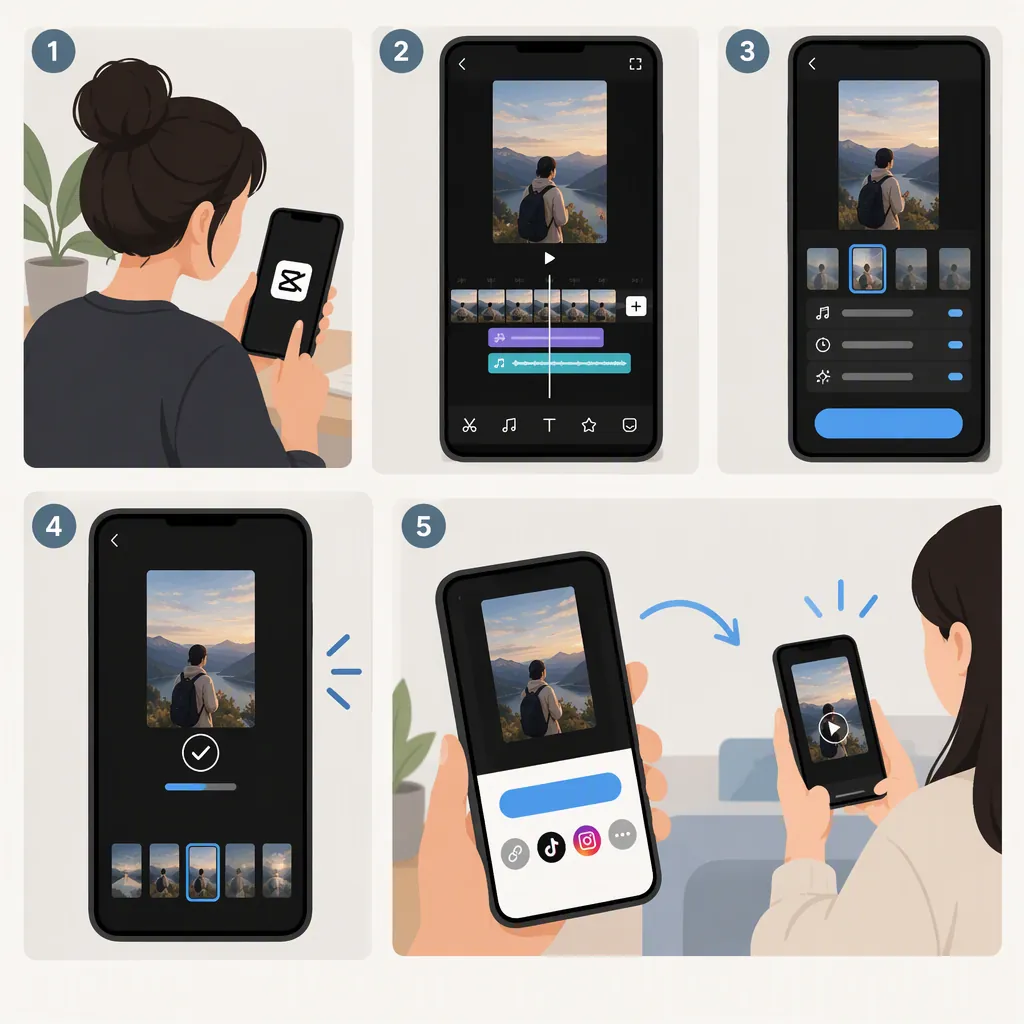
To make your own CapCut template, first check the app’s Me page for Creator Center. CapCut’s help page says only verified creators with Creator Center access can publish templates. If you have access, tap New Project, add and edit your media, then tap Post and choose Publish as Template. Check your soundtrack’s copyright compliance before publishing. [capcut-help]
Check Whether You Can Publish Templates
Before building an edit for other people to reuse, open Me in the CapCut app and look for Creator Center. CapCut’s help page identifies that entrance as the sign that your account is recognized as a creator and can publish templates. It explicitly limits template publishing to verified creators with this access. [capcut-help]
If Creator Center is missing, do not assume that exporting a video will create a public template. The supplied help page does not explain how to obtain creator approval or establish when an account will become eligible.
Build Your Own Edit from a New Project
For an original template, follow the new-project workflow rather than starting by selecting someone else’s template:
- Tap New Project in CapCut.
- Select the photos or videos for your initial design.
- Arrange the clips in the intended order, then trim or split them to establish the timing.
- Add the text, transitions, effects, and music that define the edit. [capcut-help] [capcut-guide]
As a design exercise, decide which elements should stay consistent and which should change when someone supplies new footage. For example, you might keep a title style and transition pattern while planning for different photos in each scene. Start with a simple structure so you can review each replacement point before publishing.
Template Planning Worksheet
Purpose of the edit: ______
Number of media slots: ______
Intended duration of each slot: ______
Text that users should change: ______
Transitions or effects to retain: ______
Soundtrack and permission notes: ______
Prepare the Edit for Other People’s Media
CapCut’s resource guide recommends preparing placeholder clips that users can replace and removing personal information or fixed media that should not be reused. It also suggests marking placeholders with prompts or default images. [capcut-guide]
Use this review checklist before submission:
- Make the purpose of each media slot understandable.
- Remove private names, contact details, or personal images that do not belong in a shared design.
- Check that titles remain readable against the sample footage.
- Review clip timing and transitions from beginning to end.
- Check that the soundtrack is permitted for the intended use; CapCut’s help page specifically calls for copyright compliance before publishing. [capcut-help]
These are preparation checks, not a guarantee that every element will be editable by another user. The supplied instructions do not document a detailed control for configuring each replaceable element.
Publish Through the Available Template Option
The help page gives this publishing sequence for eligible creators:
- Finish editing the project.
- Tap Post.
- Choose Publish as Template. [capcut-help]
The resource guide describes a different route through export or share, with labels such as Create template or Upload as template when the account supports uploads. It also describes entering a title, description, and tags, then submitting for review. [capcut-guide]
Because the supplied pages differ on labels and submission details, treat the help page’s sequence as the starting point, not a promise that every account will show identical controls. Follow the template-publishing prompts actually present in your app. If those controls are absent, recheck Creator Center rather than treating an ordinary video export as a template upload. The references do not establish a review timeline.
Distinguish a Template from an Exported Video
A published template lets other users apply your design to their own videos, according to CapCut’s help page. Saving a finished video to your device is a different outcome. [capcut-help] [capcut-guide]
The supplied guide’s desktop and web sections mainly describe selecting or customizing existing templates and exporting videos. Those sections do not establish a desktop or web workflow for publishing your own original community template. For the supported publishing instructions in these references, use the app workflow and its creator-access check.
FAQ
Why Can’t I See Publish as Template?
Check Me for Creator Center first. CapCut’s help page says publishing is limited to verified creators with Creator Center access. If you lack that access, the supplied references do not provide an approval procedure or guaranteed workaround. [capcut-help]
Does Exporting My Video Create a Public Template?
No—not by itself. The references describe video export separately from template publishing. The help page’s template workflow requires an eligible creator to choose Post, then Publish as Template. [capcut-help] [capcut-guide]
What Can I Include in a CapCut Template?
CapCut’s help page lists effects, stickers, transitions, text, and filters as template elements. Its creation steps also include clips, images, and music. Prepare media that is appropriate for reuse and check the soundtrack’s copyright compliance before publishing. [capcut-help] [capcut-guide]
Sources
-
[capcut-help] How Do I Create Templates in CapCut?
-
[capcut-guide] How to Make a CapCut Template: A Simple Guide for Faster Editing