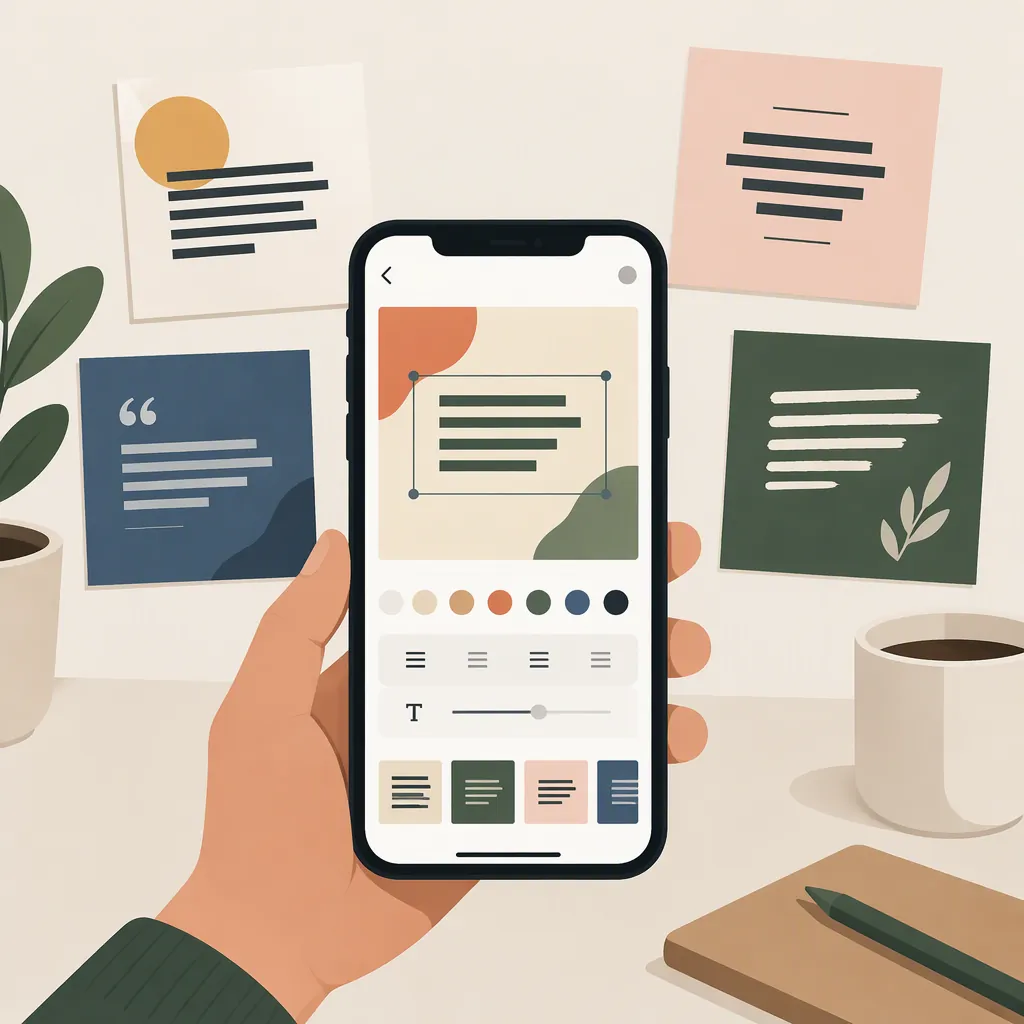
Instagram Text Post Maker: Options for Text-Led Designs
For a text-led Instagram graphic, look for a post maker whose workflow includes editable wording, layout choices, and image export. The supplied Zoviz and Venngage pages describe starting with templates and replacing their content; Sivi describes starting with a prompt, confirming the copy, and then editing or downloading generated designs. These are source-described approaches, not independently tested recommendations. [c1] [c2] [c3]
Decide Whether You Need a Graphic or a Caption
For this article, a text post means an image whose main content is written language: an announcement, a short explanation, or an attributed quotation. The design task is to arrange those words within the image, not merely to write a caption beneath it.
The supplied references describe Instagram visual-design workflows. Sivi also describes caption suggestions, but caption generation and the wording inside a graphic should remain separate review tasks. [c3]
Before choosing a workflow, decide which words must appear in the image and which supporting details can go in the caption. As an editorial starting point, give the graphic one main message rather than treating it as a complete document.
Text-Post Brief
Main message: [One sentence]
Exact headline: [Approved wording]
Supporting text: [Only the details needed inside the image]
Attribution, if applicable: [Verified author and source]
Caption-only details: [Context that does not need to be in the graphic]
Visual direction: [Plain background, text over a photo, or another chosen treatment]
Template-Based Workflows: Zoviz and Venngage
Zoviz: Its Instagram post maker page describes selecting a template, customizing text and visual elements in the editor, and downloading the result before posting it on Instagram. For a text-led design, use that sequence to replace the sample wording first, then review fonts, colors, and any remaining decorative elements. The page lists JPG export. [c1]
Venngage: Its page describes choosing an Instagram template, adding your own text and images, and personalizing the design. It also describes a drag-and-drop editor and PNG downloads. For a text-first post, assess the template's text area before adding icons or photographs. [c2]
These are two separate tools with similar source-described starting points. Neither description establishes which one will handle your particular wording better. Avoid assuming that a template will still be readable after replacing a short sample headline with a long paragraph.
Template Review Checklist
- Replace all sample wording with approved copy.
- Remove sample names, dates, and placeholder labels.
- Check whether the headline wraps at a sensible point.
- Shorten supporting text rather than shrinking it repeatedly.
- Remove decorations that compete with the main message.
- Review the exported image, not only the editor preview.
Prompt-Based Workflow: Sivi
Sivi's supplied instructions follow a different sequence: enter a prompt, add relevant assets, confirm the proposed copy, generate designs, and select a design to edit or download. Its FAQ also describes editing text and layout before export. [c3]
For a text-led post, treat copy confirmation as a substantive check. Compare the proposed wording against your brief before proceeding. After generation, check the final design again for omitted words, altered punctuation, invented details, and awkward line breaks.
A prompt can communicate your intended hierarchy, but it is not a guarantee that the resulting design will preserve every instruction. The supplied page does not establish exact-wording fidelity for a particular prompt.
Text-Led Design Prompt
Create a text-led Instagram graphic using this headline exactly: [Approved headline]. Use this supporting text: [Approved supporting text]. Make the headline the primary element and keep the supporting text visually secondary. Use a plain background and restrained decoration. Do not add statistics, quotations, dates, promises, or extra claims. Include this attribution only if supplied: [Verified attribution].
Choose by Copy Control and Final Output
Use a template-based approach when you already have approved wording and want to work from an existing arrangement. Consider a prompt-based approach when you want to explore arrangements from a written brief. These are workflow suggestions, not a ranking of the tools.
For either approach, inspect the exported graphic at a realistic phone viewing size. Check the headline, supporting text, contrast, margins, spelling, and attribution. Keep an editable working version so corrections do not depend on modifying the finished image.
The supplied pages describe product workflows, but they do not independently verify output quality, current account limits, or availability of every feature on a free plan. This article therefore does not promise free exports, watermark-free output, direct publishing, or engagement improvements.
FAQ
Which Starting Workflow Fits an Instagram Quote Graphic?
If the quotation and attribution are already verified, a template-based workflow is a reasonable starting point. Zoviz and Venngage both describe replacing template content with your own text. Review the exact quotation and attribution after export; a design template does not verify them. [c1] [c2]
Can I Edit Text After Generating a Design with Sivi?
Sivi's supplied FAQ describes editing text and layout before exporting a design. That source description does not establish how a particular generated layout will respond to longer replacement wording. [c3]
What Export Formats Do the Supplied Pages Describe?
Zoviz's supplied page lists JPG export. Venngage's page lists PNG, PPT, and PDF, with its FAQ specifically mentioning PNG and PDF. For this image-based workflow, evaluate the image export rather than treating presentation or document exports as interchangeable. Current plan restrictions are not established here. [c1] [c2]