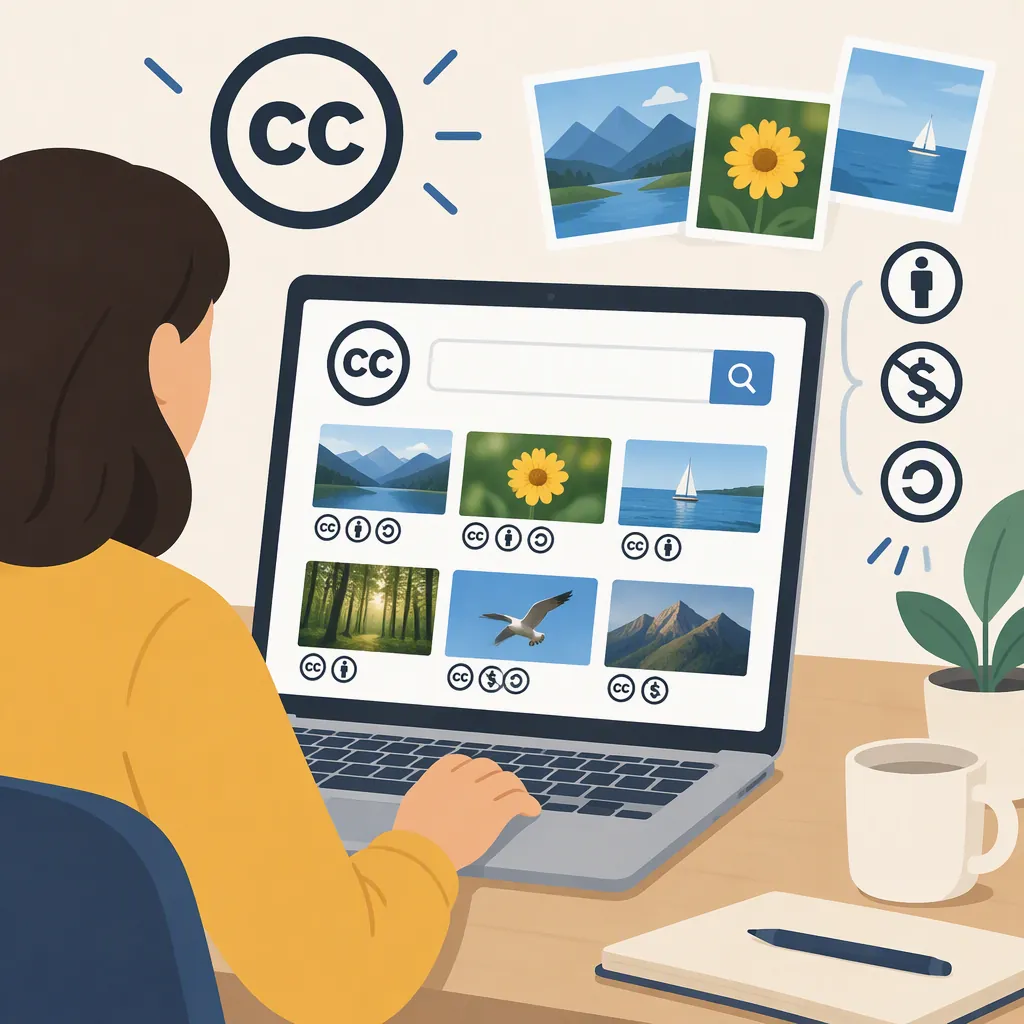
How to Search Creative Commons Images with the Cc Search Portal
At search.creativecommons.org, enter an image query, select the options for commercial use or modification if your project needs them, and choose an image search destination. The CC Search Portal lists destinations including Google Images, Nappy, Flickr, and Openverse; it is a starting point for searches across platforms. Check the individual image’s copyright and license information before reusing it. [c1] [c3]
Start an Image Search in the Cc Portal
The CC Search Portal describes its purpose as helping people find content they can share, use, and remix across multiple platforms. Its destination list includes images, music, video, and other media, so choose a destination suited to images rather than treating every option as an image library. [c1]
For an image search:
- Enter a descriptive query, such as
coastal landscapeorbicycle illustration. - Select use for commercial purposes if that permission is needed for your planned use.
- Select modify, adapt or build upon if you intend to alter the image.
- Choose a relevant destination under Search using. The portal labels Google Images and Nappy as image destinations, while Flickr, Wikimedia Commons, and Openverse are listed as media destinations. [c1]
Use these choices to express your search requirements. Do not treat a search result alone as confirmation that an image meets them.
Keep the Portal and Search Destinations Distinct
The CC Search Portal and Openverse are not interchangeable names in this workflow: the portal lists Openverse as one of its search destinations. The University of Texas Libraries guide also lists Openverse separately as a resource for public-domain and CC-licensed images and audio. [c1] [c3]
If you choose Flickr, its Creative Commons page offers browsing or searching by license type. That can help when you want to distinguish, for example, attribution-only images from images carrying noncommercial or no-derivatives conditions. [c4]
If you choose Google Images, the University of Texas Libraries guide describes using Tools after a search to sort images by usage rights. The supplied references do not document every destination’s current interface or how each receives the portal’s options, so check the destination’s own controls rather than assuming all searches behave identically. [c3]
Check the Image’s License Before Reuse
Creative Commons licenses provide a standardized way to grant public permission to use works under copyright law. They do not all grant the same permissions. [c2]
Flickr’s license summaries explain the main distinctions:
- Attribution: reuse requires credit.
- Noncommercial: permitted uses are limited to noncommercial purposes.
- No Derivative Works: the summary permits verbatim copies, not derivative works.
- Share Alike: distributed derivative works must use an identical license, according to Flickr’s summary.
- CC0: a public-domain dedication intended to waive the holder’s interests as completely as possible under copyright and database law. [c4]
For each candidate, open the image’s source page and read the actual license information. Compare it with your intended use, especially if the image will appear in commercial content or be adapted. These brief summaries are not substitutes for the applicable license terms.
The University of Texas Libraries guide explicitly recommends double-checking copyright information before reusing images from its diverse-image resources. Apply that same cautious approach to candidates found through the portal: if the source page leaves permission unclear, leave the image unresolved rather than assuming permission. [c3]
Record the Image and Its Reuse Conditions
Keep a short record for each image you are considering. This is a practical worksheet, not proof of permission. It helps separate the route used to discover an image from the source information you need to evaluate it.
Record the exact license name and version shown on the image page rather than writing only “Creative Commons.” Flickr’s listings include multiple license types and versions, including 2.0 and 4.0. [c4]
Before placing an image in a video, thumbnail, or other asset, resolve any blank permission fields in the worksheet. If attribution is required, use the applicable license terms to determine the credit needed.
Image Candidate Worksheet
Search query:
Discovery route: CC Search Portal → chosen destination
Image title or description:
Creator as identified on the source page:
Original image page URL:
License name and version:
License terms URL shown by the source:
Planned placement:
Commercial use needed: Yes / No / Uncertain
Modifications planned:
Required credit:
Unresolved permission questions:
Review date:
Decision: Use / Hold / Reject
FAQ
Is Search.creativecommons.org the Same as Openverse?
The supplied portal page lists Openverse as one of its search destinations. For this workflow, distinguish the CC Search Portal, where you choose a destination, from Openverse, one of the resources you can choose. [c1]
Can I Search for Images for Commercial Use?
Yes. The CC Search Portal offers a “use for commercial purposes” option. Select it when needed, then verify the individual image’s license at its source. A noncommercial license does not meet that requirement under Flickr’s license summary. [c1] [c4]
Which Search Option Should I Use If I Plan to Edit an Image?
Select “modify, adapt or build upon” in the CC Search Portal. Then check the source license for adaptation conditions: Flickr’s summaries distinguish no-derivatives restrictions from share-alike conditions on distributed derivative works. [c1] [c4]