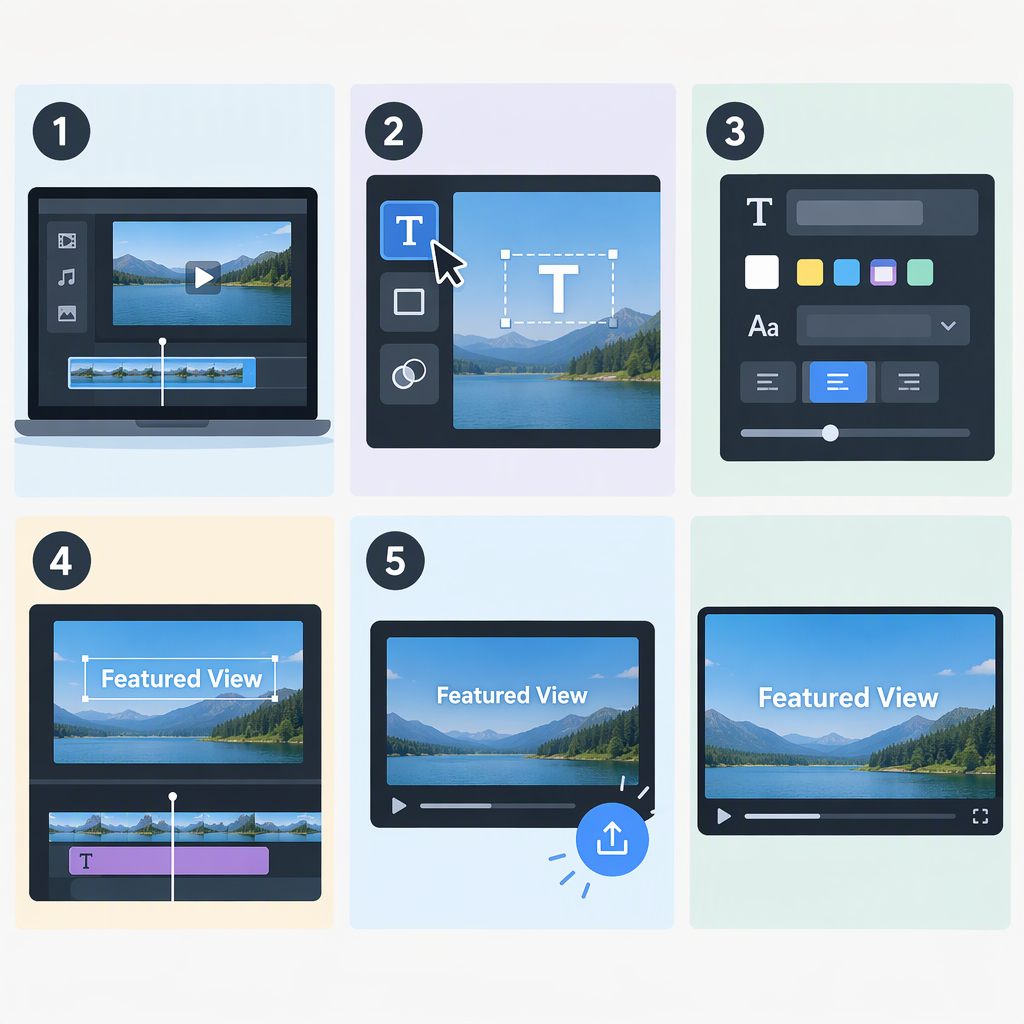
How to Write on a Video: Add Text Overlays Step by Step
To write on a video, open it in a video editor and add a text, title, graphics, or overlay element. Type your words, place and style them over the footage, set when they appear and disappear, then preview the result. The exact control names vary by editor; for example, Adobe Premiere’s desktop guide uses the Type tool and Properties panel for titles. (helpx.adobe.com)
This is for designed on-screen text—such as a title, name label, or callout—not for transcribing dialogue. Captions or subtitles represent spoken audio and are synchronized with it; terminology can vary by region. (w3.org)
Add Text to a Video with an Overlay
- Open your video in an editor. Start a project or open the edit that contains the footage you want to use.
- Add a text element. Look for a control labeled something like Text, Title, Graphics, or Overlay. If you want designed words on screen, choose a text or title element rather than a speech-to-text or captions workflow. Names and steps differ between editors.
- Enter the words. Add the title, label, or brief callout. For example, you might put a speaker’s name on screen or label a place shown in the shot.
- Position and style the text. Place it over the part of the picture where it is easy to notice without covering the subject or important action. Adjust its appearance using the options available in your editor.
- Set when it appears and disappears. If the editor provides timing controls, set the text’s start and end points so it appears with the relevant moment and does not linger after it is useful.
- Preview the footage with the text in place. Check it in motion, then save or export the edit using your editor’s available workflow.
Text Overlays Vs. Subtitles and Captions
A text overlay is designed text added to the picture to label, title, or emphasize something. A caption or subtitle conveys spoken words—and captions may also include meaningful sounds—timed to the audio. W3C describes captions as synchronized text for speech and relevant non-speech audio information. (w3.org)
The two can look similar on screen, but they serve different purposes. Use a title or text element for a name, headline, or callout. If you need to represent what people say, use the editor’s caption or subtitle workflow as well; a title overlay is not a substitute for that.
Make the Text Readable and Well-Timed
Review the words against the actual footage rather than judging the text by itself:
- Can you read it over the picture? Check it over both bright and visually busy parts of the shot. If it blends in, try changing its position or appearance using your editor’s available styling controls.
- Does it cover anything important? Make sure it does not hide a face, product detail, sign, or action viewers need to see.
- Does it stay on screen long enough? Watch the whole moment at normal playback speed. If the text is hard to read before it disappears, simplify it or extend its duration.
- Does it compete with the footage? The words should be noticeable without distracting from the subject or action.
These are practical playback checks, not universal measurements. The right size, placement, and duration depend on the text, footage, and viewing context.
Review the Finished Video
Play the relevant section from before the text appears until after it disappears. Check that:
- the wording is correct;
- the text is readable against the footage;
- its position avoids important visual details; and
- its appearance and disappearance match the intended moment.
If you export or share the video, review the resulting version too. The precise export steps and how text is handled depend on the editor and destination, so use the instructions for your chosen workflow if you need format-specific guidance.