Subtitle Sync: How to Fix Early, Late, and Drifting Subtitles
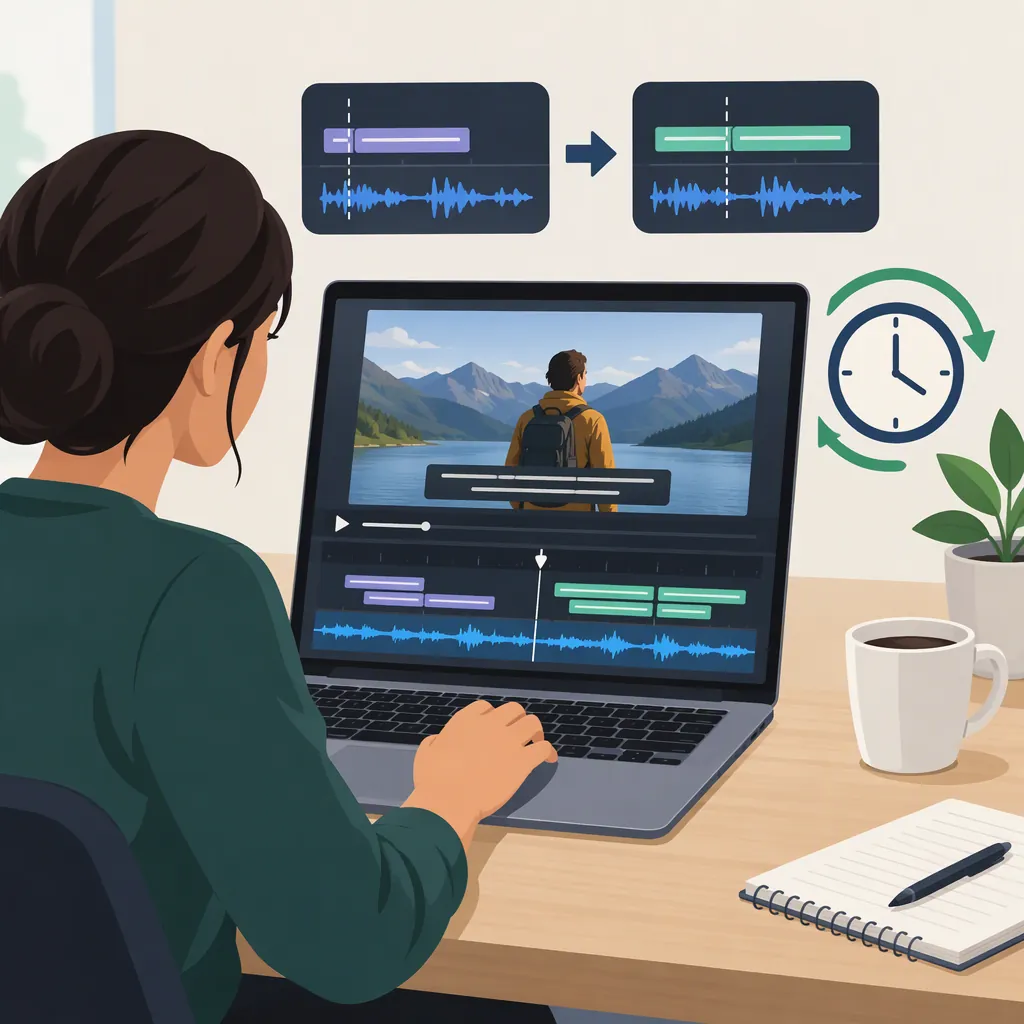
To fix subtitle sync, first determine whether the timing error stays constant or changes during playback. A constant error calls for a time shift: delay subtitles that appear early, or advance subtitles that appear late. Gradually increasing error may need linear timing correction; errors that change abruptly may need separate adjustments for different sections. Automatic synchronization is another option, but its output still needs review. [sync-shifter] [subshifter] [autosubsync]
Identify the Timing Pattern First
Before changing the file, compare recognizable dialogue with its subtitle near the beginning, middle, and end of the video. Record when the speech begins and when the corresponding subtitle appears. This is a suggested diagnostic workflow, not a guarantee that three checks will catch every problem.
Use the observations to choose an adjustment:
| Observed Pattern | Adjustment to Consider |
|---|---|
| Subtitles are early or late by roughly the same amount throughout | Shift all timestamps by one offset. |
| The error increases gradually as playback continues | Test linear timing correction. |
| The error changes suddenly between sections | Investigate those boundaries and adjust sections separately. |
| The timing pattern is difficult to measure manually | Try automatic synchronization, then review the output. |
Subtitle Tools explicitly limits its whole-file shifter to a constant offset. SubShifter describes correction for both offsets and time-scale differences, including differences associated with frame rates. AutoSubSync documents automatic alignment and warns that it is not always perfect. [sync-shifter] [subshifter] [autosubsync]
Subtitle Timing Worksheet
Complete this worksheet using clear spoken lines:

| Checkpoint | Speech Start | Subtitle Start | Speech Minus Subtitle | Proposed Action |
| --- | --- | --- | --- | --- |
| Beginning | Record time | Record time | Calculate difference | Compare with later checks |
| Middle | Record time | Record time | Calculate difference | Look for drift or a jump |
| End | Record time | Record time | Calculate difference | Confirm the timing pattern |

For this worksheet, a positive difference means the subtitle needs to move later; a negative difference means it needs to move earlier. Confirm the selected tool's sign convention before applying the value.
Fix a Constant Offset
For a uniform timing error, apply the same adjustment to every cue. In Subtitle Tools and AutoSubSync, positive values delay subtitles and negative values advance them. One second equals 1,000 milliseconds. [sync-shifter] [autosubsync]
Hypothetical examples:
- If a subtitle appears at 10.0 seconds but the matching speech starts at 11.5 seconds, delay it by 1.5 seconds: +1500 ms.
- If a subtitle appears at 11.5 seconds but the matching speech starts at 10.0 seconds, advance it by 1.5 seconds: −1500 ms.
Suggested procedure:
- Keep the original subtitle file unchanged.
- Measure the offset against a clear line of dialogue.
- Confirm that later checkpoints need approximately the same adjustment.
- Apply the shift and save a separate output file.
- Play the output with the intended video and check it again.
Distinguish playback adjustment from file correction. Subtitle Tools describes VLC adjustments as temporary and its timestamp-shifting workflow as a way to save corrected timing in the subtitle file. [sync-shifter]
Handle Gradual Drift and Sudden Jumps
If the beginning is aligned but later dialogue is increasingly misaligned, one offset is unlikely to be enough. SubShifter provides a Linear correction (beta) option and describes time-scale differences as a synchronization problem it can address. [subshifter]
For a suggested two-point workflow, identify one clear dialogue cue early in the video and another late in the video. Record each cue's existing subtitle time and its desired time against the speech. Use those correspondences in a linear-correction workflow, then inspect a middle checkpoint rather than assuming the two endpoints prove the entire file is correct.
Do not assume a frame-rate mismatch solely because subtitles drift. The cited source gives frame rates as an example of a time-scale difference, not a diagnosis for every file. [subshifter]
If the offset changes suddenly, treat that as a different pattern. Subtitle Tools gives the example of one half needing a five-second adjustment and the other needing ten seconds; it recommends a partial shifter rather than its whole-file shifter. Review the transition before adjusting separate ranges. [sync-shifter]
Compare Documented Sync Options
Choose by the timing problem and file format, rather than assuming one method fits every subtitle file. These descriptions reflect the provided documentation, not independent testing or a performance ranking.
| Option | Documented Function | Visible Limitation |
|---|---|---|
| Subtitle Tools | Whole-file timestamp shifting; lists SRT, ASS, SSA, SMI, and WebVTT support | A uniform shift does not correct different offsets across the video. [sync-shifter] |
| SubShifter | SRT shifting and linear correction | Lists SRT support; linear correction is labeled beta. [subshifter] |
| AutoSubSync | Automatic synchronization with video or a reference subtitle, plus manual shifting | Its documentation says automatic sync is not always perfect and recommends checking the result. [autosubsync] |
| SubSync | Audio-based synchronization and synchronization against another subtitle track | Its site states that the project is no longer actively maintained and may or may not work. [subsync] |
Automatic alignment can be worth testing when manual measurement is difficult. AutoSubSync documents the use of a correctly timed reference subtitle file as an alternative to video input. Treat the reference's timing as something to verify before relying on it. [autosubsync]
The provided excerpts do not establish comparative accuracy or upload-retention practices. Do not infer those properties from this comparison.
Check the Saved Result
Review the saved subtitle file with the video it is intended to accompany. AutoSubSync explicitly recommends checking subtitles after automatic synchronization. [autosubsync]
Use this suggested review checklist:
- Recheck the beginning, middle, and end against recognizable dialogue.
- Inspect any boundary where the timing previously changed abruptly.
- Check both cue appearance and disappearance, not just the first word.
- Confirm that the player is loading the corrected file rather than the original.
- Return any temporary player timing adjustment to neutral before judging the saved correction.
- Keep the original until the corrected version passes review.
If one region still needs a different offset, revisit the timing pattern instead of repeatedly shifting the entire file. A whole-file shifter cannot resolve unequal offsets across sections. [sync-shifter]
FAQ
Should I Use a Positive or Negative Subtitle Delay?
In Subtitle Tools and AutoSubSync, use a positive value when subtitles appear too early and need to move later. Use a negative value when they appear too late and need to move earlier. Confirm the convention if you use a different tool. [sync-shifter] [autosubsync]
Why Do Subtitles Match at the Start but Drift Later?
A changing error may indicate a time-scale difference rather than a constant offset. SubShifter cites differing frame rates as one possible example and provides linear correction in beta. Measure several checkpoints before choosing a correction; drift alone does not establish its cause. [subshifter]
Can Subtitles Be Synchronized Automatically?
Yes. AutoSubSync documents automatic synchronization against video or a reference subtitle file. Its documentation also warns that automatic results are not always perfect, so review the saved output. SubSync describes automatic audio-based synchronization, but its site says the project is no longer actively maintained. [autosubsync] [subsync]
Sources
-
[sync-shifter] Sync Subtitles: fix out of sync subtitles
-
[subshifter] SubShifter - Online SRT Subtitle Resync Tool
-
[autosubsync] GitHub - denizsafak/AutoSubSync: Automatic subtitle synchronization tool. · GitHub
-
[subsync] About | SubSync