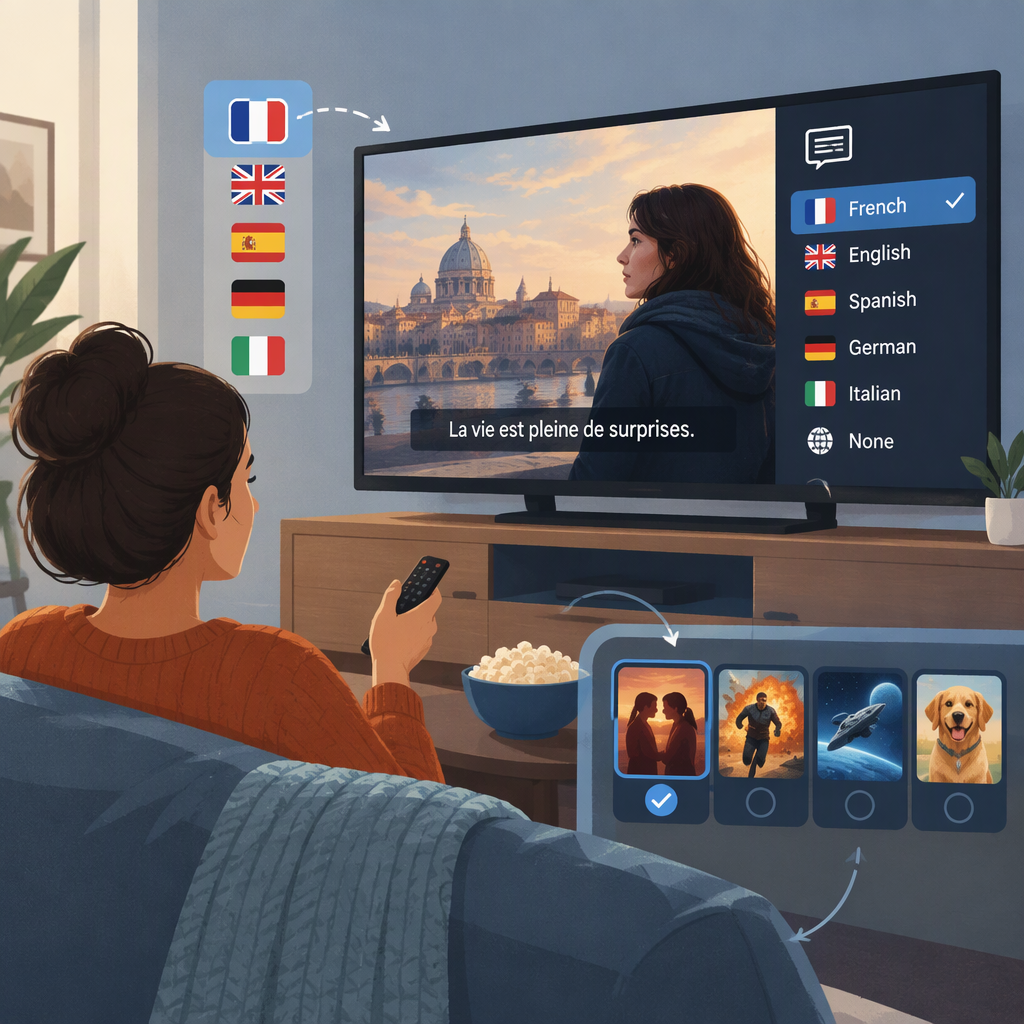
Movie Subtitles: Find the Right Language and Match Your Movie
Start with the subtitle or language settings on the service or release you’re watching. If the language you need isn’t listed, check the profile’s language preferences and whether the title is downloaded; what appears can vary by title, location, profile, and device. If you’re watching a video file you’re authorized to use, a separate subtitle file may be another option—but it must match the movie and be supported by your player.
Where to Look for Movie Subtitles
- Check the viewing service. Start the movie, pause playback, and open its audio and subtitle menu. The menu shows the options available for that title on your device. On Netflix, for example, the help center says available languages appear while choosing options for a title on a supported device. It also notes that subtitle availability can depend on location, profile language, title, or device. (help.netflix.com)
- Check your profile and download settings. If a language is missing, confirm the profile’s language preference and, if you downloaded the movie, try streaming it: Netflix says a download may show only the two most relevant languages. These details are service-specific, so check the help information for the service you use. (help.netflix.com)
- Check the release itself. A disc or other authorized release may offer selectable subtitle tracks in its playback menu. The available choices depend on that release.
- For a separate video file, look for an external subtitle file. Public subtitle directories, including OpenSubtitles, list subtitle files in multiple languages. Listings and language choices can change; a result is not a guarantee that a file fits your movie or will work in your region or player. Treat any listing as an option to assess, not an endorsement or a guarantee of accuracy. (opensubtitles.com)
Choose a Subtitle That Matches Your Movie
A matching movie title is a useful start, but don’t rely on the title alone. Before using a separate subtitle file, compare:
- Title and year: Remakes and similarly named films can have separate listings.
- The version you’re watching: If a listing gives a runtime, edition, or cut, compare it with your copy. Different versions may not have the same scenes or timing.
- Language and subtitle type: Choose the language you want. If you need dialogue plus labels for relevant sounds or music, look for captions or an SDH option when available; a dialogue-only subtitle track may not include that context. (help.netflix.com)
Example: You have a downloaded copy of a film and find two files listed for the same title and year. If one is identified as a different cut, or its runtime doesn’t fit your copy, don’t assume it will stay in sync. Try a candidate only if it matches your version closely, then check a few points as the movie plays.
Check That the Subtitles Work
If You’re Watching Through a Service
Select the language from the in-player subtitle menu, then confirm the text appears and is readable. If the option is missing, check the profile language, try streaming instead of using a download, and check the same title on another supported device if practical. Services and devices don’t necessarily offer identical options. For Netflix, the help center also notes that subtitle appearance controls vary by device. (help.netflix.com)
If You’re Using a Separate Subtitle File
- Check that your player supports the file type. VideoLAN’s VLC documentation lists
.srtamong common external subtitle files it can use; support varies across players and devices. (wiki.videolan.org) - Load the file using your player’s subtitle or caption controls. In VLC on Windows, matching the subtitle filename to the movie filename can allow it to open automatically—for example,
Film.mp4andFilm.srt. (wiki.videolan.org) - Check a line near the beginning, one around the middle, and one near the end. If timing is wrong throughout by about the same amount, try the player’s subtitle-delay control, if it has one. If the gap grows or changes, the file may be for a different version; try a closer match rather than assuming one delay adjustment will fix it.
- If text appears as boxes or garbled characters, try another subtitle file or check the player’s language and text-display settings. Not every player handles every subtitle format or language the same way.
Quick rule: Use the service’s own language menu for streaming; for a separate file, match the movie and version, confirm player support, and test timing before settling in to watch.