How to Create an SRT File for Your Video
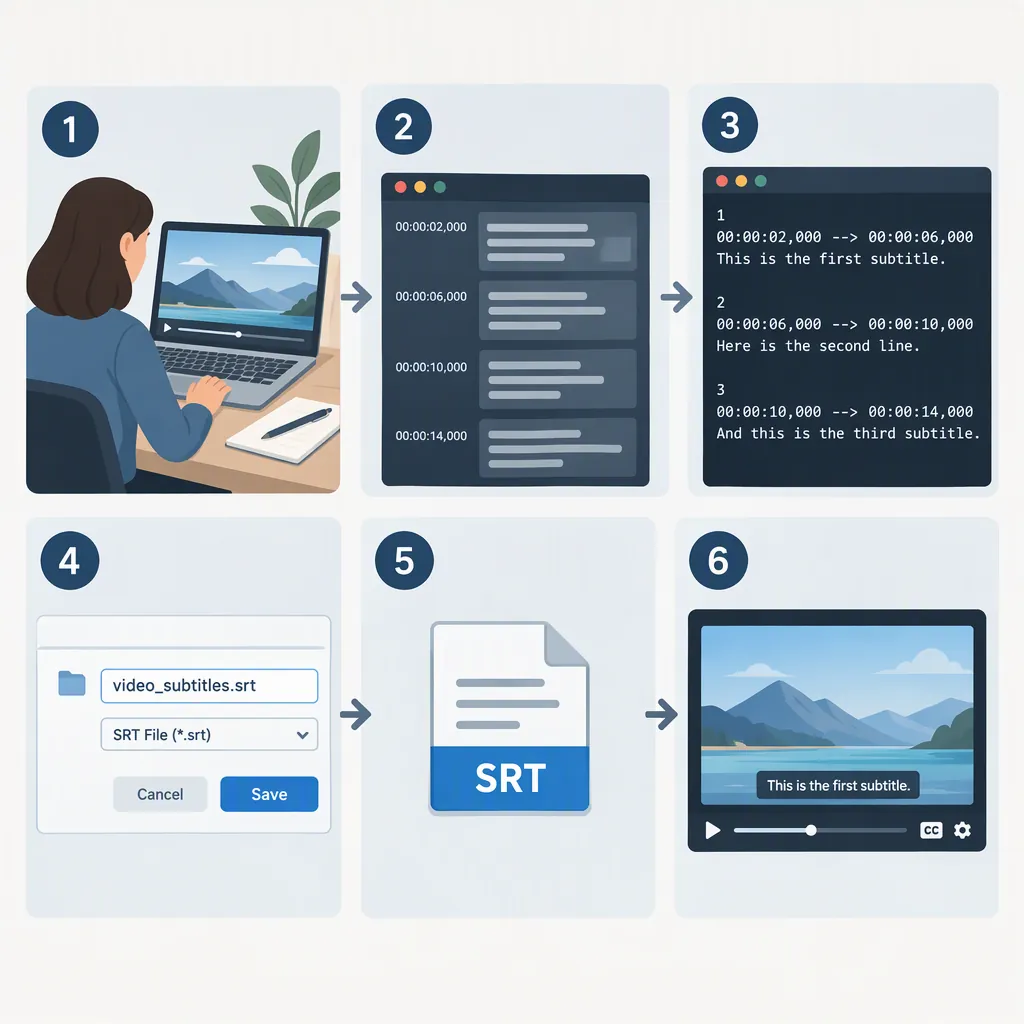
To create an SRT file, open a basic text editor and write numbered caption blocks. Each block needs a start and end timestamp, caption text, and a blank line before the next block. Use HH:MM:SS,mmm timestamps and save the file with an .srt extension. Then review the captions against your video to check wording and timing. [ou_srt]
1. Prepare Your Video and Text Editor
SRT stands for SubRip Subtitle. You can create an SRT file manually in a basic text editor, such as Notepad; a dedicated subtitle editor is not required. You will need to check each caption’s timing against the video and format the text correctly. [clideo_srt] [ou_srt]
Keep the video available for playback and choose a descriptive filename, such as interview-captions.srt. Work through short portions of the video rather than trying to time an entire transcript at once.
2. Write the SRT Caption Blocks
Build each caption block in this order: [ou_srt]
- A sequential number, starting with
1. - A start timestamp and an end timestamp.
- The caption text.
- A blank line separating it from the next block.
Use the timestamp pattern HH:MM:SS,mmm: hours, minutes, seconds, and three digits for milliseconds. Include the hours and milliseconds even for a short video. [ou_srt]
Copyable SRT Example
Copy the contents of this block into your text editor. The wording and timings are illustrative; replace them with captions matched to your video.
1
00:00:01,000 --> 00:00:03,500
Welcome to this short tutorial.

2
00:00:04,000 --> 00:00:06,500
First, open your text editor.

3
00:00:07,000 --> 00:00:10,000
Then add captions and check their timing.
Keep the --> separator between the start and end timestamps, and preserve the blank lines between caption blocks. Continue numbering each new block in sequence. [ou_srt]
3. Save the File with an .SRT Extension
In Notepad:
- Select File → Save As.
- Select All Files in the file-type dropdown.
- Enter a filename ending in
.srt, such asinterview-captions.srt. - Save the file. [ou_srt]
After saving, check the actual filename. If it ends in .srt.txt, correct it so the final extension is .srt. Keep a separate working copy if you plan to make substantial edits.
4. Check Wording, Timing, and Readability
As a practical acceptance test, load the saved file alongside your video in a player or subtitle tool that supports SRT. The loading method depends on the tool. Confirm that it recognizes the file, then check captions near the beginning, middle, and end before reviewing the full video.
Use this checklist:
- Check names, technical terms, punctuation, and missing words.
- Confirm that each caption starts and ends at the intended moment.
- Make sure each end time is later than its start time.
- Look for unintended overlaps or captions that disappear before you can comfortably read them.
- Split dense captions into shorter, readable blocks.
If you begin with automatically generated captions, treat them as a draft. The University of Oklahoma warns that automatic captions need cleanup, particularly for jargon. [ou_srt]
Clideo recommends no more than two lines per caption and a maximum of 42 characters per line. Treat these as readability guidelines, not universal requirements; check your destination’s own caption specifications. [clideo_srt]
After making corrections, save the file again and repeat the playback check.
5. Troubleshoot Formatting and Confirm the Required Format
If your SRT file fails to upload or load, start with these checks:
| Check | What to inspect |
|---|---|
| Timestamps | Use HH:MM:SS,mmm, including hours and three-digit milliseconds. [ou_srt] |
| Caption numbers | Start at 1 and number subsequent blocks sequentially. [ou_srt] |
| Block separation | Leave a blank line between caption blocks. [ou_srt] |
| Filename | Confirm that the final extension is .srt. [ou_srt] |
Clideo identifies incorrect timestamps, numbering, and spacing between entries as common causes of upload problems in its editor. These checks are a starting point, not a guarantee of compatibility with every destination. [clideo_srt]
Format boundary: This tutorial creates an SRT file. Before preparing the final file, confirm that your destination accepts SRT. If it requires VTT, use instructions specific to that format instead.
FAQ
Can I Create an SRT File Without a Subtitle Editor?
Yes. A basic text editor, such as Notepad, is sufficient. Enter the caption numbers, timestamps, text, and blank-line separators yourself, then save the file with an .srt extension. [ou_srt]
What Timestamp Format Should I Use?
Use HH:MM:SS,mmm, such as 00:00:04,250. Include hours and three-digit milliseconds. Each caption block needs both a start time and an end time, separated by -->. [ou_srt]
How Do I Save an SRT File in Notepad?
Use File → Save As, select All Files in the file-type dropdown, and enter a filename ending in .srt. After saving, check that the filename does not end in .srt.txt. [ou_srt]
How Long Should Each Caption Line Be?
Clideo recommends a maximum of 42 characters per line and no more than two lines per caption. Use that as a readability guideline, and follow the destination’s specifications if they differ. [clideo_srt]
What Should I Check If My SRT File Will Not Upload?
Check the timestamps, sequential numbering, and blank lines between caption blocks. Clideo lists incorrect formatting in these areas as common causes of upload failures in its editor. Also confirm that your destination accepts SRT and that the filename ends in .srt. [clideo_srt] [ou_srt]
Do Automatically Generated Captions Need Editing?
Yes. Review them against the video for wording and timing errors. The University of Oklahoma specifically notes that automatic captions can be inaccurate, particularly when speech includes jargon. [ou_srt]
Sources
-
[ou_srt] Article - Creating an SRT file
-
[clideo_srt] Create SRT File — Clideo