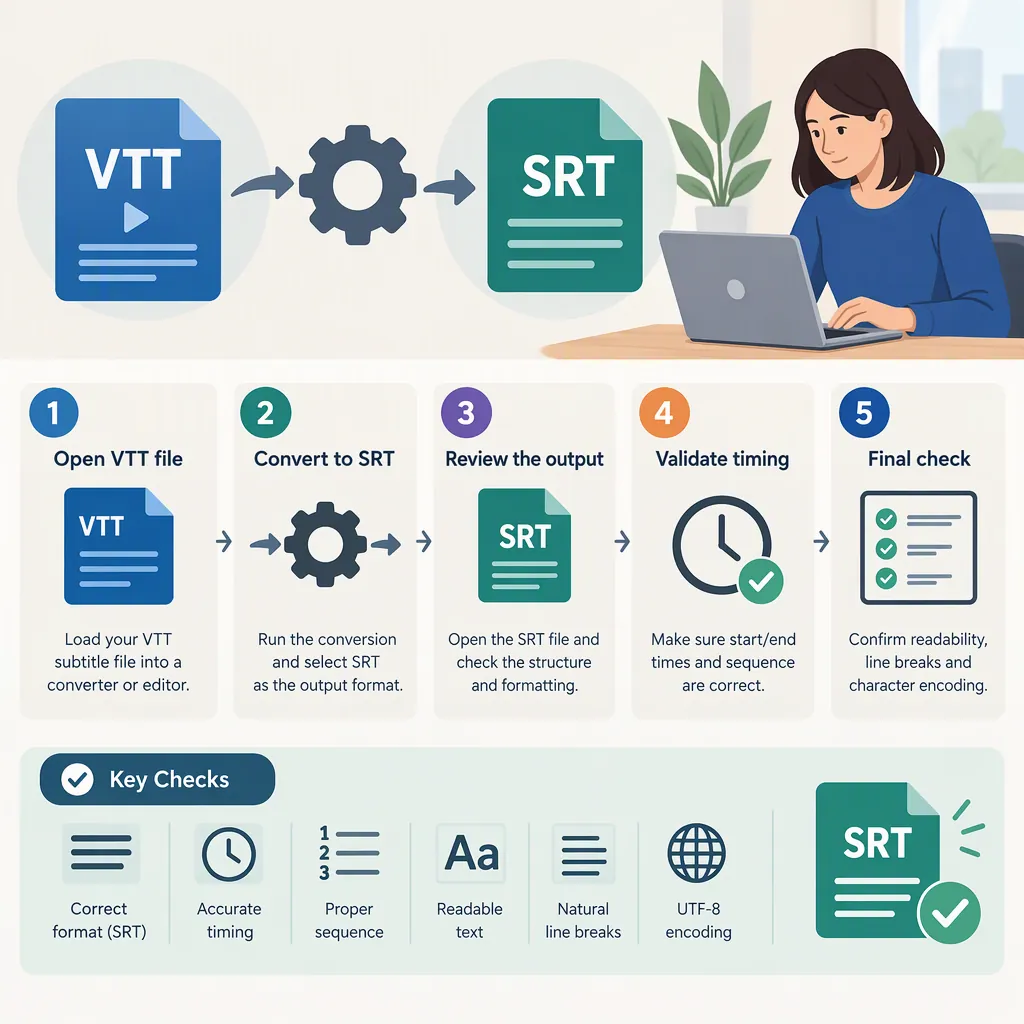
How to Convert VTT to SRT and Check the Result
To convert VTT to SRT, import an existing VTT subtitle file into a subtitle converter, choose SRT as the output format, and save the result. For simple plain-text cues, conversion removes the WEBVTT header, adds numbered cue blocks, and changes timestamps to SRT’s comma-based millisecond notation. Review the downloaded file in the destination player or editor: format conversion does not automatically fix synchronization or preserve every VTT presentation feature. [c1] [c2] [c3]
What Changes When You Convert VTT to SRT?
Both formats store subtitle text with start and end times. WebVTT uses a WEBVTT header and supports browser-oriented cue syntax; SRT uses numbered cue blocks and comma-based millisecond timestamps. For example, a VTT timestamp of 00:02.400 becomes 00:00:02,400 in an SRT cue. [c1]
VTT can also carry presentation information, including styling and positioning. Do not assume that converting to SRT will reproduce those settings in the receiving application. Keep the original VTT if its appearance matters, and inspect the converted captions in context. [c2]
The intended result is the same subtitle wording and timing in another file syntax—not a translation, transcription, or timing repair. [c1]
A Practical VTT to SRT Workflow
- Keep the source file. Work from a copy so you can compare the output with the original.
- Import the VTT. Use a converter that accepts WebVTT, or paste the subtitle text if that input method is available.
- Review the cues. Check for malformed timestamps, missing separators, and text without a valid timing line before exporting.
- Select SRT as the output. Generate and save the converted subtitle file.
- Test the saved file. Open it in the player or editor that will actually receive it and check wording, timing, encoding, and appearance. [c1] [c3]
The supplied EditingTools.io guide describes selecting WebVTT as the source and SRT as the conversion target, then generating and downloading the file. The Flixier reference describes uploading subtitles and choosing SRT under its subtitle download controls. These are documented workflows, not independently tested interface behavior or endorsements. [c2] [c3]
For confidential captions, verify how the chosen tool handles the text before using it. A browser interface alone is not evidence that processing stays on your device; the supplied VisionStory reference explicitly recommends checking network behavior before relying on browser-local processing for confidential material. [c1]
A Simple Manual Conversion Example
For a short file containing only plain-text cues, this original example illustrates the syntax changes: remove the header, number the cues, expand the timestamps to include hours, and replace the timestamp decimal point with a comma. Keep a blank line between cue blocks. The format distinctions are described in the supplied subtitle reference. [c1]
The example deliberately excludes styling, positioning, and other VTT-specific content. It is not a general-purpose conversion recipe for every WebVTT file. Avoid replacing every period in the document: the punctuation in the dialogue should remain unchanged.
Example Input: Captions.vtt
```text
WEBVTT

00:02.400 --> 00:05.100
The doors open at noon.

00:06.000 --> 00:08.500
Please keep the entrance clear.
```
Example Output: Captions.srt
```text
1
00:00:02,400 --> 00:00:05,100
The doors open at noon.

2
00:00:06,000 --> 00:00:08,500
Please keep the entrance clear.
```
Check Script Assumptions Before Batch Conversion
A local script can make repeated conversions more manageable, but inspect its parsing rules before applying it to a folder of files. The supplied GitHub gist defines a PowerShell function named ConvertTo-SRT and includes examples for individual files and multiple inputs. [c4]
That particular implementation searches for timestamps containing an hours field and takes two lines of following context for each match. It also replaces periods across the matched timing line. Those implementation details are reasons to test representative inputs rather than assume it handles every VTT structure. Short timestamps such as the manual example above, cues with more than two text lines, and timing lines with extra settings deserve particular attention. This is a source-code review, not an execution test. [c4]
For a batch job, compare several outputs with their originals before accepting the entire set. Include your longest cues and any files with unusual timing or presentation syntax in that review.
Validate the SRT Before Delivery
Use this checklist to review the saved file. The supplied reference identifies cue syntax, text, timing, encoding, and destination behavior as validation areas. [c1]
- Structure: Check numbered cue blocks, timestamp lines, and blank-line separators.
- Text: Compare wording, punctuation, multiline captions, and non-English characters with the source.
- Timing: Preview cues near the beginning, middle, and end of the video.
- Appearance: Inspect any captions whose VTT version depended on styling or positioning. [c2]
- Destination: Import the actual downloaded SRT—not just the converter’s preview—into the intended player or editor.
If captions were already out of sync, changing their format is not the repair. Correct the timing separately and test again. Conversion alone also does not translate dialogue, identify speakers, or generate subtitles from audio. [c1]
FAQ
Can I Just Rename a .VTT File to .SRT?
Renaming alone does not perform the required syntax changes. WebVTT has a WEBVTT header and its own timestamp syntax, while SRT uses numbered cue blocks and comma-based millisecond timestamps. Convert the contents as well as changing the extension. [c1]
Does VTT to SRT Conversion Change the Words?
Format conversion is intended to preserve subtitle text and timing where the source cues are valid. It does not translate or rewrite the dialogue. Compare the saved output with the source to catch parsing or export errors. [c1]
Will SRT Preserve VTT Fonts, Colors, and Positioning?
Do not assume full preservation. VTT supports presentation information beyond basic text and timing, so check the converted file in the receiving application if styling or placement matters. Keep the original VTT for comparison. [c2]
Will Conversion Fix Subtitles That Are Out of Sync?
No. Syntax conversion does not automatically synchronize poorly timed captions. Adjust the cue timing separately, then preview the resulting subtitles with the video. [c1]