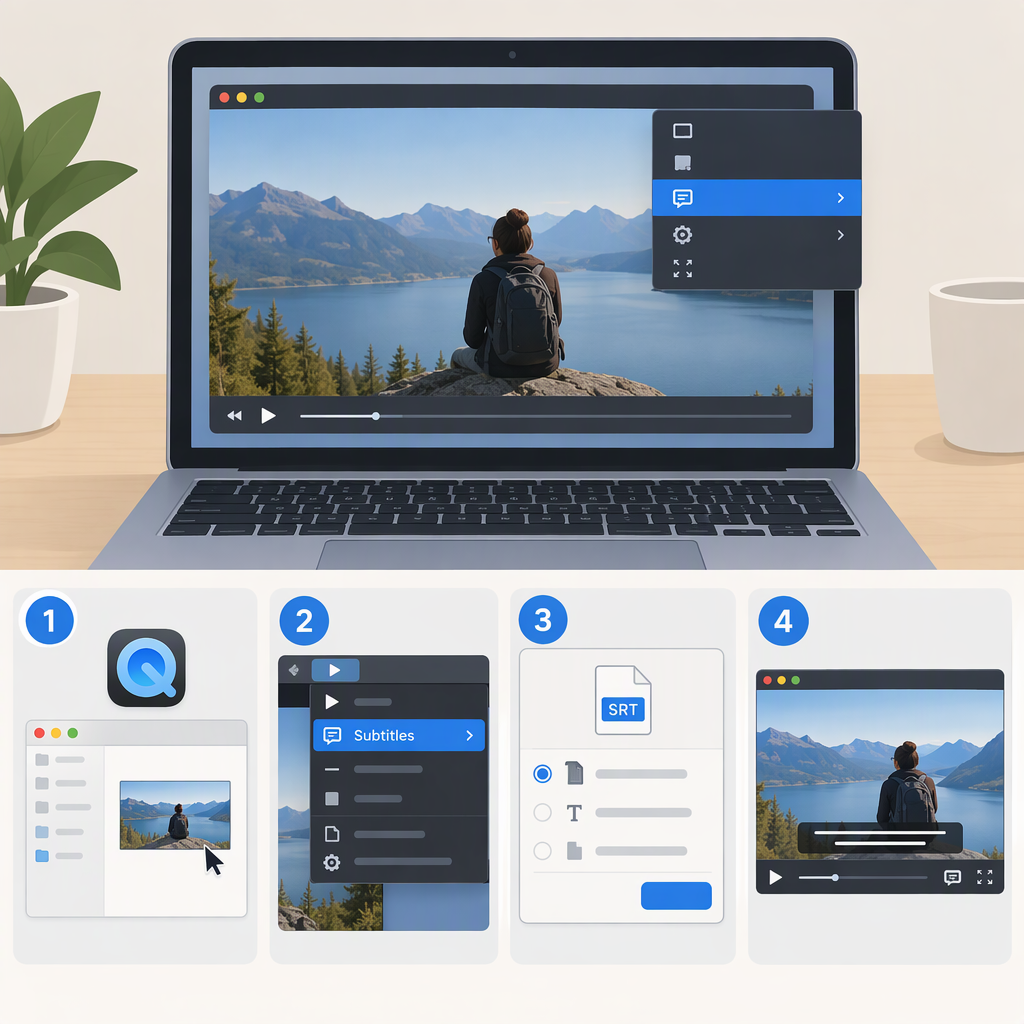
How to Add Subtitles to Quicktime Videos on Mac
QuickTime Player can display subtitles or captions that are already in a movie, but Apple’s documented QuickTime controls don’t provide a way to create or attach a new subtitle track. If the subtitles already appear in the file, turn them on in QuickTime. If you have a separate .srt file, use a subtitle-capable video tool to combine it with the video, then check the exported file in QuickTime.
Show Subtitles Already in a Video
- Open the movie in QuickTime Player and start playback.
- In the menu bar, choose View > Subtitles, then select a language or track. You can also click the playback- controls to see available options.
- For closed captions, choose View > Show Closed Captioning. Apple notes that this option is available only when captions are embedded in CEA-608 format. (support.apple.com)
If there’s no subtitle choice, QuickTime may not recognize a compatible subtitle or caption track in that file. Apple says the subtitle option won’t appear when the movie has no subtitles. A separate .srt file beside the movie is not, by itself, a track in the movie; you’ll need to combine them using another tool if you want one file. (support.apple.com)
Add an SRT Subtitle Track with Handbrake
If your subtitles are in an .srt file and you want viewers to be able to turn them on or off, use an output with a soft subtitle track—not burned-in text. HandBrake documents importing user-supplied SRT files and creating selectable subtitle tracks. Its documentation also says MP4 can contain soft text subtitles. (handbrake.fr)
- Open the video in HandBrake.
- Open the Subtitles tab, choose Tracks, and select the option to import your SRT file.
- Confirm that the SRT track is selected and that Burn In is off. Burning in makes text permanent on the video image; a soft track can be enabled or disabled in a compatible player. (handbrake.fr)
- Choose MP4 as the output container and start the encode. HandBrake may use an
.m4vextension for MP4 output when SRT subtitles are included. (handbrake.fr) - Open the exported file in QuickTime Player, choose View > Subtitles, and check whether the new track appears. If it doesn’t, don’t assume that an SRT file merely placed beside the video will work; try a different output setting or a player that supports the file’s subtitle format.
The soft-track option is best when viewers need to switch subtitles off or choose a track. If the text must always appear in the picture, select the tool’s burn-in option instead—but burned-in text cannot be switched off. (handbrake.fr)
Quick Choice
- Subtitles already in the movie: Select them under View > Subtitles in QuickTime.
- A separate SRT, switchable subtitles wanted: Import it in a subtitle-capable tool, export a soft track, and check the result in QuickTime.
- Text must always be visible: Export with subtitles burned into the video image.
QuickTime’s playback menu is the final check: an available subtitle track should appear there. Apple’s guide specifically limits its closed-caption command to embedded CEA-608 captions; it does not list that restriction for the general subtitle menu. (support.apple.com)