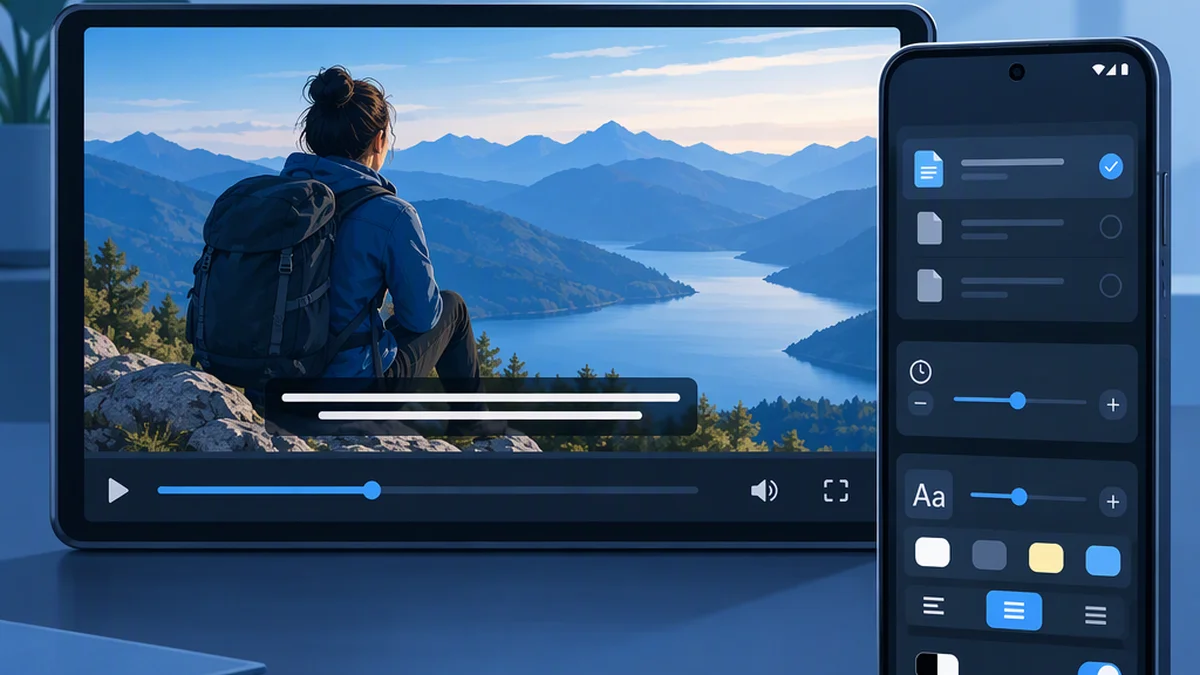
MX Player Subtitles: How to Add, Find, Sync, Customize, and Troubleshoot Them
To add subtitles in MX Player on Android, play the video, open the three-dot menu, select Subtitle, and choose Open or Browse to locate a subtitle file. If your version offers online subtitle search, you can search from the same menu. For subtitles that appear too early or too late, use Subtitle > Sync to adjust their timing.
The steps below draw on My Transcription Place’s How to Add, Download & Sync Subtitles in MX Player (Android Guide). Menu labels and feature availability may differ by app version and device; the guide does not establish that these steps apply to every current version.
What Types of Subtitles Can MX Player Use?
The Android guide lists external subtitle formats including SRT, SUB, SSA, and ASS, along with support for embedded subtitle tracks and online subtitle searches. Compatibility depends on the file and your version of the app.
There are three important subtitle types to distinguish:
- External subtitles: Separate files, such as an
.srtfile, that you load alongside the video. - Embedded subtitle tracks: Separate, selectable tracks stored inside the video container. These can generally be switched or disabled when the player supports them.
- Burned-in or hardcoded subtitles: Text that is part of the video image. A subtitle toggle cannot remove it.
SRT is a useful starting point because it stores dialogue and timestamps as text. However, a supported format alone does not guarantee correct timing: the subtitle must also match the video’s episode, release, edit, and runtime.
How to Add a Subtitle File in MX Player
Use these steps when the subtitle file is already on your Android device:
- Save the subtitle file in a folder MX Player can access.
- Open MX Player and play the video.
- Tap the three-dot playback menu, usually near the top-right.
- Select Subtitle.
- Choose Open or Browse, then locate and select the file.
- Check a scene with clear dialogue to confirm that the subtitles appear and match the speech.
The guide describes the navigation as Subtitle > Open > Browse > Select file. Your interface may combine these steps or use different labels.
Keeping the video and subtitle in the same folder with matching base names can help the player associate them. For example:
ExampleFilm.mp4
ExampleFilm.srt
This is a filename example, not a requirement or a guarantee of compatibility. If the file loads but the timing is wrong, check that it was made for the same video release.
How to Find Online Subtitles in MX Player
If your version includes online subtitle search:
- Start the video.
- Open the three-dot playback menu.
- Select Subtitle.
- Choose Online Subtitles or the equivalent search option.
- Search for the title and select the language you need.
- Choose a result that matches the video, then check its timing.
Where available, compare the season, episode, release information, and runtime—not just the title. Two subtitles for the same movie may be timed for different cuts.
Online results may be unavailable, mislabeled, incomplete, or inaccurate. If one does not work, try another matching file. If your app has no online search option, use the local-file workflow instead. Obtain subtitle files from sources you are entitled to use and check applicable service terms.
How to Sync Subtitles with the Video
First determine whether the timing problem is a constant offset or gradual drift.
| Timing problem | What to try |
|---|---|
| Subtitles are consistently early or late | Adjust the subtitle delay |
| Subtitles start correctly but become increasingly mistimed | Find a subtitle made for the same release, frame rate, or cut |
| Timing suddenly changes after a particular scene | Check whether the video and subtitle use different edits |
To adjust a constant offset:
- Play a scene with clear speech.
- Open the playback menu and select Subtitle > Sync or Subtitle Sync.
- Adjust the timing in small increments.
- Check the same dialogue again, then check another scene later in the video.
Example: If a subtitle appears two seconds before the words are spoken, make it display two seconds later. If it appears two seconds after the speech, make it display two seconds earlier.
The interface may show seconds or milliseconds: 2 seconds equals 2,000 milliseconds. Follow the current interface’s meaning for positive and negative values, and make a small adjustment first to verify the direction.
A fixed delay shifts all subtitles by the same amount. It cannot reliably correct subtitles that become progressively more out of sync because they were created for a different video version.
How to Customize Subtitle Appearance
The Android guide lists subtitle controls such as font size, color, position, border, and style, but it does not establish one display-settings path for every version.
During playback, start with the Subtitle menu and look for appearance or subtitle-settings controls. If they are not there, check the app’s settings for subtitle options. Do not assume that every subtitle control is in the same panel.
For readability:
- Increase the font size until the text is comfortable to read.
- Choose a high-contrast color.
- Use an outline or border to keep text visible over bright backgrounds.
- Adjust the position if subtitles cover important on-screen information.
Other subtitle controls serve different purposes:
- Encoding affects how text characters are interpreted.
- Language or track selection determines which subtitle file or embedded track is displayed.
- Sync or delay changes when subtitles appear.
If characters appear as boxes, question marks, or unexpected symbols, check encoding rather than font size. UTF-8 is a useful encoding to try for text-based subtitles, but the correct choice depends on how the file was saved.
How to Turn Off Subtitles
Open the playback menu, select Subtitle, and choose the off or disable option available in your version.
This can disable an external subtitle file or a supported embedded subtitle track. It cannot remove burned-in subtitles, because those words are part of the video image.
If text remains visible, check whether another selectable subtitle track is active before concluding that it is burned in.
Why MX Player Subtitles May Not Show
Work through these checks in order:
- Load the file manually. Open Subtitle > Open or Browse and select it again.
- Check storage access. Make sure MX Player has permission to access the folder containing the subtitle.
- Check the format. Try an SRT file as a practical test. Format support can vary with the file and app version.
- Check the location and filename. Put the subtitle beside the video and use matching base names.
- Check the file’s contents. An empty or damaged subtitle file will not work correctly.
- Check timing. Subtitles may be loaded but scheduled for a different point in the video.
- Check encoding. Garbled text suggests a character-encoding problem rather than a missing subtitle.
- Try another matching file. This helps identify whether the original file is the problem.
For online-search failures, also check your internet connection, search title, selected language, and service availability. Testing a working local subtitle file helps separate an online-search problem from a playback or file-access problem.
If you are trying to remove text rather than make it appear, distinguish a selectable embedded track from burned-in text. Only the latter is permanently part of the picture.
Does MX Player Generate AI Subtitles?
The source cited here is not sufficient to confirm whether MX Player offers automatic subtitle generation or translation for your version.
Loading an existing subtitle file is different from generating captions from audio. Check the features actually available in your app before assuming that an “AI subtitles” claim applies to it. If you use automatically generated captions, review names, technical terms, and important dialogue for errors.
FAQ
How Do I Add English Subtitles in MX Player?
Play the video, open the three-dot menu, select Subtitle > Open or Browse, and choose an English subtitle file. Check that it matches the video release and is synchronized with the dialogue.
Can MX Player Open SRT Files?
The cited Android guide lists SRT as a supported format. If a file does not load, select it manually, check storage permissions, and verify that it contains readable subtitle text and timestamps.
Why Do Subtitles Keep Going Out of Sync?
A growing timing mismatch often means the subtitle was made for a different frame rate, runtime, or edit. A fixed delay may correct a constant offset, but a subtitle matched to the exact video release is usually a better solution for gradual drift.
Why Are Subtitles Still Visible After I Turn Them Off?
Another selectable subtitle track may still be active, or the text may be burned into the video image. Embedded subtitle tracks can generally be disabled when supported; burned-in subtitles cannot be removed with the player’s subtitle controls.
Source
- How to Add, Download & Sync Subtitles in MX Player (Android Guide) — My Transcription Place. This third-party guide supports the workflows described above, but does not establish compatibility with every current MX Player version, Android device, or online subtitle service.