How to Add a Subtitle Track to an Mkv with Mkvtoolnix
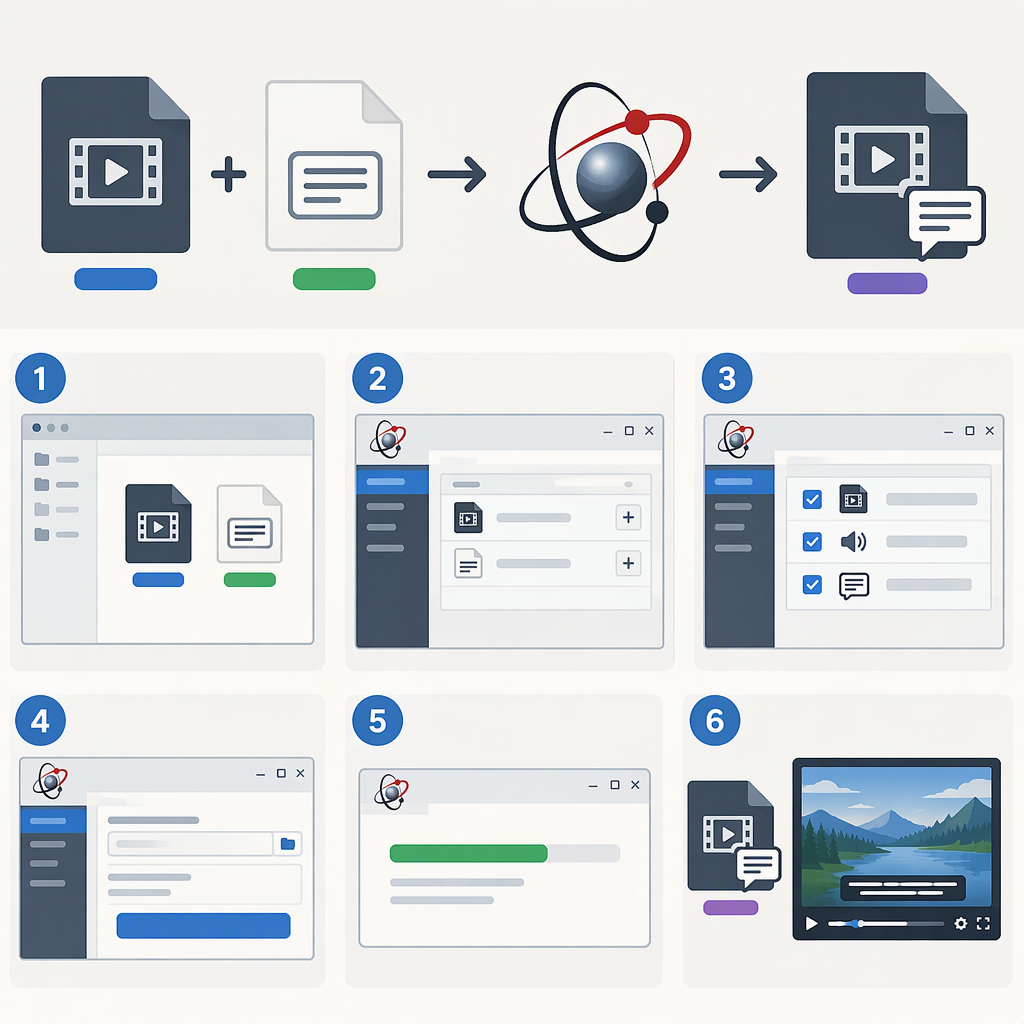
MKVToolNix can combine an existing video file and an external subtitle file into a new Matroska file (MKV), adding the subtitles as a selectable track. It does not turn that track into text permanently drawn onto the video image. For that kind of permanent “burn-in,” use a video-rendering workflow instead. MKVToolNix’s GUI is a front end for mkvmerge, the tool that combines media streams into a Matroska file. (mkvtoolnix.download)
Add Subtitles with Mkvtoolnix Gui
You need an MKV video and an external subtitle file that MKVToolNix recognizes. The steps below use the GUI’s Multiplexer workflow; exact layout or wording may vary by version.
- Keep the original video unchanged. Choose a different name or folder for the output so you do not overwrite your source.
- Open MKVToolNix GUI and use its Multiplexer view. Add the MKV video as a source file, then add the subtitle file to the same multiplexing job. The GUI’s default mode is to add files as sources for multiplexing. (mkvtoolnix.download)
- Check the source and track lists. Confirm the video’s existing tracks are included and that the external subtitle appears as a subtitle track. If the subtitle track is not listed, see the troubleshooting checks below before continuing.
- Set the output filename and location. Use a new name, for example
film-with-subs.mkv. - Optionally set track details. If useful, choose the subtitle’s language and a clear track name. MKVToolNix supports track options; the language and name are metadata that help identify the track, not a guarantee that every player will display or select it the same way. (mkvtoolnix.download)
- Start multiplexing. When the job finishes, locate and open the newly created MKV. The result should contain the video’s tracks and the added subtitle track.
Command-Line Alternative
If you prefer a terminal and have mkvmerge available, its documented syntax accepts an output path followed by input files. For a recognized SRT subtitle, a basic example is:
mkvmerge -o "film-with-subs.mkv" "film.mkv" "film.en.srt"
Replace the filenames with your actual paths. This creates a new Matroska output; it does not edit the original in place. The example assumes the subtitle file is recognized by your installed version. (mkvtoolnix.download)
Check the Subtitle Track and Playback
First confirm the new file contains the intended subtitle track. You can reopen it in MKVToolNix GUI and inspect the listed tracks, or use mkvinfo, which can report the tracks in a Matroska file. (mkvtoolnix.download)
Then open the output in your media player and select the subtitle track from the player’s subtitle menu if it is not shown automatically. These are two different checks: finding the track confirms it is in the file; seeing it in playback confirms that your player can display it. If the track is present but the subtitles are mistimed, that is a timing issue, not proof that the track failed to be added.
If the Subtitle Is Missing
- It never appeared in the source or track list: Confirm you added the subtitle file itself, not just the video. If the file still is not recognized, its format may be unsupported or malformed; some subtitle-like data, such as closed captions embedded inside a video track, may not appear as a separate track. (help.mkvtoolnix.download)
- It appears in the job but not in the output: Reopen the output file—not the original—in MKVToolNix GUI or inspect it with
mkvinfo. Check that the subtitle track was included in the job. (mkvtoolnix.download) - It is in the output but not visible during playback: Use the player’s subtitle-selection menu and test in another compatible player if available. Track presence alone does not establish that a particular player will select or render it.
- It displays but is out of sync: Check the subtitle file against the exact video version. Adding a track does not itself rewrite subtitle timing; avoid applying a timing adjustment unless you have established the offset or drift.
In short: use MKVToolNix to mux a recognized external subtitle into a new MKV as a selectable track. Verify both that the track is present in the output and that your player displays it as intended. This is not subtitle authoring or permanent burn-in.