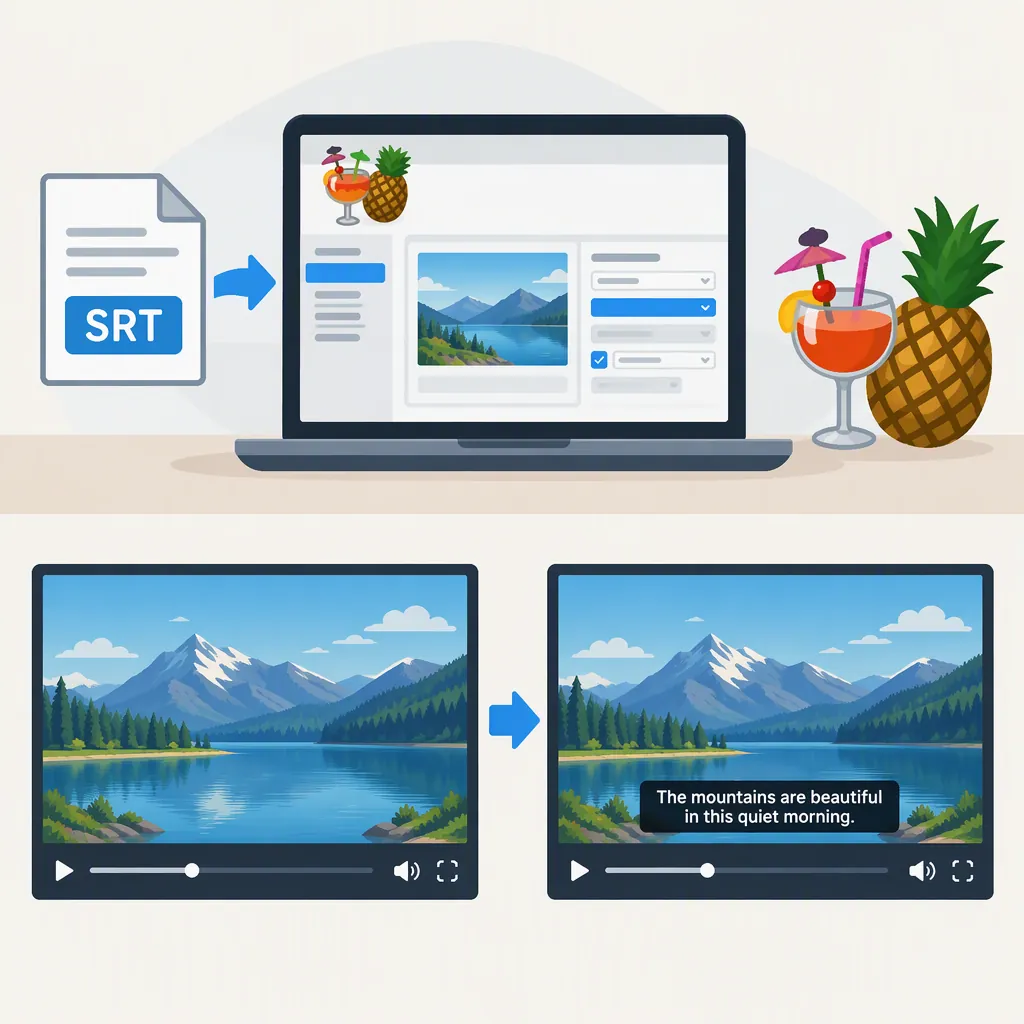
Handbrake Subtitles: How to Import and Burn in an SRT File
To add SRT subtitles in HandBrake, open your video, go to Subtitles > Tracks > Add External SRT, and select your subtitle file. Check Burned In for subtitles that remain visible, or leave it unchecked for the unburned workflow. Set the subtitle language, check the text-encoding setting, and select Start to encode. [c1]
The steps below follow 3Play Media’s third-party walkthrough, which does not identify the HandBrake version used. Interface labels may differ in your installation, and the guide does not establish subtitle compatibility across output containers and players. [c1]
Choose Burned-In or Selectable Subtitles
Choose the intended subtitle behavior before encoding:
- Burned-in subtitles become part of the video image and cannot be turned off with a player’s subtitle controls. The guide calls this the open-caption workflow and instructs users to check Burned In. [c1]
- Unburned subtitles are intended to remain separate from the video image. Whether they are available as selectable subtitles depends on the output and playback support. The guide calls its unchecked Burned In workflow closed captions; that label is not a guarantee that every player will offer subtitle controls. [c1]
If viewers need to turn subtitles on or off, leave Burned In unchecked as described in the guide, then test the encoded file in the intended player. [c1]
Import an SRT File in Handbrake
Have your video and its corresponding SRT file ready. This workflow imports an existing SRT; the guide obtains that file separately and does not document subtitle creation or transcription inside HandBrake. [c1]
Follow the guide’s import sequence, with an encoding check before starting:
- Open HandBrake and select Open Source.
- Select the video you want to encode.
- Open the Subtitles tab.
- Select Tracks, then Add External SRT.
- Choose the SRT file associated with the video.
- Check Burned In for burned-in subtitles, or leave it unchecked for the guide’s unburned workflow.
- Under SRT Language, select the language of the subtitle file. [c1]
- Check SRT Encoding before proceeding. The guide specifies ISO-8859-1, but does not establish it as suitable for every file. See Check the SRT Text Encoding. [c1]
- Review the remaining settings, then select Start to encode. [c1]
Pre-Encode Checklist
Before starting, confirm:
- The selected video is the intended source.
- The SRT file belongs to that video.
- The subtitle language is selected.
- Burned In matches your intended output: checked for the guide’s open-caption workflow, unchecked for its closed-caption workflow. [c1]
- You have checked the SRT text encoding rather than assuming the guide’s setting suits your file.
Check the SRT Text Encoding
The guide instructs users to leave SRT Encoding at ISO-8859-1. It does not explain how to choose an encoding for other subtitle files or languages, so do not treat that setting as a universal default. [c1]
As a practical quality-control step:
- Open the SRT in a text editor that can display the file’s encoding.
- Confirm the encoding and inspect the subtitle text, especially accented letters and non-Latin characters.
- If HandBrake’s import interface provides a matching encoding option, select it.
- Encode and inspect the displayed subtitles.
If characters appear incorrectly in the output, recheck the file’s encoding and the selected import setting, then encode again and compare the result. These are troubleshooting recommendations, not settings validated by the cited walkthrough.
Check the Encoded Video
The guide’s final step is to view the completed video with captions. [c1] Use that review to confirm both the subtitle text and the intended delivery behavior.
Output Review Checklist
- Open the completed output in the player you intend to use.
- Watch passages near the beginning, middle, and end.
- Compare subtitle timing and wording with the dialogue.
- Check line readability and unusual characters.
- For burned-in subtitles, confirm that the text is visible as intended.
- For unburned subtitles, test whether the player exposes the subtitle track and allows it to be turned on and off.
- Note any mismatch before revising settings and encoding again.
These checks are recommendations, not reported compatibility-test results. In particular, an unchecked Burned In box alone does not establish selectable-subtitle support in your playback environment.
FAQ
How Do I Burn in Subtitles with Handbrake?
Import your SRT through Subtitles > Tracks > Add External SRT, check Burned In, and select Start after reviewing the subtitle settings. The guide identifies this as its open-caption workflow. [c1]
Can I Keep Handbrake Subtitles Selectable?
The guide describes leaving Burned In unchecked for its closed-caption workflow. Whether the resulting subtitles are selectable depends on output and player support, so test the file in your intended playback environment. [c1]
Does This Workflow Create an SRT File?
No. It starts with an SRT file obtained separately and imports it into HandBrake. The cited guide does not document creating or transcribing subtitles within HandBrake. [c1]
Which SRT Encoding Should I Choose?
Use an import encoding that matches your SRT file, if that option is available. The guide specifies ISO-8859-1, but does not establish it as correct for every file or language. Confirm the file’s encoding in a suitable text editor and inspect the encoded subtitles for character errors. [c1]