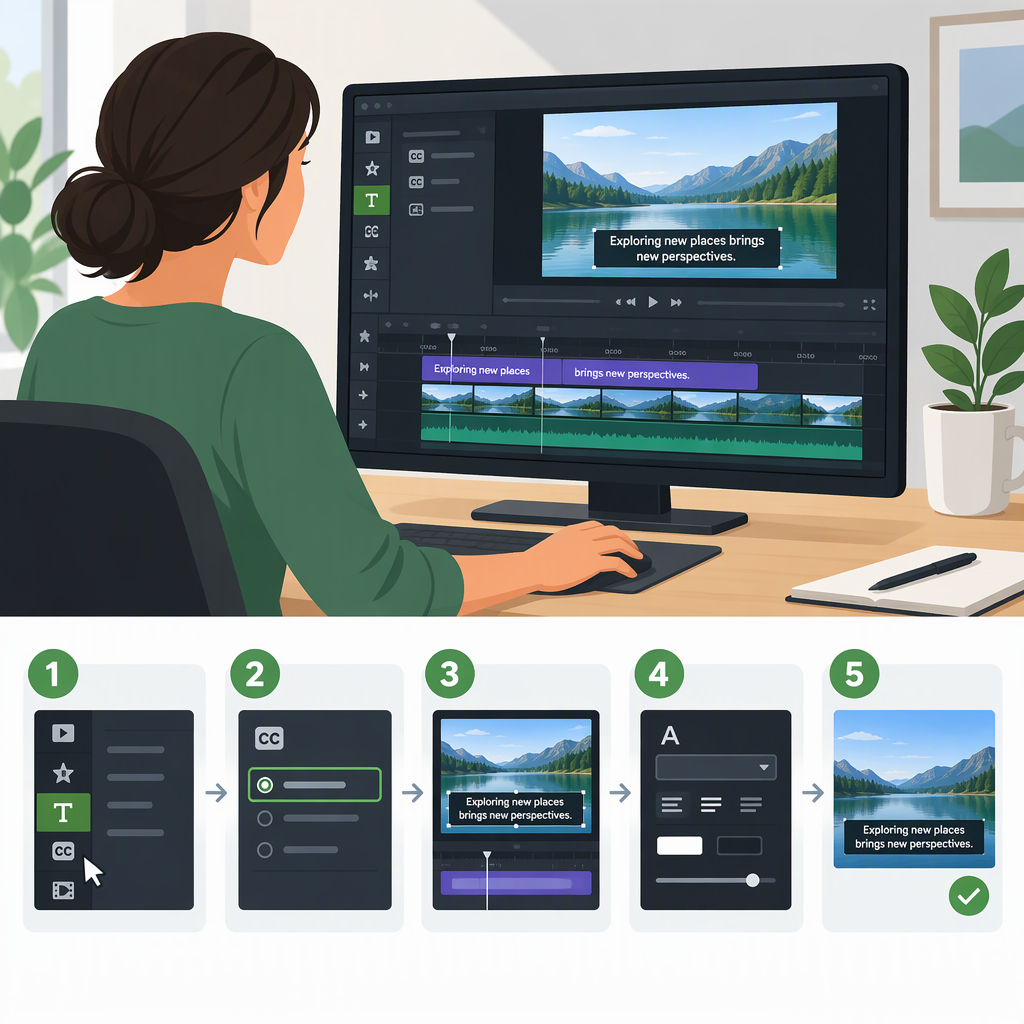
How to Add Subtitles and Captions in Camtasia
Camtasia calls its synchronized, viewer-toggleable text Closed Captions and its always-visible, on-screen text Dynamic Captions. Choose closed captions when viewers should be able to switch captions on or off; choose dynamic captions when you want text permanently visible as part of the picture. These are different results, so a decorative dynamic-caption style should not be treated as a substitute for captions intended to support accessibility. (techsmith.com)
Choose the Result You Want
| Your goal | Camtasia option | What viewers see |
|---|---|---|
| Let viewers turn synchronized captions on or off in a supported player | Closed Captions | Captions can be toggled in the player. TechSmith notes that its closed captions are viewed through the TechSmith Smart Player. (techsmith.com) |
| Keep styled words visible in the picture | Dynamic Captions | Text is always on screen as part of the video. TechSmith says this feature is not intended to replace captions and does not include the properties needed for ADA-compliant captions. (techsmith.com) |
| Make captions visible in a regular exported MP4 without relying on a caption toggle | Burned-in (open) captions | Text appears in the MP4 and cannot be turned off by the viewer. (support.techsmith.com) |
Add Closed Captions
TechSmith documents a workflow for both Camtasia Editor on Windows and Mac. The steps differ slightly by platform. (techsmith.com)
Windows
- Open the project and select Captions > Closed Captions.
- Choose Speech-to-Text. The option is unavailable if the media on the timeline does not contain voice-over.
- Let Camtasia transcribe the timeline audio into captions.
- Review and edit the result in the Caption Editor before exporting. (techsmith.com)
Mac
- Open Captions > Closed Captions.
- Drag Captions onto the desired timeline media. A Captions track appears above the timeline.
- Select an audio clip that contains voice-over, open the caption options, and choose Transcribe Selected Media.
- Repeat for each audio clip that needs transcription, then review and edit the result in the Caption Editor. (techsmith.com)
If you already have a prepared script: TechSmith also documents a Windows-only option: move the playhead to the start, add a caption, paste the script into the caption editor, then choose Sync captions from the gear menu and follow the prompts. (techsmith.com)
Generate and Edit Dynamic Captions
For text that stays visible in the picture, select Captions > Dynamic Captions, drag a style onto a track above the audio, and enable AI audio transcription when prompted. Camtasia generates captions from voice-over on the tracks below. You can reposition or resize the caption box on the canvas, and drag the end of the dynamic-caption clip to change how long it appears or extend it to other media. (techsmith.com)
To correct the generated text, select the media and edit words in the Dynamic Caption Transcription area. TechSmith documents adding a word on the transcript bar in Camtasia Editor 2025.0 or later; it also documents deleting a selected word or converting it to a gap so it remains in the transcript but is not displayed in the on-screen caption. (techsmith.com)
Dynamic captions are a visual-text workflow, not the best choice when the requirement is toggleable closed captions. TechSmith says they are intended for short, simple recordings under five minutes and are not intended to replace captions. It also notes that transcription quality can be affected by audio quality and that long narration may take longer and have increased error rates. Review the words rather than assuming automatic transcription is correct. (support.techsmith.com)
Export and Check the Result
For an MP4 where captions should always be visible, TechSmith’s Windows support instructions say to export as a local MP4, open Advanced Settings, choose the Basic MP4 preset, and in the Captions tab enable Render video with open (always visible) captions. Export, then inspect the resulting MP4. Because these specific export instructions are in TechSmith’s Camtasia Editor (Windows) support article, do not assume the same menu sequence applies to every version or Mac workflow. (support.techsmith.com)
If you need viewers to toggle closed captions, TechSmith says they are viewed by starting the video through the HTML file with the TechSmith Smart Player. A plain MP4 with burned-in captions is different: those captions remain visible and cannot be toggled off. Test the actual delivered file or player—not only the editor preview—to confirm the captions match the result you chose. (support.techsmith.com)
The cited guidance here establishes Smart Player and burned-in MP4 workflows; it does not establish a current, general-purpose standalone subtitle-file export workflow. If your destination specifically requires a separate caption file, confirm that your Camtasia version and publishing route provide the format you need before relying on this workflow.
Final Review Checklist
- Words: Correct names, technical terms, punctuation, and obvious transcription errors.
- Timing: Play the video and check that captions follow the speech rather than appearing noticeably early or late.
- Readability: For dynamic captions, check their position, size, and contrast against the video image.
- Output: Reopen the exported video or published player and confirm the intended behavior: toggleable captions or permanently visible text.
These checks are practical review steps, not a claim that a particular project or export was tested.