How to Add Subtitles to Video with Avidemux
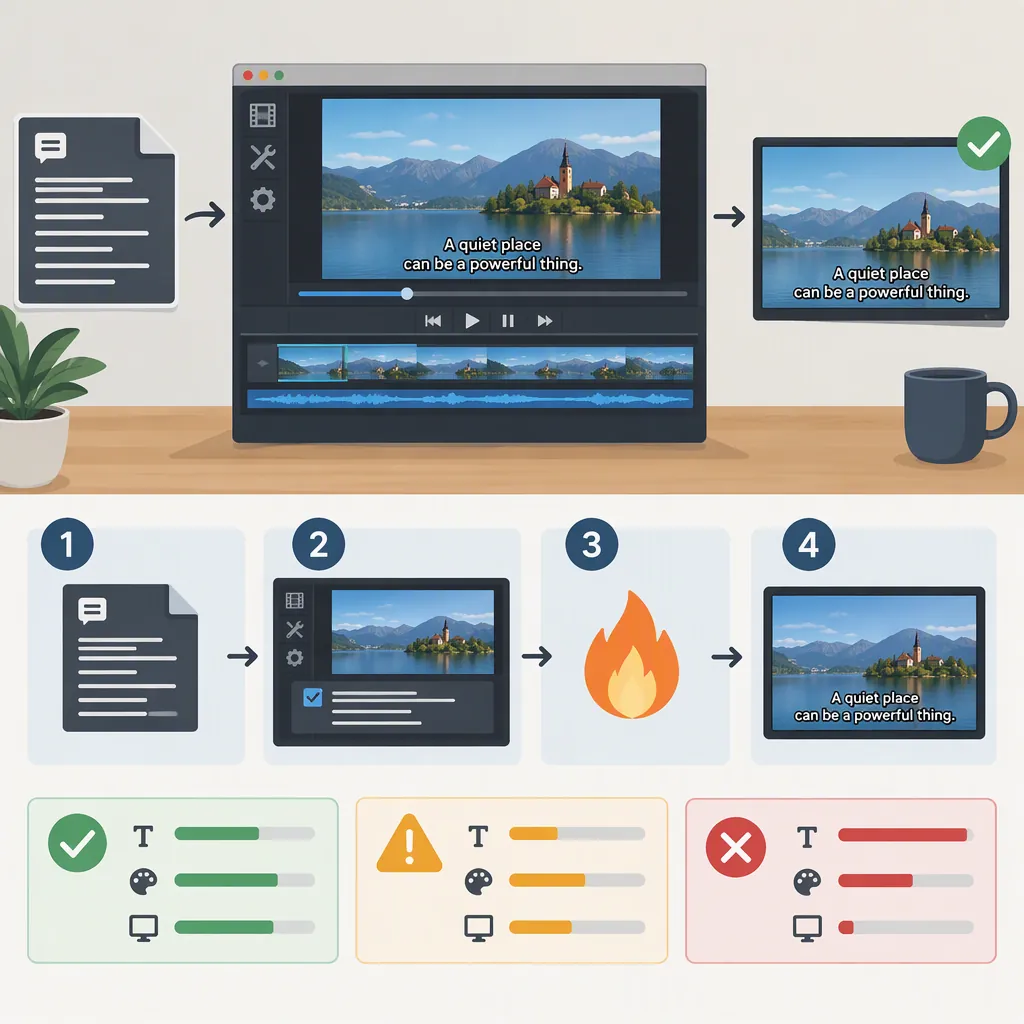
To burn subtitles into a video with Avidemux, open the video, select a video encoder instead of Copy, add a subtitle filter, load the subtitle file, choose a suitable output container, and save a new video. Filters require re-encoding. The supplied subtitle tutorial is from 2010, so its exact filter names and supported subtitle formats should not be treated as verified for every current installation. [avidemux-quickstart] [subtitle-tutorial]
What the Documented Subtitle Workflow Does
The supplied tutorial describes burning subtitles into the picture permanently, rather than adding a separate subtitle track that viewers can switch on or off. Its use of “embed” refers to this permanent subtitle workflow. [subtitle-tutorial]
Avidemux’s quickstart confirms that video filters can add subtitles to the picture and that filtering requires re-encoding. It also describes Avidemux as a tool for simple processing tasks, not a timeline-based, multitrack editor. [avidemux-quickstart]
Evidence limit: the quickstart was last modified in 2012, and the subtitle tutorial was published in 2010. These sources establish the documented workflow, but they do not verify today’s interface, installed filters, or a switchable-subtitle export workflow. [avidemux-quickstart] [subtitle-tutorial]
Steps to Burn in Subtitles
Use these as workflow steps rather than a guarantee of exact menu labels in your version.
- Open the source video. The quickstart documents the Open button and Ctrl+O. [avidemux-quickstart]
- Select a video encoder instead of Copy. Copy leaves the video stream unchanged; selecting an encoder enables the filtering workflow. The older tutorial uses Xvid, but the quickstart’s general requirement is to select an encoder—not one particular codec. [avidemux-quickstart] [subtitle-tutorial]
- Open the video filters and find a subtitle filter. The 2010 tutorial places these filters in a Subtitles category. Check what your installation actually offers before following its format-specific instructions. [subtitle-tutorial]
- Load the subtitle file into the appropriate filter. The older tutorial lists SRT, MicroDVD SUB, and SSA/ASS options. This is historical documentation, not confirmation that every current build accepts all of them. [subtitle-tutorial]
- Choose audio handling and an output container. Audio Copy preserves the existing audio stream without re-encoding. Select a container appropriate for the chosen video and audio formats. [avidemux-quickstart]
- Save the result. Avidemux’s quickstart documents Save and Ctrl+S after configuring encoders and filters. As a precaution, use a different filename and inspect the exported video before replacing any original. [avidemux-quickstart]
Short Export Check
- Keep the original video and subtitle file unchanged.
- Check that video output is set to an encoder, not Copy.
- Confirm that the subtitle filter has the intended file loaded.
- Export a short representative segment to a new filename.
- Inspect subtitle timing, accented characters, line breaks, and placement in the saved video.
- Check audio playback before processing the full video.
Checks When Subtitles Do Not Appear
Filters are unavailable: first check whether the video encoder is still set to Copy. The documented filtering workflow requires an encoder selection and re-encoding. [avidemux-quickstart]
Your subtitle format has no matching filter: compare the options in your installation with the tutorial, but do not assume the older SRT, SUB, or SSA/ASS instructions apply unchanged. The supplied sources do not establish a current compatibility list. [subtitle-tutorial]
Preview does not show subtitles: inspect a short saved output rather than relying only on preview. The 2010 tutorial reports a subtitle-preview limitation in its setup; that report does not prove the same behavior exists in your version. [subtitle-tutorial]
Text is mistimed, clipped, or unreadable: review the subtitle file and the filter settings available in your installation, then repeat the short export check. Treat this as a diagnostic procedure, not a confirmed fix for a particular Avidemux defect.
Re-Encoding and Output Limits
Burning subtitles into the picture is not a video Copy operation. The quickstart states that filters require re-encoding and that lossy encoding can introduce quality loss. Do not assume a subtitle burn-in export will be lossless or finish as quickly as copying streams. [avidemux-quickstart]
Audio can remain in Copy mode when it does not need processing, provided the output container is suitable for the audio and video formats. Changing the container alone does not apply a subtitle filter: the container stores the streams, while the filter changes the video picture. [avidemux-quickstart]
If you need selectable subtitles rather than permanent text, these references are insufficient to establish an Avidemux procedure. The documented burn-in workflow should not be presented as a substitute for that requirement. [subtitle-tutorial]
FAQ
Can I Burn Subtitles into a Video Using Copy Mode?
No. The documented subtitle burn-in method uses a video filter, and Avidemux’s quickstart says filters require re-encoding. Select a video encoder instead of Copy. Audio can be handled separately. [avidemux-quickstart]
Does Avidemux Support SRT and Ass Subtitles?
The 2010 tutorial documents SRT and SSA/ASS subtitle filters, along with MicroDVD SUB. The supplied references do not verify support in every current version, so check the filters available in your installation. [subtitle-tutorial]
Can Viewers Turn Off Subtitles Added with This Method?
Not with the permanent burn-in method described by the supplied tutorial: the text becomes part of the picture. These references do not establish a procedure for exporting a separate, switchable subtitle track. [subtitle-tutorial]
Do I Have to Use Xvid to Add Subtitles?
The older tutorial uses Xvid, but the Avidemux quickstart states the broader requirement: select a video encoder before applying filters. These sources do not establish Xvid as the only option. [avidemux-quickstart] [subtitle-tutorial]
Sources
-
[avidemux-quickstart] using:quickstart [Avidemux]
-
[subtitle-tutorial] How to Embed Subtitles to MP4 & FLV Videos Using Avidemux