How to Choose a Text Video Maker for Generation or Overlays
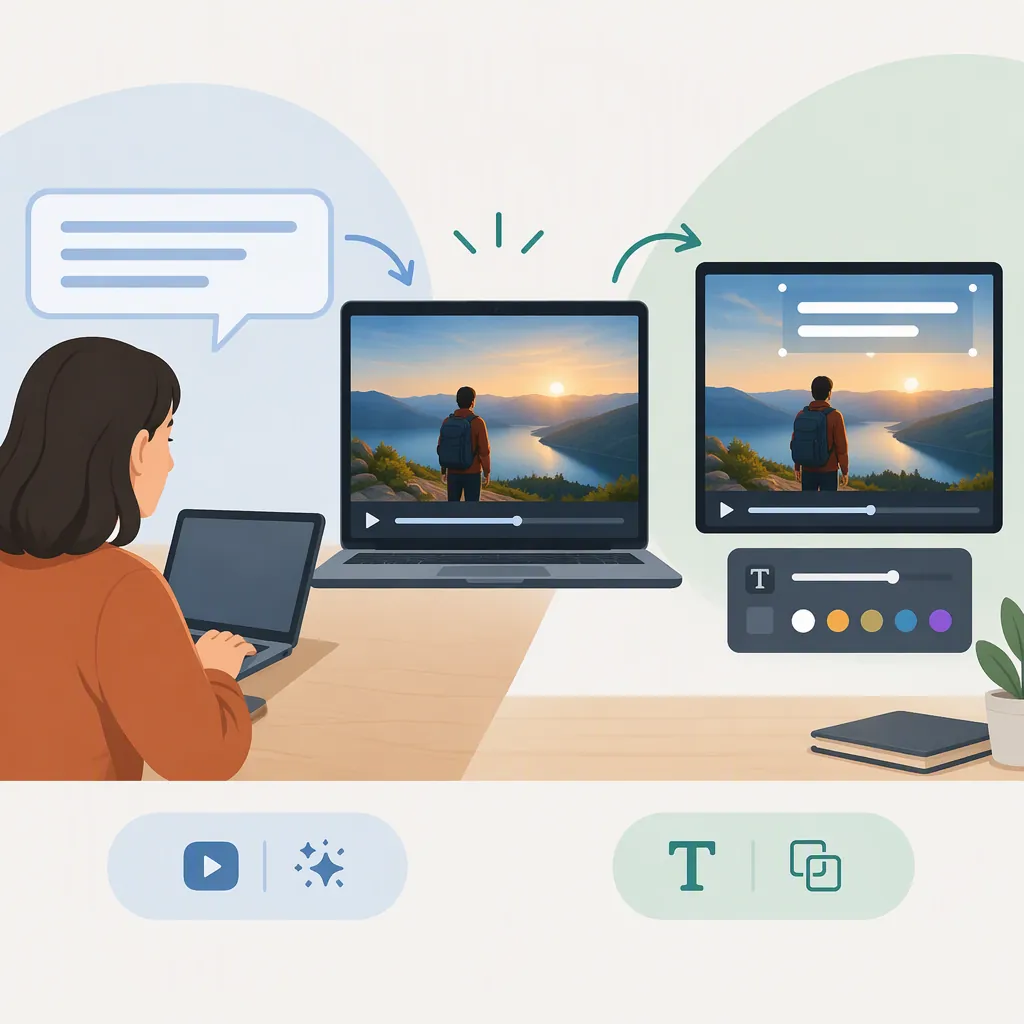
Choose a text video maker according to what the text should do. Text-to-video generation uses a written prompt to create video; a text overlay places readable words over footage; subtitles represent spoken dialogue; and text-to-speech turns a script into audio. If you already have a clip and need titles or instructions, prioritize an overlay editor with text placement and timing controls rather than a generation-only workflow. [c1] [c2] [c3] [c4]
Separate the Four Text Workflows
The phrase “text video maker” can describe different tasks. Start by identifying the intended output, not by comparing broad tool labels.
| Your Goal | Relevant Workflow | What to Check |
|---|---|---|
| Create a scene from a written description | Text-to-video generation | Prompt inputs, generation settings, and revision options |
| Put a title or instruction over an existing clip | Text overlays | Font, color, placement, and start/end timing |
| Display spoken dialogue as words | Subtitles | Transcript accuracy and synchronization |
| Read a written script aloud | Text-to-speech | Voice preview, pronunciation, and audio timing |
The supplied sources distinguish prompt-based generation, overlay editing, subtitles, and script-to-audio conversion. These are different outputs, even when a service groups them in one workspace. [c1] [c2] [c3] [c4]
For a text-led video with a plain or visual background, treat the words as the main content: plan each text segment, choose its background, and set its duration. Use that plan to evaluate an editor rather than assuming you need AI-generated scenes.
Project Definition Template
Complete before comparing editors:
- Starting material: existing clip / still images / written idea
- Main output: generated scene / visible text / subtitles / narration
- Exact words that must appear:
- Words that must be spoken:
- Intended viewing format:
- Required revisions after the first draft:
- Export requirements:
Compare Controls, Not Broad Tool Labels
For titles and instructions, evaluate whether you can control the words independently of the footage. The overlay references describe changing text styling and setting when each text layer appears. [c2] [c3]
Use a small test project to check the controls you actually need:
- Exact wording: Can you correct a word without rebuilding the scene?
- Placement: Can you move text away from important visual details?
- Timing: Can you set separate start and end points for each message?
- Multiple layers: Can a title and a label appear together without colliding?
- Revision: Can you reopen the project and change the text later?
- Export: Does the downloaded file preserve the layout you previewed?
These are evaluation questions, not verified capabilities of every referenced service. The supplied pages are public descriptions, not independent tests or a complete comparison of current plans.
Repeatable Overlay Test
Use the same short clip in each candidate editor.
1. Add the title “Prepare the Workspace.”
2. Add the label “Check the Surface” later in the clip.
3. Change the title wording after positioning it.
4. Adjust each layer’s start and end independently.
5. Preview at the intended viewing size.
6. Export and inspect the downloaded file.
Record each result as pass, fail, or not verified.
Build Readable Text Overlays
A practical overlay workflow is to import the clip, add a text layer, style and position it, set its duration, then preview and export. The supplied overlay guides describe this sequence. [c2] [c3]
Keep each message focused on one idea. Use a readable font for instructions, choose colors that contrast with the footage, and inspect every background change behind the text. Preview at the size the audience is likely to see, especially for phone viewing. Keep important text away from edges where platform controls may cover it. These recommendations are supported by the Picsart guide. [c3]
Do not use a fixed reading-time formula as a substitute for review. Play the sequence at normal speed and check whether the words can be read comfortably before they disappear. If not, shorten the wording or extend the text layer.
Overlay Review Checklist
- [ ] Each text segment communicates one main idea.
- [ ] Spelling and punctuation are correct.
- [ ] The font remains readable at the intended viewing size.
- [ ] Contrast holds as the background changes.
- [ ] Text does not cover a necessary visual detail.
- [ ] Important words remain clear of likely interface overlays.
- [ ] Each message stays visible long enough to read comfortably.
- [ ] The exported file has been checked, not just the editor preview.
Coordinate Visible Text and Narration
A title is not a substitute for subtitles. An overlay may introduce a topic or explain a detail, while subtitles represent the spoken dialogue. [c3]
Text-to-speech addresses a different need: producing an audio reading of a script. The supplied TTS guide describes previewing a voice, generating an audio track, and aligning it on the timeline. [c4]
For a narrated tutorial, review the audio and screen text separately. Listen for pronunciation and pacing, then watch without sound to assess whether the visible information still makes sense. When both titles and subtitles are needed, plan their positions so they do not compete for the same area.
Verify Export and Revision Limits
Before choosing a workflow, verify the conditions attached to the final file: watermark status, resolution, supported formats, project saving, and access to the styles you used. The supplied overlay and TTS pages describe plan-dependent export or project-editing conditions, so a broad “free” label is not enough to establish suitability. [c3] [c4]
If exact on-screen wording is essential, make independent text editing an acceptance requirement. A page describing prompt-based video generation does not, by itself, establish that the resulting words can be edited as separate text layers. [c1]
This article does not rank services or verify output quality, generation speed, privacy protections, licensing, or current pricing. Its evidence is limited to the supplied public reference text. Confirm any requirement that matters to your project in the current editor and applicable terms.
FAQ
Do I Need Text-To-Video AI to Add Words to a Clip?
Not necessarily. Adding words to existing footage is an overlay-editing task. Prompt-based text-to-video generation is a separate workflow for creating video from written descriptions. Choose according to the output you need. [c1] [c2]
How Do I Show Different Words at Different Times?
Use separate text layers or segments and set each one’s duration on the timeline. The supplied overlay guide describes adding text again for another part of the video. Preview the sequence to check gaps, overlaps, and reading time. [c2]
Are Text Overlays the Same as Subtitles?
No. An overlay is a message placed over footage, such as a title, label, or instruction. Subtitles represent spoken dialogue. A project may need both, but they serve different purposes. [c3]
Does Free Text Editing Guarantee a Watermark-Free Export?
No. The supplied Picsart page says basic overlays are free but premium styling and watermark-free exports can depend on the plan and export settings. Check the final export conditions rather than assuming all editing and downloading options are included. [c3]