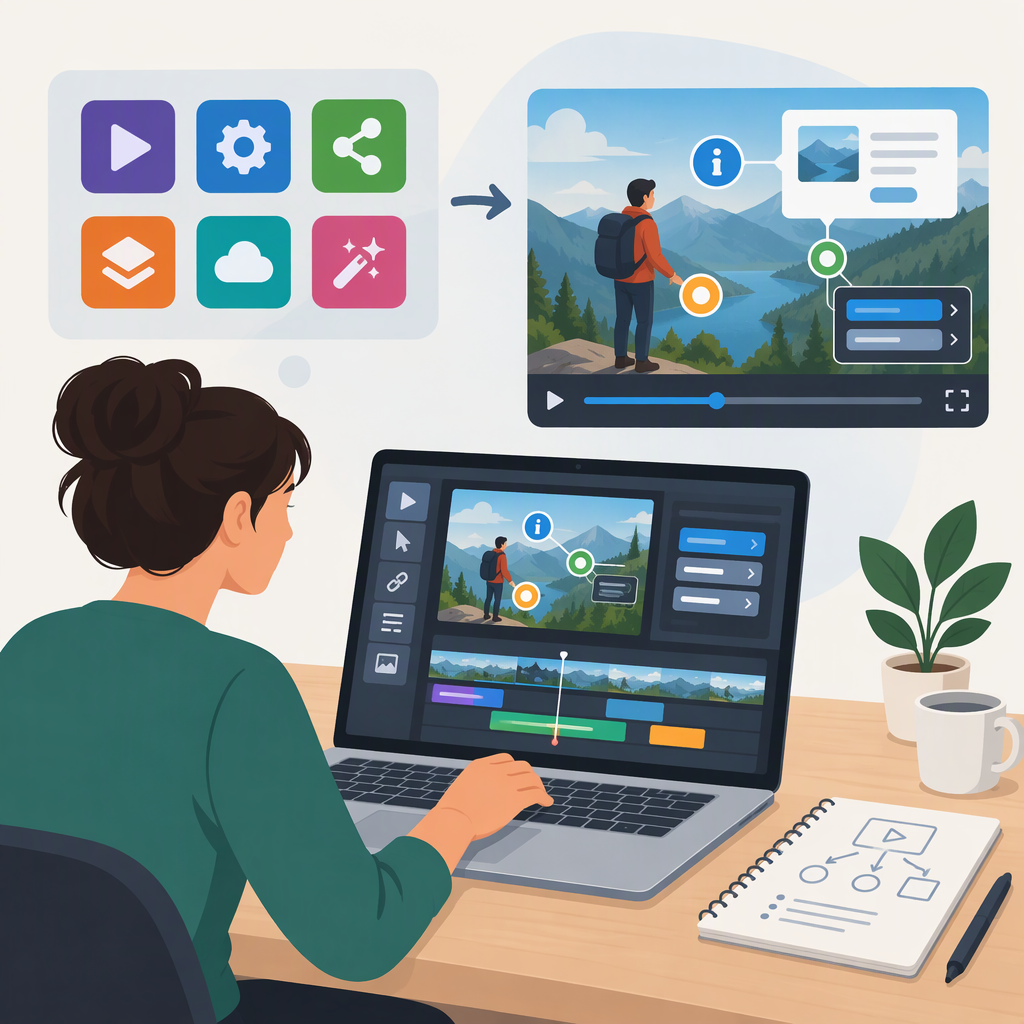
Interactive Video Creator: How to Choose a Tool and Build an Interactive Video
An interactive video creator is an authoring tool or workflow for adding viewer interactions to a video—for example, questions, timed text or image pop-ups, and links. The exact features vary by tool. H5P’s Interactive Video documentation, for instance, describes multiple-choice and fill-in-the-blank questions, pop-up text, images, and links; that list is an example, not a promise that every creator offers those features. (h5p.org)
The practical distinction from ordinary linear editing is the intended viewer experience: if viewers need to respond to prompts or use elements that appear during playback, assess an interactive authoring option, not just a tool for cutting and arranging footage. This is a useful project-planning distinction, not a universal technical definition.
Match the Tool to the Project
Start with the viewer’s task, then check each candidate against requirements you can verify in its documentation or a preview. There is no universally suitable tool based on the information here; the right choice depends on your interaction plan and where viewers need to watch.
| Project question | What to write down | What to verify |
|---|---|---|
| What should viewers do? | Watch, read a prompt, open a link, answer a question, or make a choice | Whether the authoring tool supports each required interaction—and when it can appear |
| Where will viewers watch? | The intended website, course platform, or other destination | How the content is added there, and whether the intended audience can access it |
| Who will create and maintain it? | Authoring skills, collaborators, and who will update the video | Whether the editing and review workflow fits the team; avoid assuming collaboration features without checking |
| What needs to be measured? | Whether you need to see responses or simply publish the experience | What data, if any, the chosen setup provides and who can access it |
| What access needs must be covered? | Captions, keyboard use, and any other relevant audience needs | Whether the video and its interactive elements work for those needs in the actual viewing setup |
A practical example of why destination matters: H5P describes Interactive Video as usable in publishing systems including Canvas, Brightspace, Blackboard, Moodle, and WordPress. That is evidence about this documented example—not a guarantee of availability in every installation or a recommendation for a particular project. Check the integration and publishing route available to you. (h5p.org)
Choose by must-haves, not by feature count. If the brief needs only a question and an explanatory pop-up, confirm those specific interactions and the intended publishing route. If it requires a viewer to choose what happens next, confirm that the authoring tool explicitly supports that behavior; do not infer branching from the word “interactive.” Leave a requirement unresolved if you cannot verify it before committing to a workflow.
Create, Test, and Publish: A Practical Workflow
- Set one viewer goal. Write what a viewer should know or do after watching. This gives you a basis for deciding whether an interaction helps.
- Plan the timeline and responses. Mark where each prompt or element appears. For every question, decide what response options viewers see and what happens after they answer. Keep this plan tied to features you have verified in the chosen tool.
- Prepare the video and supporting material. Gather the video, text, images, links, questions, and captions you intend to use. Check that each element is ready before adding it to the timeline.
- Author the interactions. Add each element at its planned point, then review its wording and timing. As one concrete example, H5P’s tutorial walks authors through uploading a video and adding interactions such as text, images, and quizzes, along with bookmarks and an end screen. Exact steps and available elements depend on the tool. (h5p.org)
- Test the complete viewer experience. Play from the beginning and test every interaction: does it appear at the intended time, can viewers understand and complete it, and does playback continue as expected? Also try the experience in the destination and on the devices or input methods your audience is likely to use. These are practical review steps; particular technical requirements depend on the publishing setup.
- Publish through the intended destination. Follow the selected tool’s instructions for that destination. Do not assume that export, embedding, hosting, compatibility, analytics, or response reporting works the same way across tools and platforms.
- Recheck after publishing. Open the published experience as a viewer. Confirm that the video, interactions, links, and any needed response flow still work in their final context.
Illustration: A Short Training Video
Suppose a creator is preparing a 90-second orientation video. The brief calls for one definition to appear on screen and one comprehension question near the end—no viewer choices that change the video’s path. The creator can list “timed text” and “a question” as must-haves, verify those features in a candidate tool, and check how the finished content will reach viewers. After authoring, the creator previews both interactions and checks the published version. This is a hypothetical planning example, not a test of any particular tool.
Before Release: Accessibility and Quality Checks
- Captions: Check that captions are available and accurately represent the video’s speech and important sounds. W3C’s WCAG guidance specifies captions for prerecorded audio in synchronized media under Success Criterion 1.2.2; consider which accessibility needs apply to your project and audience. (w3.org)
- Keyboard operation: Try to use the interactive controls without a mouse. W3C explains that keyboard-operable functionality supports people using keyboards and a range of assistive technologies. (w3.org)
- Timing and clarity: Confirm that prompts are readable, appear when expected, and do not obscure information viewers need. Test every response and link.
- Publishing context: Check the actual published experience, not only the authoring preview. The final behavior can depend on the tool and destination, so use their documentation for setup-specific requirements.
Bottom line: An interactive video creator is useful when the intended experience asks viewers to do something during playback. Define those actions first, verify the needed features and publishing route, then author and test the complete viewer experience before release.