How to Choose a Photo Video Maker for Slideshows and Albums
For a photo slideshow or video album, choose a photo video maker that lets you arrange images, adjust their duration, check framing, add optional text and audio, and save a finished video. The supplied sources describe both Android apps and browser-based workflows. Match the editor to your project, then test a short export before assembling the full album; the source descriptions are not independent performance tests. [c1] [c2] [c3] [c4]
Choose Between a Slideshow and Generated Motion
Start by deciding what “photos into video” means for your project.
- Photo slideshow: Present existing pictures in a deliberate sequence, with controlled timing and optional transitions, titles, or music. Kapwing's supplied guide describes uploading photos, arranging them, setting duration, adding audio, and exporting. [c3]
- Mixed-media album: Combine photographs with existing video clips. Vimeo's guide explicitly describes projects that include both pictures and clip content. [c4]
- Generated motion: Use a still image as input for newly generated video. Picsart's supplied page describes image animation and generated shots alongside editing existing media. [c5]
For a documentary-style family or event album, a practical default is to preserve the original pictures and use restrained transitions. If you choose generated motion, review whether the result changes details that matter to the memory. Treat that as a separate creative decision, not a requirement for making a slideshow.
Compare the Documented Workflows
These are source-based examples, not a ranking or a guarantee that every feature is available on every device or plan.
| Source | Workflow Described | What to Check Before Committing |
|---|---|---|
| Photo Video Maker on Google Play | Select and arrange photos, choose optional music, apply styles and filters, preview, and save. [c1] | Whether you can control each photo's timing and add the titles your album needs. |
| Photo Video Maker with Music on Google Play | Photos and videos with timing adjustments, text, transitions, voice-over, and multiple aspect ratios. [c2] | Actual export options, ad interruptions, watermark behavior, and controls on your device. |
| Kapwing | Browser-based photo upload, arrangement, duration settings, audio, text, and export. [c3] | Account requirements and the export conditions for the intended project. |
| Vimeo | Online image-to-video workflow with photos, clips, audio, text, transitions, and download or sharing. [c4] | Available output settings and whether the intended workflow is included in the account. |
| Picsart | A canvas-based workflow combining photos, clips, optional generation, text, and audio. Its FAQ describes credit-based generation. [c5] | Whether ordinary assembly is sufficient and what any generated steps will cost. |
Do not choose solely from an app name. Two supplied Google Play listings use similar names but identify different developers and describe different feature sets. Check the exact listing and developer before evaluating an app. [c1] [c2]
Build a Photo Album Video Step by Step
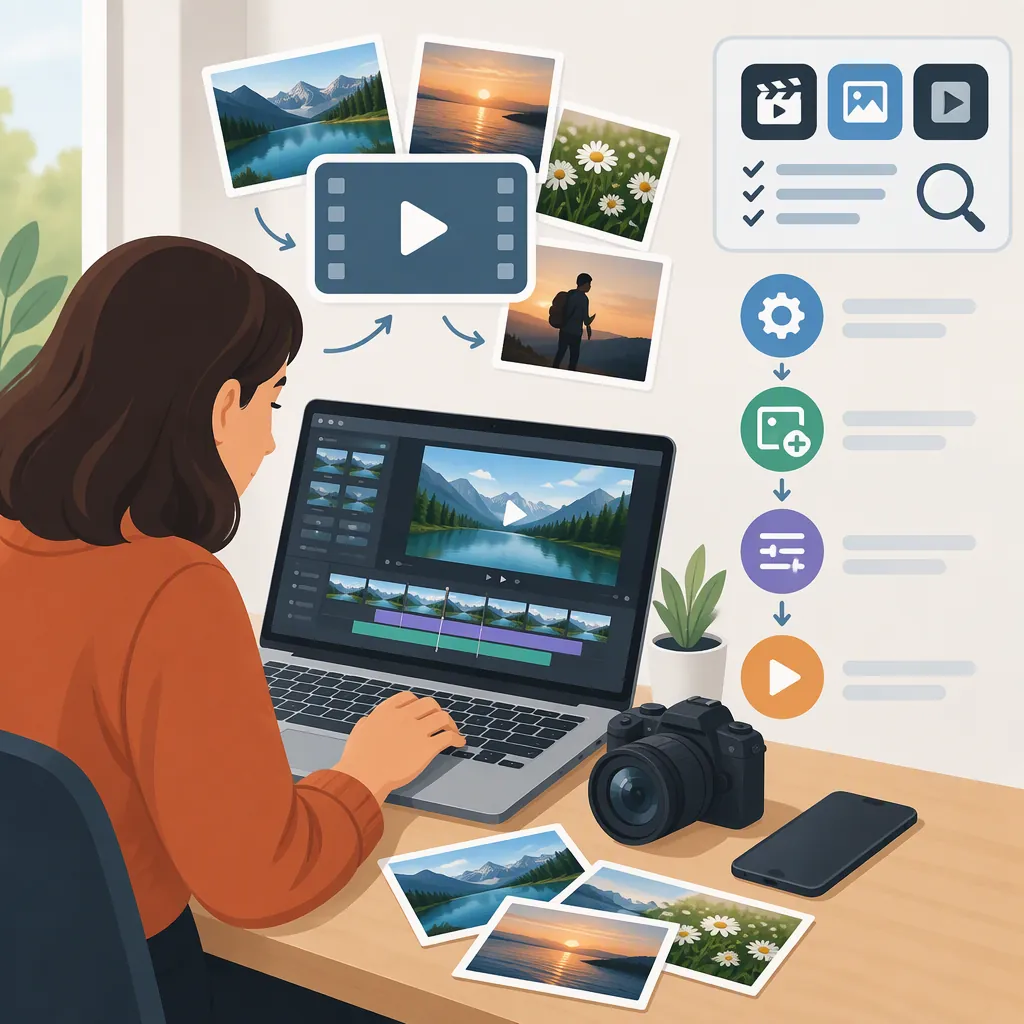
The sources share a broad sequence: bring in images, edit the presentation, add optional sound and visual elements, then save or export. [c1] [c3] [c4] The following is an editorial workflow, not a tested set of instructions for a particular interface.
- Define the story. Write one sentence describing the album: a trip recap, an event timeline, or a collection organized around a person or theme.
- Select and order the pictures. Remove duplicates unless they serve a purpose. Arrange the remaining images chronologically or group them into short chapters.
- Set the frame. Choose the intended viewing format before detailed editing. Review each picture for cropped faces, clipped captions, or unwanted empty space. Test whether fitting the whole image or filling the frame better serves that picture.
- Adjust timing. Give complex pictures and text-heavy slides more viewing time. Watch the sequence rather than assuming every image needs the same duration.
- Add context. Use brief titles or captions where the pictures alone do not explain the place, date, or relationship. Keep important text away from the edges.
- Add optional sound. Choose music or narration only when it supports the album. Make a silent preview as well, so essential meaning does not depend entirely on audio.
- Review and export. Watch the full edit, then inspect the saved file rather than relying only on the editor preview.
Avoid adding every available effect. A useful review question is whether a transition helps connect two moments or merely distracts from them.
Copyable Album Planning Template
Album purpose: ______
Intended audience: ______
Viewing format: ______
Opening image and title: ______
Chapter order: ______
Photos needing extra viewing time: ______
Captions to verify: ______
Music or narration source and permissions: ______
Closing image: ______
Short test export reviewed: Yes / No
Final file reviewed with sound and without sound: Yes / No
Test the Export Before Editing the Full Album
Make a small trial containing a portrait photo, a landscape photo, a title, a transition, and an audio segment if needed. Use this to evaluate the complete process, including the saved result.
The Easyelife listing advertises 4K export and no watermark; Kapwing and Vimeo describe free creation options. These statements alone do not establish every applicable export condition. The supplied material does not provide a complete, comparable account of plan restrictions across the tools. [c2] [c3] [c4]
Treat high-resolution output, watermark removal, and free access as conditions to verify, not as reasons to skip a test. This article does not establish comparative export quality, processing speed, reliability, or device compatibility.
Short Export Acceptance Checklist
- [ ] Portrait and landscape photos retain the important details.
- [ ] Titles remain readable in the saved file.
- [ ] Photo durations match the intended pacing.
- [ ] Transitions do not obscure the pictures.
- [ ] Audio starts and ends where intended.
- [ ] The file plays on the intended viewing device.
- [ ] Output dimensions and file size meet the project's needs.
- [ ] Any watermark, payment requirement, or account restriction is understood.
- [ ] The saved file has been reviewed from beginning to end.
Check Photo Privacy and Music Permissions
Before importing personal photographs, review the current privacy policy, requested permissions, upload behavior, and deletion options. A mobile app listing is not proof that editing remains entirely on the device, and a browser workflow should not be assumed to keep files local.
The first Google Play listing declares no data collection or third-party sharing. The Easyelife listing declares possible collection of device or other IDs and no third-party sharing. Google Play identifies these disclosures as developer-provided and notes that practices may vary with use, region, and age. They are declarations, not an independent privacy audit. [c1] [c2]
For music, distinguish an available track from permission for your intended use. The app descriptions use licensing language, and Vimeo describes royalty-free songs, but these supplied excerpts do not establish the complete license terms for a particular track or destination. Verify those terms separately, use audio you have permission to use, or leave the album silent. [c1] [c2] [c4]
FAQ
Can I Make a Video Using Only Photos?
Yes. Kapwing describes uploading a group of photos, arranging them, setting duration, and exporting. Existing video footage is not required for that workflow. Start with a simple sequence and add text or audio only if needed. [c3]
Can I Make a Photo Video Without Music?
Yes. The supplied Photo Video Maker listing explicitly says music can be omitted. A silent album is a reasonable choice when audio is unnecessary or its permissions are unclear. [c1]
Which Photo File Formats Should I Check?
Check the selected editor's supported image formats before preparing the whole album. Vimeo's supplied FAQ names JPEG, PNG, and GIF. That statement applies to Vimeo's described workflow, not automatically to every tool in this comparison. [c4]
Do I Need AI to Turn Photos into a Video?
No. Kapwing describes an assembly workflow based on photo order and duration. Picsart also states that AI is optional when working with existing footage. Generated motion is a separate choice rather than a requirement for a photo slideshow. [c3] [c5]