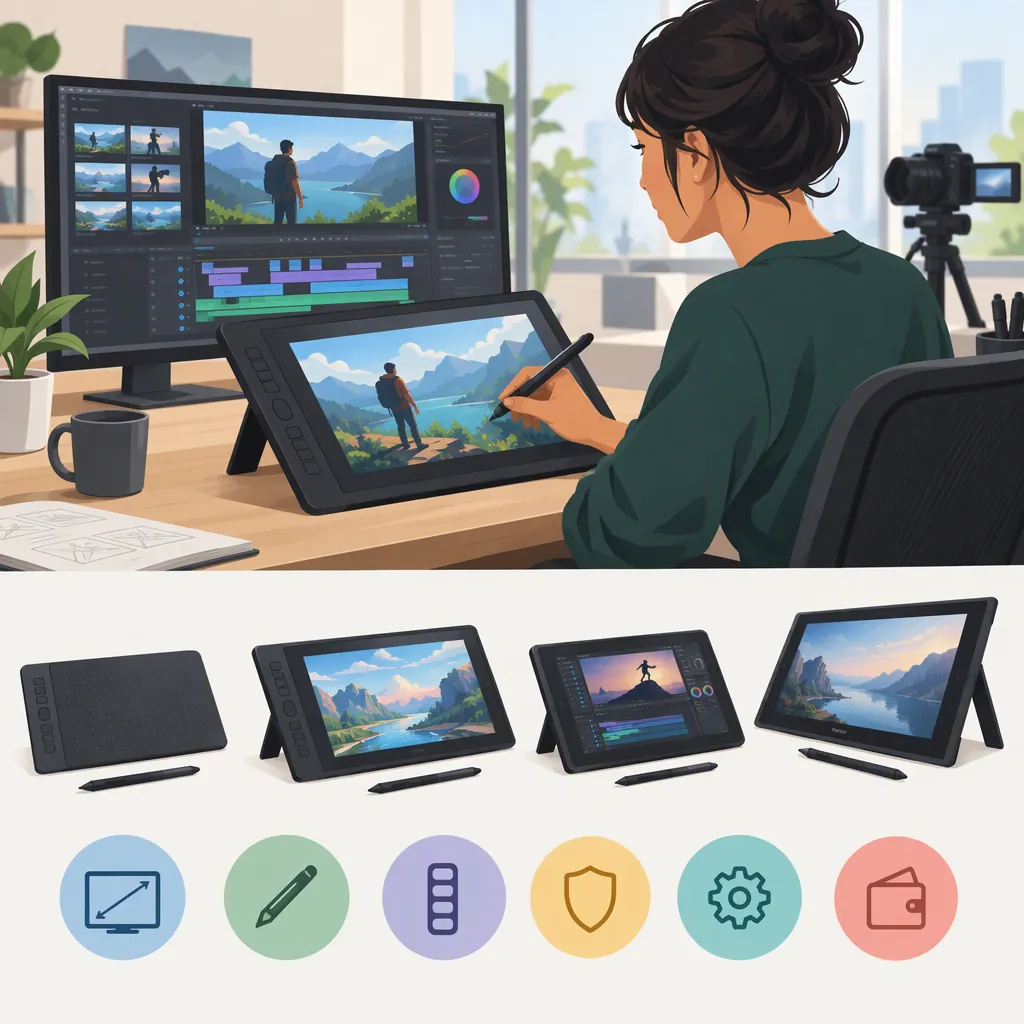
How to Select a Pen Tablet for Video Creation
Choose a pen tablet by testing the creative tasks you need it for—not by assuming it will improve every part of video production. For handwritten explainers, test drawing and screen recording. For editing, compare selection, dragging, and timeline navigation with your existing mouse-and-keyboard workflow. Select a device only when it meets your compatibility requirements and shows a useful benefit for your core tasks.
Match the Tablet to Your Creative Tasks
Start with a short list of actions you want to perform with a pen, rather than a list of hardware specifications.
| Creative task | What to test | What to review |
|---|---|---|
| Handwritten explainers | Write labels, draw diagrams, correct mistakes, and record the canvas | Readability at the final video size and ease of making corrections |
| Visual planning | Sketch a storyboard or annotate a still image | Whether you can communicate the intended idea clearly |
| Video editing | Select clips, drag controls, and navigate the timeline | Missed targets, unintended actions, and access to shortcuts |
| Mixed workflows | Switch between pen, keyboard, and mouse | Whether switching interrupts the task or makes controls awkward to reach |
A graphics tablet provides stylus-based input. Drawing on a digital whiteboard and capturing the screen is one documented way to use that input in a recorded workflow. [s1]
You do not need to use the pen for every action. For example, your evaluation may favor pen input for diagrams while leaving timeline work on the mouse and keyboard.
Task Inventory
Complete this before evaluating a device:
- Primary pen task: ______
- Application and version: ______
- Computer and operating system: ______
- Three actions to test: ______
- Actions to keep on keyboard or mouse: ______
- Required output size or format: ______
- What would count as a useful improvement: ______
Define improvement in terms of your work: clearer handwriting, fewer corrections, easier target selection, acceptable completion time, or greater comfort. These are personal decision criteria, not universal performance standards.
Compare Screenless Tablets and Pen Displays
A screenless graphics tablet shows its input on a separate monitor; a pen display incorporates a screen. [s1] Treat this difference as a working-layout choice, not a quality ranking.
For a screenless tablet, test whether you can place the pointer accurately while looking at your monitor. For a pen display, test whether its viewing position and your hand placement let you see and operate the relevant controls.
Evaluate size with a representative project open. Try small interface targets, short lettering, larger shapes, and frequently used keyboard shortcuts. Do not assume that a larger active area or an integrated screen will automatically make editing easier.
Layout Trial
- Open a representative project or drawing canvas.
- Place the device where you would normally work.
- Select several small controls and draw a large shape.
- Switch between the pen and keyboard.
- Note missed targets, awkward reaches, and obstructed views.
- Adjust the layout and repeat.
Use Layout Results to Narrow the Choice
The following are selection suggestions, not claims that one device format is generally superior.
| Observation | Next step |
|---|---|
| Pointer placement is difficult on a screenless tablet | Check the available mapping settings and tablet placement, then repeat the same target-selection task. If difficulty persists, compare a pen display on that task. |
| Your hand obscures important controls on a pen display | Try a different device position or interface layout, then compare visibility with a screenless setup. |
| Reaching controls or switching to the keyboard feels awkward | Adjust placement and, where available, the mapped active area. Recheck both small targets and larger strokes before choosing a size. |
| Both formats work adequately | Compare the recorded task results, desk fit, required connections, and switching between input devices. |
| A required feature remains unverified | Pause the selection until you can confirm and test it. |
Compare the Pen with Your Existing Workflow
Use your current mouse-and-keyboard setup as a baseline. Complete the same short task sequence with each input setup, keeping the project, software settings, and output requirements consistent.
For drawing, try slow lines, small lettering, and repeated strokes. If pressure response matters to the intended effect, check it in the exact brush or tool you plan to use. For editing, test click-and-drag behavior and your usual shortcuts. For recorded tutorials, judge the captured or exported sample—not just the live canvas.
Allow time to become familiar with the controls, and note that familiarization separately. A first attempt should not be treated as a definitive performance comparison.
Repeatable Evaluation Checklist
Use the tasks relevant to your workflow:
- Write a short label at the intended output size.
- Draw a diagram and correct one mistake.
- Select a small interface control.
- Select a clip and drag an editing control.
- Navigate to a specific point in the timeline.
- Switch between pointer input and keyboard shortcuts.
- Record a short sample if recording is part of the workflow.
- Review the exported sample for readability.
- Note setup problems and unintended actions.
Baseline Comparison Record
| Measure | Existing mouse/keyboard workflow | Pen workflow |
|---|---|---|
| Task and output requirement | ______ | ______ |
| Completion time | ______ | ______ |
| Unintended actions or missed targets | ______ | ______ |
| Corrections or undo actions | ______ | ______ |
| Target-selection difficulties | ______ | ______ |
| Output readability, if relevant | ______ | ______ |
| Comfort and awkward reaches | ______ | ______ |
| Setup or input-switching interruptions | ______ | ______ |
Record observations without assuming that one specification explains every result. This is a suggested evaluation procedure, not a benchmark or a claim of measured performance. There is no universal improvement threshold here: weigh the results against the priorities in your task inventory.
Verify Compatibility and Required Features
Before relying on a device, check current documentation for the exact model and your intended software setup.
- Confirm the device model. Use its specific documentation rather than information about a product family.
- Check operating-system support. Include your OS version and any stated limitations.
- Confirm connections and driver requirements. Check what your computer needs to provide and which driver version applies.
- Check the application and version. Look for documentation relevant to the editor, drawing tool, or recording application you actually use.
- Separate pointer input from specialized features. Test pressure response, pen buttons, or other required behavior individually rather than treating basic cursor movement as proof of full support.
- Test the complete workflow. If you draw while recording, test those applications together and review the resulting file.
Compatibility Verification Record
- Exact device model: ______
- Operating system and version: ______
- Application and version: ______
- Current documentation checked: ______
- Required connections confirmed: ______
- Driver requirements confirmed: ______
- Required features tested: ______
- Unresolved questions: ______
Evidence Limits
The reference used here is an online-teaching article hosted on XP-Pen’s community site. It describes graphics-tablet input, screenless and integrated-display formats, and whiteboard screen-recording workflows. It also includes product recommendations, but it is not an independent device comparison or a video-editor compatibility test. [s1]
Accordingly, this guide does not rank products, repeat the article’s prices or performance claims, or treat its software descriptions as current compatibility guarantees.
Turn Your Test Results into a Decision
Choose based on the tasks that matter most, rather than averaging together unrelated results. Better diagram drawing does not, by itself, establish better timeline editing.
| Decision | Suggested criteria |
|---|---|
| Keep testing | Layout or settings issues remain unresolved, results are inconsistent, or you have not yet compared the pen with your baseline. |
| Useful for selected tasks | Compatibility is confirmed, required features work in your setup, and repeated trials show an improvement you value without unacceptable tradeoffs. Keep other actions on the mouse or keyboard if that works better. |
| No clear benefit | After setup adjustments and repeat trials, the pen does not meaningfully help your core tasks, or its drawbacks outweigh the benefits you observed. Keeping your existing setup is a valid outcome. |
| Defer selection | A required connection, software behavior, or feature cannot be confirmed or tested. Do not treat an unresolved requirement as a pass. |
Write a short final decision:
- Tasks assigned to the pen: ______
- Tasks retained on mouse or keyboard: ______
- Chosen format and reason: ______
- Observed benefit over the baseline: ______
- Remaining limitations: ______
- Decision: keep testing / useful for selected tasks / no clear benefit / defer selection
FAQ
Is a Pen Tablet the Same as a Pen Display?
Not necessarily. A screenless tablet shows its input on a separate monitor, while a pen display incorporates a screen. [s1] Compare pointer placement, visibility, desk layout, and keyboard access through task trials rather than assuming either format is universally preferable.
How Do I Check Whether a Pen Tablet Works with My Video Editor?
Check the exact device model, operating-system version, connections, driver requirements, and editor version against current documentation. Then test clip selection, dragging, timeline navigation, shortcuts, and any specialized features you need. Basic pointer operation is not enough to confirm every feature. The cited online-teaching article does not provide a video-editor compatibility guarantee. [s1]
Can a Pen Tablet Be Part of a Handwritten Video Workflow?
Yes, as a general workflow: the reference describes using tablet input on a digital whiteboard and recording the screen for later sharing. [s1] Test your chosen drawing and recording applications together, then review the captured handwriting and diagrams at the intended video size.
Should I Replace My Mouse with a Pen Tablet for All Editing Tasks?
You do not need to make an all-or-nothing choice. Compare the same tasks with both input setups and retain the pen only where it provides a benefit you value. The cited source documents drawing and recording workflows, not measured improvements in video editing. [s1]