Clideo Video Maker Online: How to Evaluate the Workflow
Clideo describes its online video maker as a browser-based editor for combining videos, photos, audio, and text. Its documented workflow is to import media, arrange and edit it, then export and preview the result. Before choosing it, verify upload limits, watermark conditions, project storage, and the output options available to your account. These details come from Clideo’s own pages, not independent testing. [c1] [c2]
What Clideo’s Online Video Maker Documents
Clideo’s Facebook video maker page describes combining clips, images, audio, GIFs, and other elements in a browser. It lists trimming, splitting, color adjustments, and text additions. Its TikTok editor page also describes changing aspect ratio, playback speed, brightness, and contrast. These are vendor descriptions of available editing functions, not evidence of performance or ease of use. [c1] [c2]
For selection purposes, start with the work your project requires: assembling a photo sequence, shortening clips, adding narration, or reframing footage. Match those requirements against the documented controls rather than assuming that an online editor covers every editing task.
Follow the Documented Import-To-Export Workflow
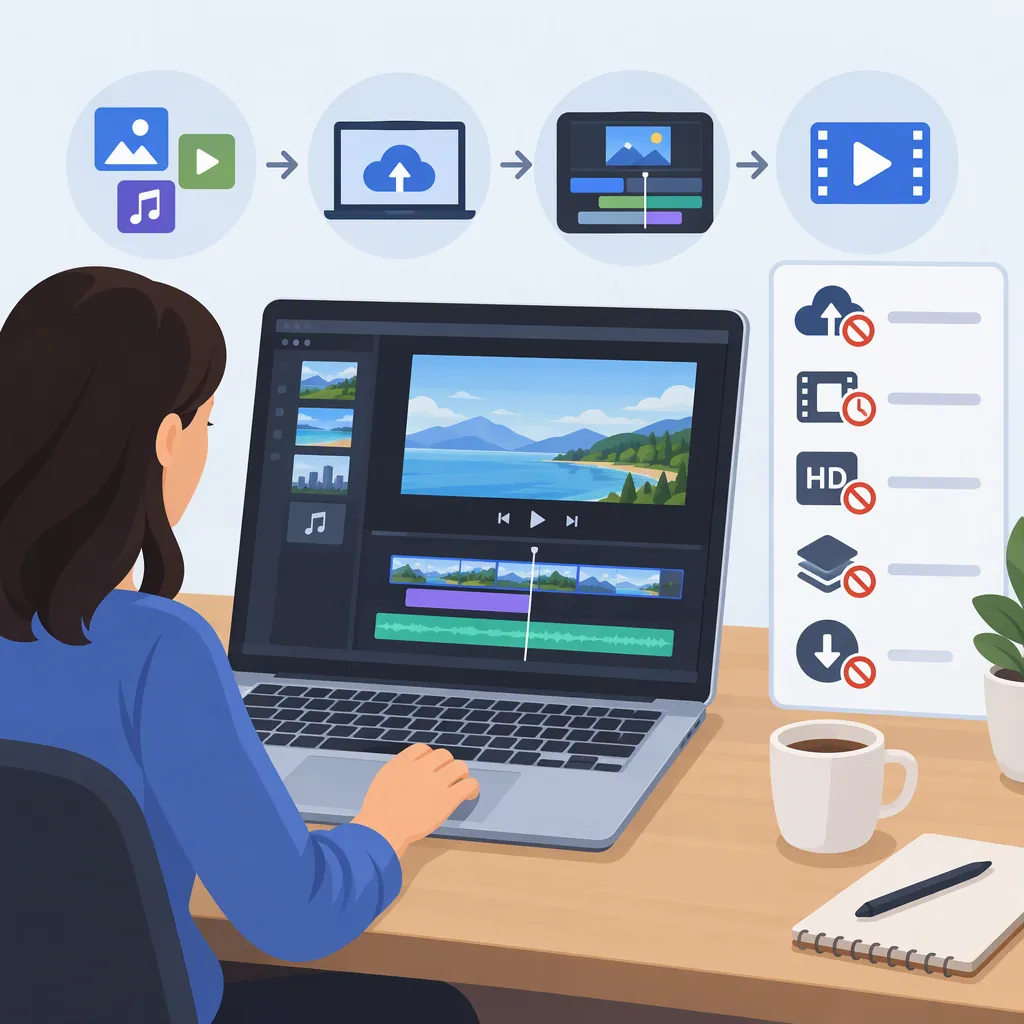
Clideo’s YouTube tutorial outlines the following process. The tutorial is dated April 22, 2024, and notes that tools may change, so treat its control names as guidance rather than a guarantee of the current interface. [c3]
- Import your media. The tutorial directs users to select “Get started,” then the “+” control to add files. It also describes imports from Google Drive, Google Photos, and Dropbox.
- Set the canvas. Choose the intended layout in the “Canvas” tab before checking how each image or clip fits.
- Arrange and edit. Reorder assets on the timeline and adjust settings such as duration, volume, size, color, and speed. The tutorial also describes text and elements such as shapes and stickers.
- Export. Select “Export,” choose an output resolution, and continue. This particular tutorial describes an MP4 result.
- Preview before saving. Review the result and use “Edit” if changes are needed. [c3]
As a practical check, use a short, non-sensitive sample before building the full project. Inspect framing, text readability, audio balance, and the exported file rather than judging only the editing preview.
Check Upload, Watermark, and Storage Conditions
The supplied Facebook page states that free users have a 500 MB file-size restriction and that premium users can edit larger files. It does not specify the exact premium upload ceiling in the supplied text. [c1]
The TikTok page lists higher upload limits, expanded AI features, longer saving options, and watermark-free exports as premium differences. It also says that unregistered visitors must finish projects in one session, while premium subscribers can save projects for later editing. The supplied page does not fully explain storage conditions for every account type. [c2]
Both product pages describe HD and 4K editing or export support. That statement should not be treated as proof that every account, source file, or export setting will meet your requirements. Check the available output settings and inspect a sample export. [c1] [c2]
Project Acceptance Checklist
- [ ] Record the size and format of each source file.
- [ ] Check the upload allowance shown for the intended account.
- [ ] Confirm whether the final export includes a watermark.
- [ ] Verify the available output resolution and format.
- [ ] Confirm whether the project can be reopened and how long it is retained.
- [ ] Export a short sample and review framing, text, and audio.
- [ ] Keep original media separately from the editing project.
Consider Internet Access and Sensitive Media
Clideo’s article about browser-based editing identifies internet reliance and uploading source files to third-party servers as considerations. It also discusses possible limitations with large files, professional camera formats, and advanced editing tasks. This is general guidance from the vendor, not a measured assessment of a specific Clideo project. [c4]
Before uploading confidential recordings, check your organization’s rules and the service’s current privacy and retention terms. The provided references do not establish detailed security controls, deletion guarantees, or suitability for regulated material. A browser workflow should not be assumed to keep processing local simply because it requires no installation.
For projects that require offline work, specialized formats, or advanced controls, evaluate a local editor as well. Do not assume that an app’s capabilities are identical to those of the browser editor.
What These Sources Do Not Establish
All four references are published by Clideo. They explain the vendor’s advertised workflow and stated conditions, but they do not provide independent benchmarks or a verified comparison with other editors. [c1] [c2] [c3] [c4]
This guide therefore does not rank Clideo, endorse its security claims, or promise export speed or visual quality. A useful selection decision rests on whether a representative project passes your own checks for uploads, editing controls, output, storage, and data handling.
FAQ
Does Clideo’s Online Video Maker Require Installation?
Clideo’s supplied product pages describe the editor as running in a browser without a software download or installation. This describes the online workflow; it does not establish offline availability. [c1] [c2]
Can I Make a Video from Photos and Music?
According to Clideo’s Facebook page and YouTube tutorial, you can import photos and audio, arrange assets on the timeline, and adjust their settings before exporting. Check that you have permission to use the media you include. [c1] [c3]
Are Free Exports Watermark-Free?
The supplied pages identify watermark-free exports as a premium benefit. Do not assume the free workflow produces an unmarked file; confirm the conditions shown before exporting. [c1] [c2]
Can I Stop Editing and Return to the Project Later?
Clideo’s TikTok page says premium subscribers can save projects for later editing and unregistered visitors must finish in one session. It does not fully specify every account’s retention conditions, so verify those before relying on saved projects. [c2]