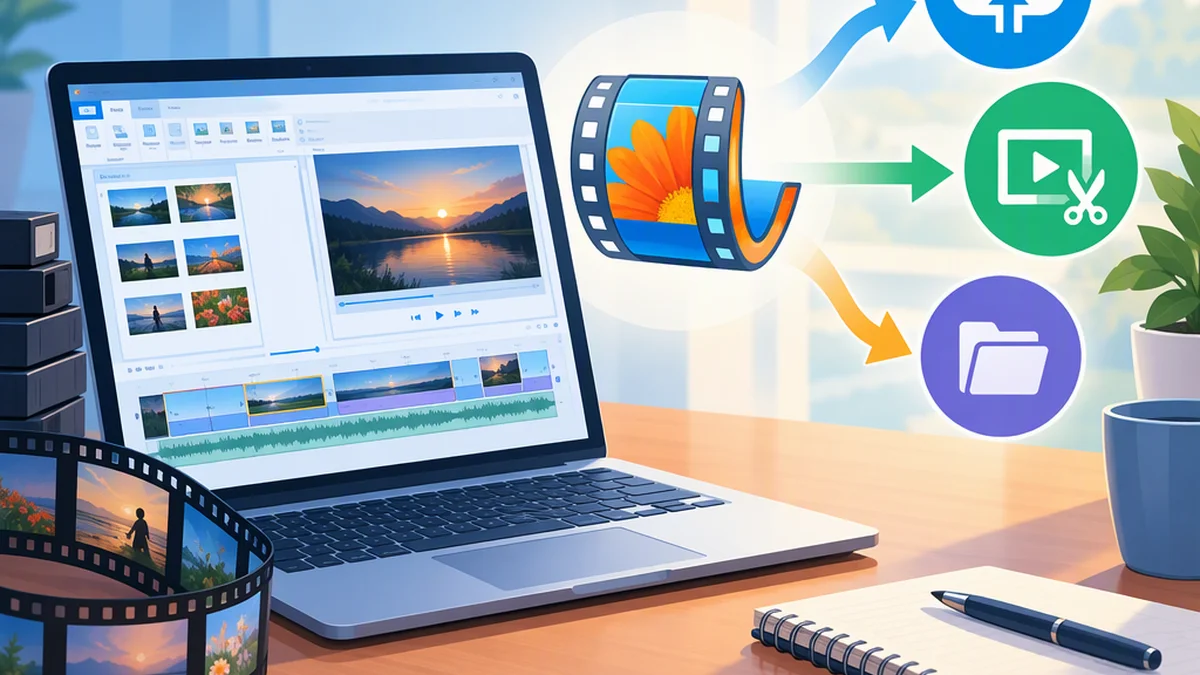
Microsoft Movie Maker: Identify the Legacy App and Plan Next Steps
“Microsoft Movie Maker” usually refers to Windows Movie Maker, the legacy Microsoft video editor included in Windows Essentials 2012. Microsoft says support for Windows Essentials ended on January 10, 2017, and the suite is no longer available for download. For new video-editing tasks, Microsoft now directs users to Clipchamp. [ref-1] [ref-2]
The right next step depends on what you need:
| Your need | Next step | Do not assume |
|---|---|---|
| A new video editor | Check Microsoft’s current Clipchamp access instructions and test it against your editing needs. | A current editor will restore an old Movie Maker project. |
| An existing Movie Maker installation | Record its identity before changing or uninstalling it. | Its name alone proves it is the legacy Microsoft application. |
| An unfinished project | Copy the project and its original video, audio, and images before testing. | The project file contains all the media needed to recover the edit. |
| A finished video | Try playing a copy with available playback software. | You need Movie Maker simply to watch the video. |
What Microsoft’s Support Statement Establishes
Microsoft’s French-language Windows Essentials support article applies to Windows 10. It names Windows Movie Maker as part of Windows Essentials 2012, gives the January 10, 2017 support-end date, and says the suite can no longer be downloaded. [ref-1]
The article also says already installed applications will continue working as they do today. Read that statement in its Windows Essentials and Windows 10 context—not as a guarantee for your current computer, a Windows upgrade, or every old project. It does not establish Windows 11 compatibility or provide a supported installer.
Microsoft warns that websites offering free Windows Movie Maker downloads are not offering Microsoft-approved products and that those products may contain viruses or hidden costs. [ref-1] A familiar name in a search result or app listing does not override that warning.
If you already have a working installation, avoid uninstalling it merely to try a similarly named application. Identify the existing setup and preserve your work first.
1. Identify the Application and Files You Already Have
Before downloading, uninstalling, or replacing anything, establish what is on the computer and what outcome you need.
Record the Application’s Identity
If an application is already installed, collect these clues where available:
- About or version information: Record the full product name and version from an About, Help, or equivalent screen.
- Installed-app details: Record the name, publisher, and version shown in Windows’ installed-app listing.
- Program-file properties: If you can locate the executable, record its location and any product, version, publisher, or digital-signature details shown in its properties.
- Installation history: Note whether it is a longstanding installation or something recently obtained from a download site or store.
These details help distinguish an existing legacy setup from a similarly named product. No single name, publisher field, or other label independently proves authenticity. If you cannot identify the application confidently, mark its identity as unknown.
Separate the Project, Source Media, and Finished Video
Record the filenames, file types, and current locations of your unfinished project, original recordings, audio, images, and completed exports.
Common file clues include:
| File type | What it usually indicates |
|---|---|
.wlmp |
A Windows Live Movie Maker project, used by the later Windows Essentials-era application. |
.mswmm |
A project from earlier versions of Windows Movie Maker. |
.wmv or .mp4 |
A video file that may be a finished export or source footage, rather than an editable Movie Maker project. |
A Movie Maker project stores editing information and references to source media; it is not itself a finished, playable video. Keep the original media alongside the project when preserving old work.
Extensions are only clues. They do not prove a file’s origin, establish that it is safe, or guarantee compatibility with a particular editor. Do not change extensions or delete unfamiliar files to make them appear usable.
Example: To play a completed holiday video at an event, first try playing a copy of the exported video. To change its sequence or titles, locate the editing project and source material instead.
2. Preserve Old Work and Test a Copy
Make a separate copy before moving, renaming, or editing files. Include the project, original recordings, audio, images, and completed exports you can identify. Record their original locations and retain the folder structure where possible.
If a trusted existing editing environment remains available, inspect a project copy rather than the only surviving original. Avoid saving exploratory changes over the original.
Use the result to choose your next action:
| Test result | Next action |
|---|---|
| The project opens and the media appears complete | Review the timeline, titles, audio, and effects. If available, save a separate project copy and export a video without overwriting existing files. Play the export to check the result. |
| The project opens but reports missing media | Record the messages and any requested filenames or paths. Check the original locations and preserved media copies. If the application offers a way to locate missing files, use it on the project copy. |
| The project will not open | Record the error, application version, and project filename. Keep the files unchanged while deciding whether to seek help or rebuild from the source media. |
An exported video preserves a watchable result, not the editable timeline. Retain the project and source media even after a successful export.
Neither cited Microsoft article establishes that Clipchamp can open or convert an old Movie Maker project. Do not assume that switching editors will transfer the timeline, titles, effects, or media links. If recovery or import cannot be established, rebuilding from the source recordings may be the practical next option.
3. Check Clipchamp for a New Editing Task
Microsoft’s current video-editor support page identifies Clipchamp as its official Microsoft video editor and provides access instructions for Windows 11 and Windows 10. It describes access through Windows search or Start and All apps, through Photos, and through a browser-based version. [ref-2]
The same page says the previous Video Editor option is no longer included in Windows Photos and recommends Clipchamp instead. If an older tutorial tells you to open that former Photos editor, follow Microsoft’s current instructions rather than an obsolete menu sequence. [ref-2]
Before committing to a new project, check:
| Check | How to confirm it |
|---|---|
| Access on your device | Follow Microsoft’s current video-editor instructions for your Windows setup or browser. |
| System or browser requirements | Review the current app’s requirements and compatibility notices before importing important material. |
| Sign-in and organizational restrictions | Confirm access with your intended account and, where relevant, your organization’s permission to use it. |
| Editing and export options | Locate the features and export settings your task requires, including any displayed limits or charges. |
| A usable result | Create a short sample project, export it, and check playback before investing time in the full edit. |
The cited support page does not establish pricing, offline capability, export entitlement, or availability for every organization; confirm those details in the current interface.
4. Record Your Next Action
Keep a brief note so you—or someone helping you—can continue without repeating the investigation.
Example:
Goal: revise an old family montage.
Found: a project file, a folder of recordings, and an existing editor installation.
Test result: the project opens but reports two missing clips.
Next action: check the recorded media paths and backup folders using the project copy.
FAQ
Can I Still Download the Official Windows Movie Maker?
Microsoft’s Windows Essentials support page says the suite is no longer available for download and warns about unapproved Movie Maker download offers. [ref-1] Do not treat a similarly named download as the original Microsoft product.
Must I Remove an Existing Installation?
The support article does not require removal. It says already installed applications will continue working as they do today, but that is not a security or compatibility guarantee for your particular setup. [ref-1]
Will Clipchamp Automatically Open My Movie Maker Project?
Neither cited source establishes that compatibility. Microsoft recommends Clipchamp for current video editing, not as a verified Movie Maker project-conversion route. [ref-2]
Why Won’t My Movie Maker Project Play Like a Video?
A project file such as .wlmp or .mswmm contains editing information rather than a finished video. To watch the completed edit outside the editor, look for an existing video export or export one from a working project.