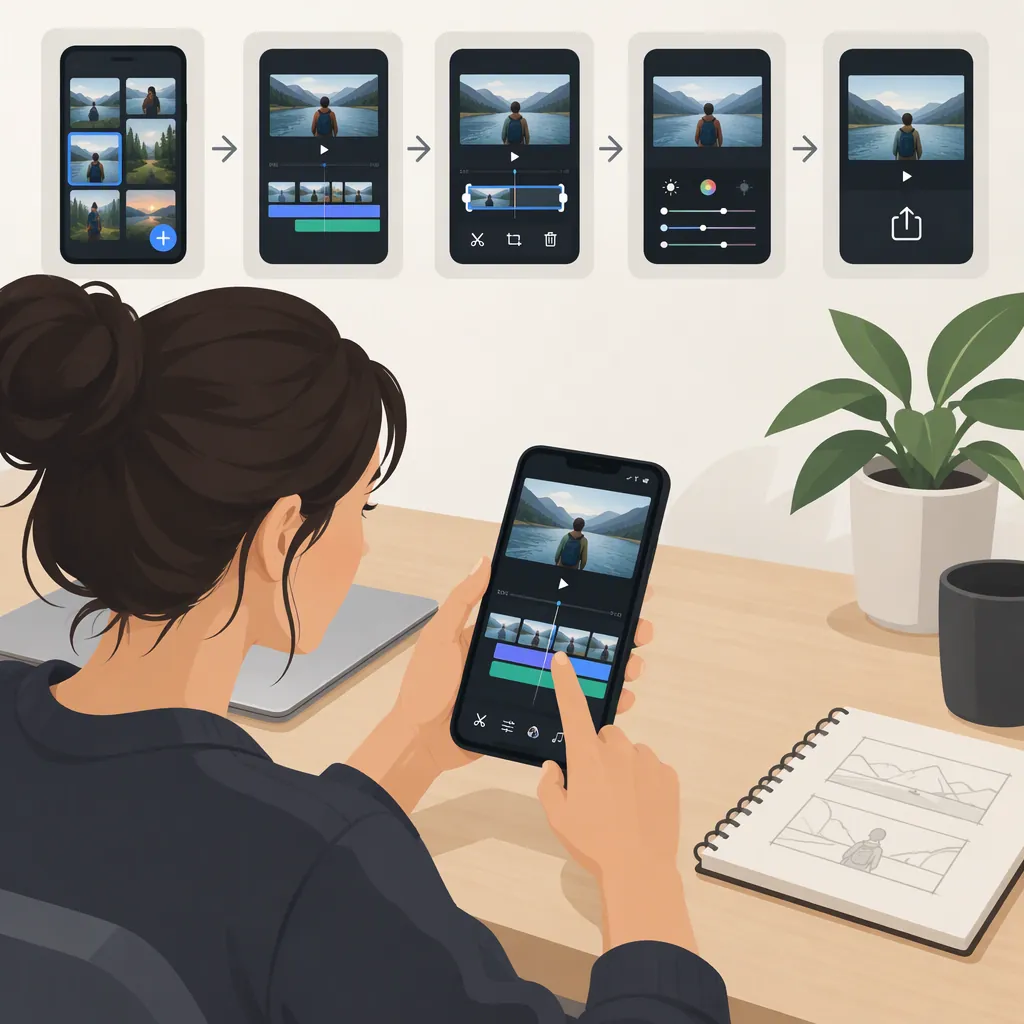
How to Edit a Video with a Mobile Video Editor
To edit a video on your phone, keep the original footage, select a clip, trim its start and end, make any needed cuts, adjust framing and audio, then save and review the exported file. Treat this as a general workflow rather than an exact tap-by-tap guide: controls and available tools depend on the app. The supplied Android listing describes trimming, splitting, audio changes, and compression, but it does not verify how every mobile editor works. [src1]
Prepare Your Footage and Editing Goal
Before opening a mobile video editor, decide what the finished video needs to communicate. Write one sentence describing the point, then identify the footage that supports it.
Keep an unchanged copy of the original footage. Work with a duplicate if you are unsure whether a tool replaces the source file or creates a separate output.
Choose the intended viewing format before adjusting the frame. For example, decide whether you need a vertical, square, or horizontal composition, then check the destination's current requirements. No destination-specific dimensions or upload limits are established by the supplied reference.
The only supplied source is an Android app listing. It is not an independent test or a guide to iPhone editing, and it does not establish a universal mobile editing interface. [src1]
Pre-Edit Checklist
- Keep an unchanged original.
- Write the video's main point in one sentence.
- Select only the footage needed for that point.
- Confirm the intended orientation and destination requirements.
- Identify speech, music, or other audio that needs attention.
Trim the Ends and Remove Unwanted Moments
Start with the simplest edit: remove unnecessary footage from the beginning and end. Select the clip, locate its trim controls, and move the start and end points to the moments you want to keep. Preview the result before confirming. The supplied listing describes trimming by adjusting these endpoints. [src1]
For an unwanted moment inside the clip, look for a split or cut tool. If available, place a cut before the unwanted passage and another after it, then remove the middle segment. Check the join for an abrupt movement or interrupted sentence. The listing names splitting as a feature, but it does not provide a detailed split-and-delete procedure. [src1]
If your editor supports multiple clips, arrange them so each shot follows logically from the previous one. First review the sequence without decorative effects; make sure the video is understandable before adding transitions.
Check Framing and Adjust Audio
Review the frame after every orientation or composition change. Keep the subject and any essential text visible. Do not treat trimming time, changing the visible frame, rotating, and flipping as interchangeable operations; choose the control that matches your intended change.
Next, listen to the whole sequence. If speech is important, use it as the reference when adjusting any background music. Where separate volume controls are available, lower the music until the words are easy to understand.
Before replacing audio, decide whether you still need the original recording. Preview the result to check what remains audible. The supplied listing describes selecting audio from the gallery or recording it, but it does not establish the exact audio-mixing controls available in your editor. [src1]
Use only audio you have permission to include. If you add text or captions using an available tool, check spelling, timing, and readability on the phone screen.
Save, Export, and Review the Result
Preview the complete edit before saving the output. Look for missing footage, clipped words, unexpected framing changes, and unwanted sound at the beginning or end.
If export settings are available, choose them according to the destination's requirements rather than assuming the largest option is necessary. The supplied listing describes compression and format conversion, and it explicitly notes that conversion support depends on the mobile software version. It does not establish export limits for all devices or apps. [src1]
If you need a smaller file, keep a separate copy before applying compression. Then inspect the compressed result rather than assuming it matches the original output.
Open the saved video outside the editor and watch it from start to finish. Confirm that the file plays, the ending is complete, and the audio matches the intended edit.
Final Review Checklist
- The opening starts at the intended moment.
- Cuts do not interrupt essential speech or action.
- Subjects and essential text remain visible.
- Speech is understandable with any background music.
- The ending is complete.
- The exported file opens and plays outside the editor.
- The original footage remains available.
Evaluate an Editor Without Assuming Its Performance
Choose tools around the task: endpoint trimming for a shorter clip, splitting for an internal cut, audio controls for sound changes, and export options for the required output. A feature list can help identify candidates, but it is not a verified result for your phone and footage.
The supplied listing advertises several editing functions. Those descriptions should be treated as listing information, not proof of reliability, output quality, or compatibility with every file. [src1]
Before committing to a longer edit, try a short duplicate clip and review its exported result. This article does not rank apps or establish a best mobile video editor.
FAQ
Should I Trim or Split a Video?
Trim when you want to shorten the beginning or end. For an unwanted passage inside a clip, use splitting if your editor supports it, then remove the isolated segment. The supplied listing describes endpoint trimming and lists splitting, but exact controls depend on the app. [src1]
How Should I Make an Edited Video File Smaller?
Look for compression or suitable export settings, keep a separate copy, and review the resulting file for acceptable picture and sound. The supplied listing describes a compression tool, but it provides no verified quality comparison or universal size-reduction result. [src1]
Will These Steps Match Every Mobile Video Editor?
No. This is a general editing sequence, not a verified interface guide. The supplied source covers one Android app and qualifies format conversion by the mobile software version. Check the controls and output options available in your own editor. [src1]