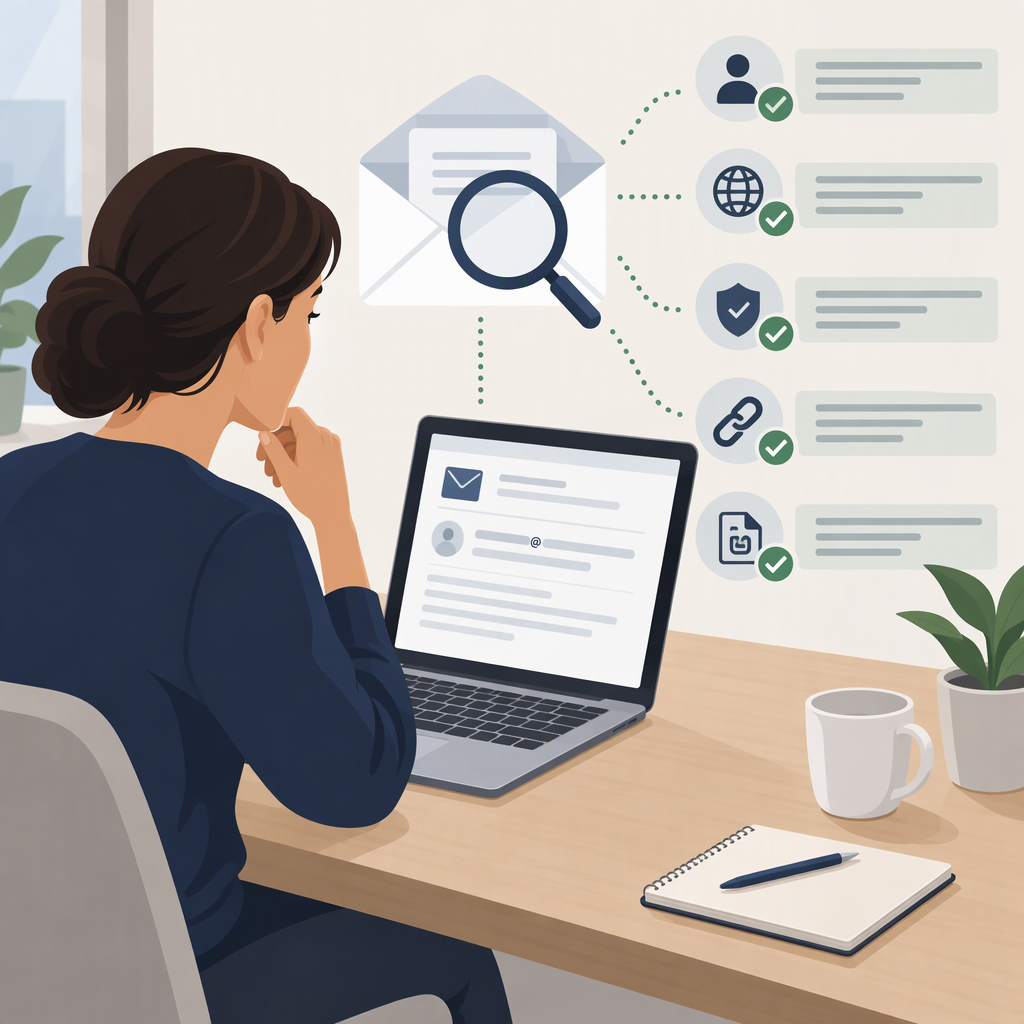
How to Verify a Sponsorship Email Before Opening the Brief
Short Answer
Before opening a sponsorship brief, verify the sender and campaign through a contact route you found independently. Don’t rely on the display name, logo, or details and links supplied only in the email. Then assess the particular link, file, sign-in prompt, or account permission separately. If you can’t verify the opportunity—or anything about the way you’re asked to view it feels unexpected—pause and ask the independently verified contact for another way to confirm and review it. The FTC and FBI recommend contacting an organization through a website or phone number you look up yourself rather than using one supplied in a suspicious message. (consumer.ftc.gov)
“Opening the brief” can mean opening an attachment, following a cloud-document link, or signing in to view a file. Those actions carry different risks. You can inspect the message without clicking its links, downloading files, or entering credentials; verification of a real campaign does not automatically verify every file or access request connected to it.
A Quick Pre-Open Check
- Check the actual sender address. Expand or tap the sender details to see the full address, not just the display name. Compare the domain after
@with the brand’s or agency’s official domain, looking carefully for extra words, substituted letters, or other small differences. The FBI warns that spoofing can involve disguising a sender name or email address, sometimes with only a small change. (fbi.gov) - Compare the story with information you find elsewhere. Does the named person, agency, brand, and campaign make sense together? Search for the organization’s official website or use a contact method you already know. Don’t use a link or phone number that appears only in the questionable email to confirm that same email.
- Notice pressure and unusual requests. Be cautious if the sender insists you act immediately, asks for passwords or sensitive personal or financial information, or asks you to pay unexpectedly. Unexpected links, file downloads, or requests to install software also deserve scrutiny. These are recognized phishing tactics, but a warning sign is not proof by itself: a genuine-looking message can be deceptive, and an odd-looking message alone doesn’t establish who sent it. (support.google.com)
- Treat technical email indicators as clues, not a campaign check. Your email provider may mark a sender as unverified, but that indicator is not a complete judgment: Microsoft notes that not every message that fails authentication is malicious. By the same logic, the absence of a warning does not prove that the person, campaign, or requested brief is legitimate. (support.microsoft.com)
Decision: If the sender or campaign does not match independently found information, or you still cannot confirm it, don’t proceed to the brief. Continue only after you have verified the opportunity and assessed how you are being asked to view it.
Verify the Sender Outside the Email
Find the brand’s or agency’s official website yourself—for example, by using a site or contact method you already trust. Ask a contact listed there, or a person you have previously worked with through a known channel, whether the named sender and specific campaign are genuine. The FBI advises looking up an organization’s phone number independently, and CISA advises against verifying an unexpected message by replying or using the message’s own link or phone number. (fbi.gov)
Be specific: give the independently reached contact the sender’s name, the campaign name, and the date or subject of the message. Ask them to confirm both the person and the opportunity. An official-looking logo, polished language, or a sender who knows details about you is not independent confirmation; scammers can impersonate trusted organizations and use publicly available information to make messages convincing. (support.google.com)
If It Checks Out, Assess the Way You’ll Review the Brief
Ask the verified contact to confirm a review method you can reach independently or were expecting. Then consider the specific action requested:
- Link: Don’t enter a password after following a link in a message. If a document unexpectedly asks you to sign in, stop and navigate to the service through its official site or app, or ask the verified contact to confirm the link through the independently established channel. Google advises going directly to the site instead of entering a password after clicking a message link; Microsoft specifically identifies unexpected document links that ask for an email address and password as a phishing pattern. (support.google.com)
- Attachment or download: If the sender or file is unexpected, don’t open or download it while you verify. The FBI advises caution with downloads and against opening attachments from people you don’t know; Google advises avoiding downloads from untrustworthy or unknown providers. (fbi.gov)
- Software, active content, or account permissions: Don’t install software, enable content, or grant account access just because a brief asks you to. First ask the verified contact why that step is needed and what access it provides. Treat a permission prompt as its own decision: for example, Google says linked apps can receive different levels of access to account data, and users can review or remove linked apps. Permission controls and their effects vary by provider, so consult that provider’s own instructions before granting or revoking access. (support.google.com)
No one method of sharing a brief is universally safe or used by every legitimate sponsor. If the sender confirms the campaign but cannot independently confirm the particular link, file, or permission request, pause on that item.
If You Can’t Verify It—Or Already Interacted
You haven’t clicked, downloaded, or shared anything: Don’t reply, click links, download the file, or provide information while the sender is unverified. Use an independently found contact route to check the offer; if it remains unverified, stop engaging and use your email provider’s reporting option. For example, Gmail has a “Report phishing” action, and Outlook.com has “Report > Report phishing”; available steps depend on your email service. (cisa.gov)
You clicked or downloaded something: Stop interacting with the page or file. If you ran a download, installed software, or enabled content, follow current security guidance from your device or operating-system provider; the right response depends on what happened and which device you use. CISA warns that suspicious links and attachments can expose information or install malware. (cisa.gov)
You entered a password or other credentials: Go directly to the real service—not through the email—and follow its account-security or recovery guidance. If you reused that password elsewhere, change it on those accounts too. Review unfamiliar sign-ins, devices, recovery details, and linked apps using the affected provider’s official tools. For Google accounts, Google’s guidance includes reviewing recent security events and devices; its linked-app controls let you review or remove app access. If you cannot sign in, use that provider’s account-recovery process. (support.google.com)
You granted a platform permission: Open the platform’s official account settings directly and review or revoke access you don’t recognize, following its instructions. Removing a link can affect features that depend on it, and revoking access may not undo information already shared; check the provider’s explanation and contact it if you need help. (support.google.com)
Reporting a message helps the email or platform provider handle it, but it is not a substitute for securing an account that may be compromised. In the United States, the FTC accepts scam reports at ReportFraud.ftc.gov; the FBI directs people to IC3 for spoofing and phishing reports. These are U.S. reporting routes, not account-recovery services. (consumer.ftc.gov)
Save This Checklist
- I checked the full sender address and domain, not just the display name.
- I verified the named person and campaign through a contact route found independently.
- I did not use the questionable email’s links or contact details as my only confirmation.
- I assessed the specific link, attachment, sign-in prompt, download, or permission separately.
- If I already interacted, I’m following the affected provider’s or device maker’s current security guidance.
A reassuring clue is not a guarantee. If you cannot verify both the opportunity and the requested way to review it, pause.