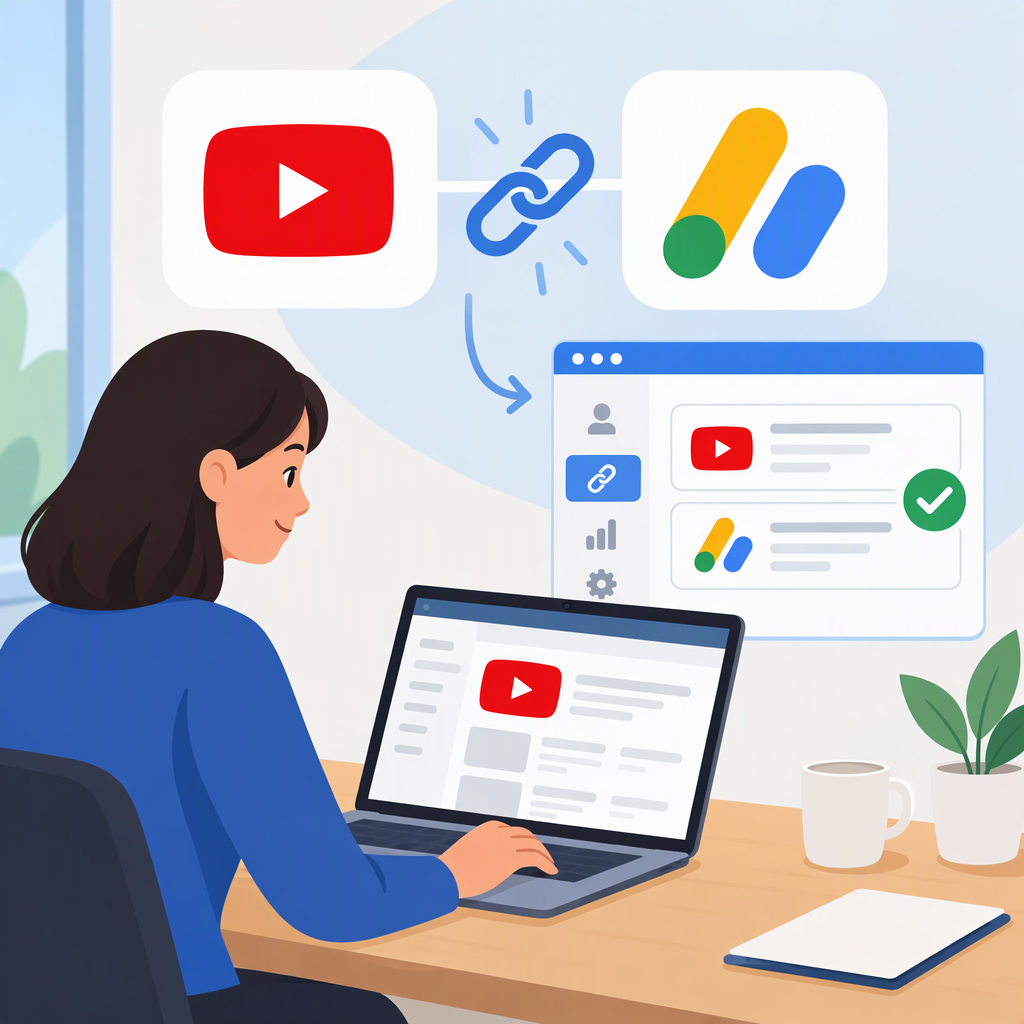
YouTube Adsense Program: How to Link an Adsense for YouTube Account
Linking YouTube to AdSense for YouTube connects your channel with the Google account used to process YouTube earnings and payments. It does not, by itself, get your channel accepted into the YouTube Partner Program (YPP), switch on monetization, or guarantee earnings. YouTube describes an active AdSense for YouTube account linked to a channel as one of the requirements for joining YPP; channels must also meet the program’s other requirements and pass review. (support.google.com)
Link an Existing Account or Create One
Start in YouTube Studio, not on the AdSense homepage if you need a new account. YouTube says a new AdSense for YouTube account must be created through Studio. It also says that only one AdSense or AdSense for YouTube account is allowed under the same payee name; duplicate accounts will not be approved and may result in monetization being turned off for the associated channel. (support.google.com)
- Sign in to YouTube Studio and select Earn in the left menu.
- On the Sign up for AdSense for YouTube card, select Start.
- If prompted, enter your YouTube account password and re-authenticate.
- Choose the Google account for AdSense for YouTube.
- Already have an AdSense account? Choose the Google account you use to access it. That may be different from the account you use to sign in to YouTube. Check the email shown in the AdSense for YouTube flow before continuing; use Use a different account if it is not the right one.
- Need a new account? Continue creating it in the YouTube Studio flow, provide the requested contact information, and submit the application. Do not start a second account if you already have one under the same payee name.
- Follow the flow back to YouTube Studio and check the status shown on the AdSense for YouTube card. (support.google.com)
How to Check Whether It Worked
For a new account, YouTube says Studio shows that it received the application; it sends an email when the account is approved. Once approved, the card in Studio should show that the AdSense for YouTube account is approved and active. For an account already linked to a channel in YPP, Studio’s Earn area shows the linked account details under YouTube Partner Program Options. (support.google.com)
Allow time for the process. YouTube says approval of a new account can take several days; its account-change guidance says linking an existing account typically takes a few minutes, while creating a new account can take several days and sometimes two or three weeks. If the account is still being processed, use the status in Studio rather than assuming the link failed. (support.google.com)
If the Account Does Not Link
- The wrong Google account appears: Check the email shown in the AdSense flow and switch accounts before submitting. For an existing AdSense account, use the Google account that accesses that account—even if it differs from your YouTube sign-in. (support.google.com)
- You are creating a new account: Return to the YouTube Studio Earn flow. YouTube says creating a new account on another site, such as the AdSense homepage, will not work for this purpose. (support.google.com)
- You see a duplicate-account issue: Do not keep submitting new applications. Check whether you already have an account under the same payee name and use that account’s Google sign-in. YouTube’s guidance says duplicate accounts will not be approved. (support.google.com)
- Monetization is paused: YouTube distinguishes paused monetization from disabled monetization. For a pause, it says an active, approved AdSense for YouTube account must be linked to resume; check the status in Studio’s Earn area. A disabled channel may have a different cause, so review the status and explanation shown there. (support.google.com)
- You are changing an existing link: YouTube’s change-account instructions apply to channels already approved for YPP. In Studio, go to Earn, find the account details under YouTube Partner Program Options, and select Change. You can change the linked account only once every 32 days. (support.google.com)
Linking Is Not Ypp Approval
Treat account association as one step in the monetization process, not proof that your channel is approved or earning. YouTube lists a linked active AdSense for YouTube account alongside separate YPP requirements, including following monetization policies, being in a supported country or region, and meeting other channel requirements. It also says an eligible channel goes through a review before it is accepted into YPP. Check Earn in YouTube Studio for your channel’s eligibility and application status. (support.google.com)