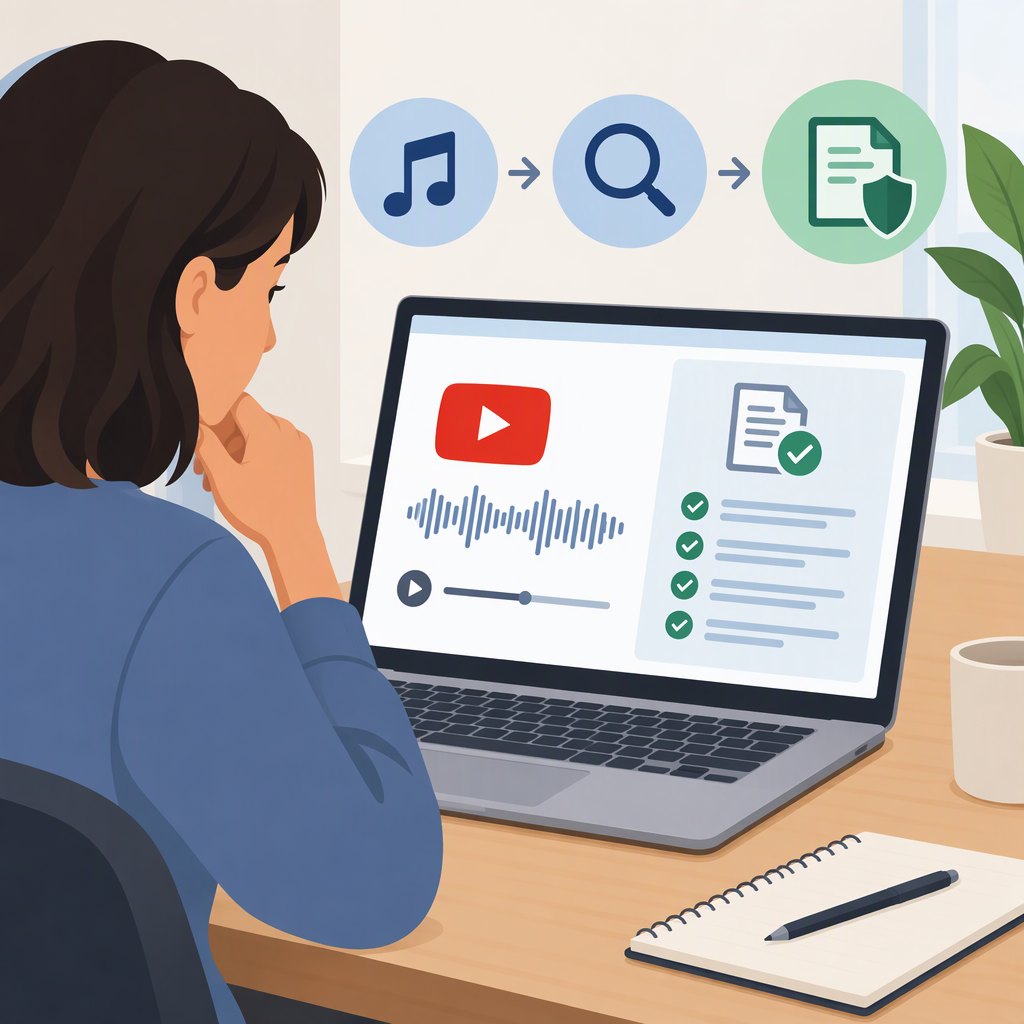
YouTube Audio License: How to Check a Track Before You Use It
Before adding music or sound effects to a YouTube video, check the terms for that specific track and make sure they cover the way you plan to use it. Look for conditions on video use, monetization, attribution, editing, and any limits the terms specify. Keep a record of the track and the applicable permission. A label such as “free” or “royalty-free” is not a substitute for reading the terms: YouTube says monetization of royalty-free or Creative Commons material depends on whether its license grants commercial-use rights. (support.google.com)
How to Check Whether a Track Is Licensed for Your Video
Use this track-by-track process before publishing:
- Identify the exact track and source. Note the title, artist or creator, and where you obtained the audio. Check whether the source is the rights holder or a provider authorized to grant the permissions it offers.
- Find the terms that apply to that track. Read the track’s license or usage terms—not just a search result, playlist label, or general statement about a catalog. If it came from a provider, check that provider’s terms and any track-specific conditions.
- Compare the terms with your planned use. Check the questions below. A license may grant some uses but limit others; treat each point as something to confirm, not a restriction every license necessarily contains.
- Save useful evidence. Keep the track details, a copy or screenshot of the applicable terms, any license or permission confirmation, and any receipt or required attribution text. This is a practical record-keeping recommendation, not a YouTube-mandated format. If terms change later, a dated record can help show what you relied on when you obtained the audio.
- Resolve gaps before publishing. If the terms do not clearly cover your use, ask the rights holder or provider for clarification or choose a track with clearer terms. Do not assume that downloading or purchasing audio gives you every right you need.
License Checklist: What to Look For
Read the terms for the particular track and ask:
- Video use: Does permission cover synchronizing the audio with video and uploading it to YouTube?
- Monetization or commercial use: If the video will earn revenue, promote a business, or otherwise be used commercially, do the terms allow that? YouTube says creators need the necessary commercial-use rights for audio in monetized videos; “royalty-free” or Creative Commons material can still require commercial permission. (support.google.com)
- Attribution: Must you credit the artist? If so, what exact wording and where must it appear?
- Editing: May you trim, loop, mix, or otherwise adapt the track for the video?
- Limits: Do the terms specify a platform, territory, duration, audience, or other use restriction? Check what is actually written; do not presume such limits exist or do not exist.
- Permission source: Is the person or provider granting the permission authorized to do so for the track and the rights involved?
A “license” is permission to use a work under stated terms; it does not necessarily transfer ownership. Attribution is credit required by some licenses, but giving credit alone does not grant permission. YouTube’s guidance likewise says that crediting the copyright owner is not, by itself, a valid reason to dispute a Content ID claim. (support.google.com)
Hypothetical Example
Suppose a track’s terms allow use in YouTube videos but require credit and do not clearly address monetization. A creator making a monetized video should not infer commercial permission from the “YouTube use” wording alone. They should check the full license or get clarification, add the required credit if permission is confirmed, and retain the terms and confirmation. This is an illustrative scenario, not the terms of a real track or provider.
YouTube Audio Library Vs. Audio from Outside Sources
YouTube Audio Library: In YouTube Studio, search for the exact track and check its attribution setting. YouTube says Audio Library tracks with a Creative Commons license require credit in the video description, and provides a way to copy the track’s attribution text. It also distinguishes tracks under its standard Audio Library license that do not require attribution. YouTube says eligible Audio Library music and sound effects can be used in monetized videos by creators in the YouTube Partner Program. Follow the specific track’s displayed instructions rather than assuming every track has identical conditions. (support.google.com)
Outside sources: Check the license or permission provided for the individual track. Terms, attribution requirements, commercial permissions, and the evidence available can vary by provider and track. Do not assume an outside track is cleared for YouTube simply because it is labeled “free,” “royalty-free,” or “copyright-free.” YouTube notes that none of its listed ways of using copyrighted content—including permission, Creative Commons, the Audio Library, or Creator Music—guarantee that a video will avoid every copyright issue. (support.google.com)
For U.S. creators in the YouTube Partner Program, YouTube also describes Creator Music as a separate option: track terms can include a license or revenue sharing, depending on the song. Availability and terms vary, so check the individual track in YouTube Studio rather than treating this as a blanket permission. (support.google.com)
If Your Video Receives an Audio-Related Copyright Claim
A Content ID claim is a platform notice that can affect a video—for example, by monetizing, tracking, or blocking it, sometimes differently by region. It is not the same thing as a copyright strike. (support.google.com)
- Read the specific notice in YouTube Studio. Check which audio was identified, who made the claim, and what effect it has on the video. YouTube says creators can review claims in Studio and may be able to remove claimed content. (support.google.com)
- Compare the claim with your records. If you believe you have the necessary rights, locate the license or permission that covers this track and this use. Credit alone, owning a copy of a song, or choosing not to monetize are not, by themselves, valid reasons to dispute a claim under YouTube’s guidance. (support.google.com)
- Use the instructions for that notice. YouTube says a Content ID dispute should be filed only when you have a valid reason and are confident you have the necessary rights. After a dispute, the claimant has 30 days to respond; that is the claimant’s response period, not a general deadline for creators to act. Review the current notice and YouTube instructions before choosing a response. (support.google.com)
If you cannot substantiate permission, consider removing or replacing the audio rather than disputing on the assumption that a license label guarantees success. A dispute does not create permission, and YouTube does not promise that a license will prevent every claim or that a dispute will succeed. For uncertainty about your legal rights, consider getting qualified legal advice.
Pre-Publish Checklist
- Identify the exact track, artist, and source.
- Read the terms that apply to that specific track.
- Confirm the terms cover your planned YouTube use and monetization, if relevant.
- Meet any attribution and editing requirements; check any stated limits.
- Keep the terms, permission evidence, and required credit text.
- If a claim appears, assess the exact notice and your evidence before responding.
Bottom line: choose audio only after you can connect the exact track to permission that covers the way you plan to use it. The source category is a starting point for checking—not a substitute for the track’s applicable terms.