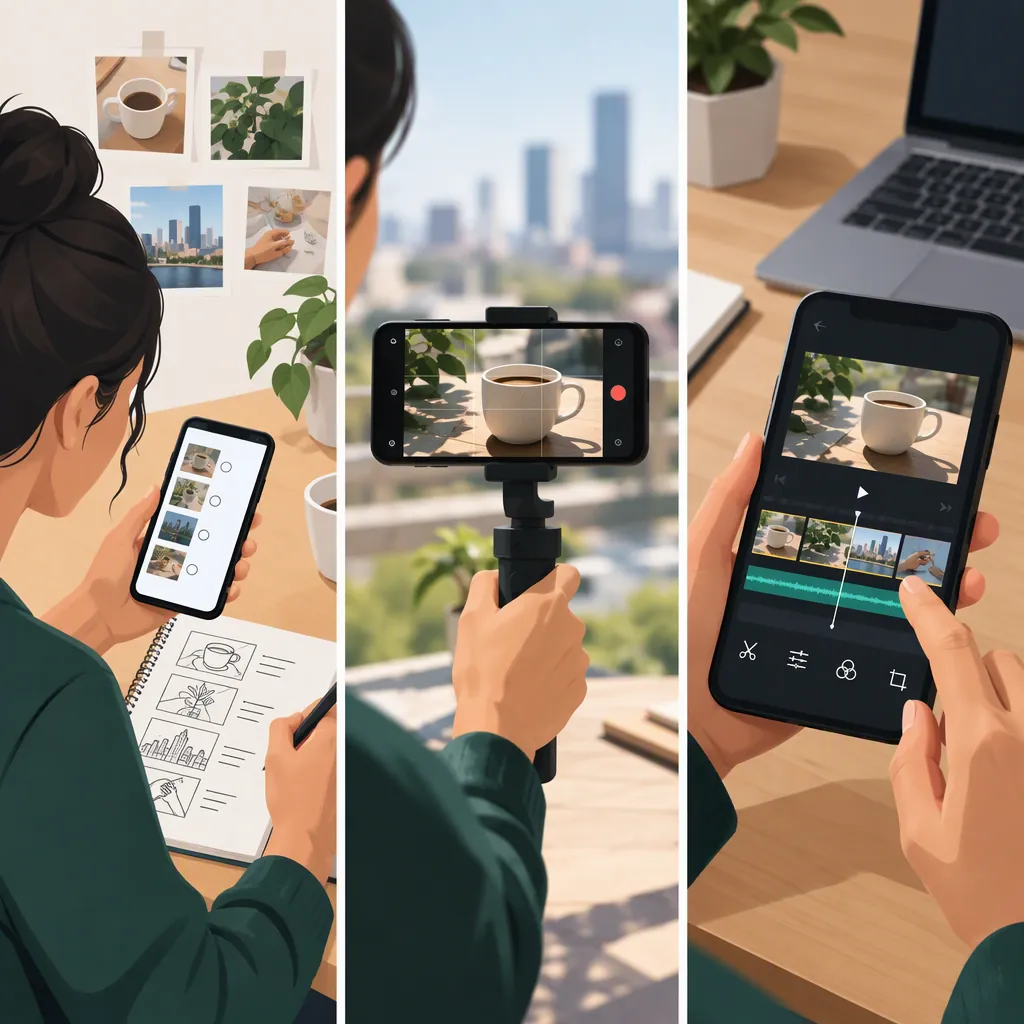
How to Plan, Shoot, and Use Smartphone B-Roll
Smartphone B-roll is supporting footage filmed on a phone to complement a video's main action, interview, or narration. Use it to establish a location, illustrate what someone is describing, or cover a cut. Start with a story-based shot list, capture varied angles with enough extra footage for trimming, and choose clips that support the edit rather than merely decorate it. [c2] [c3]
What Makes a Shot B-Roll?
B-roll is defined by its role in the video, not by the camera that records it. The main interview or action is A-roll; supporting views of a place, object, or process are B-roll. Adobe describes its uses as establishing scenes, smoothing transitions, and adding meaning. [c2]
For example, in a narrated cooking video, an overhead view of the ingredients or a close-up of stirring can illustrate the spoken instructions. A video can also use supporting images throughout, with a voiceover carrying the explanation. [c3]
A moving shot is not automatically B-roll. If a person walking and speaking to the camera delivers the main story, treat that footage as A-roll. Decide what each clip contributes before deciding where to place it.
Plan Shots Around the Story
Write down the main points or process steps, then pair each with something the viewer can see. Adobe recommends planning establishing shots, cutaways, and close-ups; That Camera Girl recommends identifying the steps of a how-to process before filming. [c2] [c3]
As a practical starting sequence, capture context, action, detail, and result. Vary the camera height and position rather than recording every shot from the same angle. This gives you different views to choose from when assembling the sequence. [c3]
The example below is a suggested planning exercise, not a required shot formula.
Copyable Smartphone B-Roll Shot List
| Story Point | Suggested Shot | What to Check |
|---|---|---|
| Where the activity happens | Wide view of the workspace | Does the setting explain the scene? |
| What is needed | Overhead view of materials | Can the viewer identify the relevant items? |
| How the process works | Medium view of hands performing the step | Is the action visible without obstruction? |
| What needs closer explanation | Close-up from a different angle | Does the detail match the narration? |
| What the process produces | View of the finished result | Is the outcome clear? |

Before recording, add the narration line, camera position, and any access or safety constraints to each row.
Keep the Phone Steady and Check the Frame
Begin with a stationary shot so you have a simple version of the action. For handheld movement, use your body to guide the camera instead of moving only your hands. When practical, support an elbow or wrist on a solid surface. These are stabilization techniques described in That Camera Girl's smartphone filming guide. [c3]
Inspect the frame for your shadow, reflections, and distracting background objects. Glass and shiny surfaces deserve particular attention. Reposition the phone when the camera or operator becomes visible unintentionally. [c3]
Record beyond the exact moment you expect to use. Adobe recommends allowing enough recording time for the pacing of the dialogue, while That Camera Girl recommends leaving extra footage at the end of a shot. Those suggestions concern capture length—not a mandatory length for the finished clip. [c2] [c3]
Use Camera Movement with a Purpose
Choose movement that reveals information rather than adding motion to every shot. Hohem's phone-gimbal tutorial describes several useful patterns: [c1]
- Reveal: Move past a foreground obstruction to show the subject or setting.
- Overhead view: Point down toward a work surface to show a process or arrangement.
- Sideways move: Move laterally with a foreground element to emphasize depth.
- Pullback: Begin near a detail and move away to show its surroundings.
Try one movement at a time and review whether the subject remains clearly framed. Before moving backward, check the path for obstacles. [c1]
The Hohem reference is a manufacturer-authored, gimbal-focused tutorial. Its equipment recommendations and mode names should not be treated as universal phone instructions or independent product comparisons. The supplied references do not establish one best recording resolution, frame rate, or camera-app configuration for every smartphone.
Edit B-Roll to Support the Main Story
Start with the main explanation or action, then add supporting footage where it clarifies a point, establishes context, or covers an unwanted visual cut. B-roll can hide a jump cut while the spoken explanation continues. [c2]
Match the image to the relevant line: show the tool when it is discussed, the action when it is explained, and the result when it is described. Trim each shot to the time needed for that information. That Camera Girl emphasizes that clip length should fit the video's pace and subject; a delicate demonstration may need more screen time than a quick action montage. [c3]
For a final review, ask: Does this clip explain something? Is the important detail visible long enough to understand? Would removing it make the story clearer? Treat these as editorial questions, not as a promise of audience retention.
FAQ
Do I Need a Gimbal for Smartphone B-Roll?
No. That Camera Girl describes handheld iPhone examples and techniques such as supporting your wrist or elbow and using whole-body movement. A gimbal is an additional option for moving shots, not a requirement for footage to qualify as B-roll. [c3]
How Long Should I Record Each Shot?
Record enough to capture the full action and leave trimming room. Adobe recommends counting to ten when capturing a shot, and That Camera Girl recommends extra footage at the end. These are practical capture suggestions; the finished clip should fit the explanation and pacing rather than a fixed duration. [c2] [c3]
Can a Stationary Shot Be B-Roll?
Yes. B-roll is supporting footage, so camera movement is not required. A stationary close-up, establishing view, or process shot can serve the story. Adobe explicitly discusses both stationary shots and shots with camera movement in its capture advice. [c2]