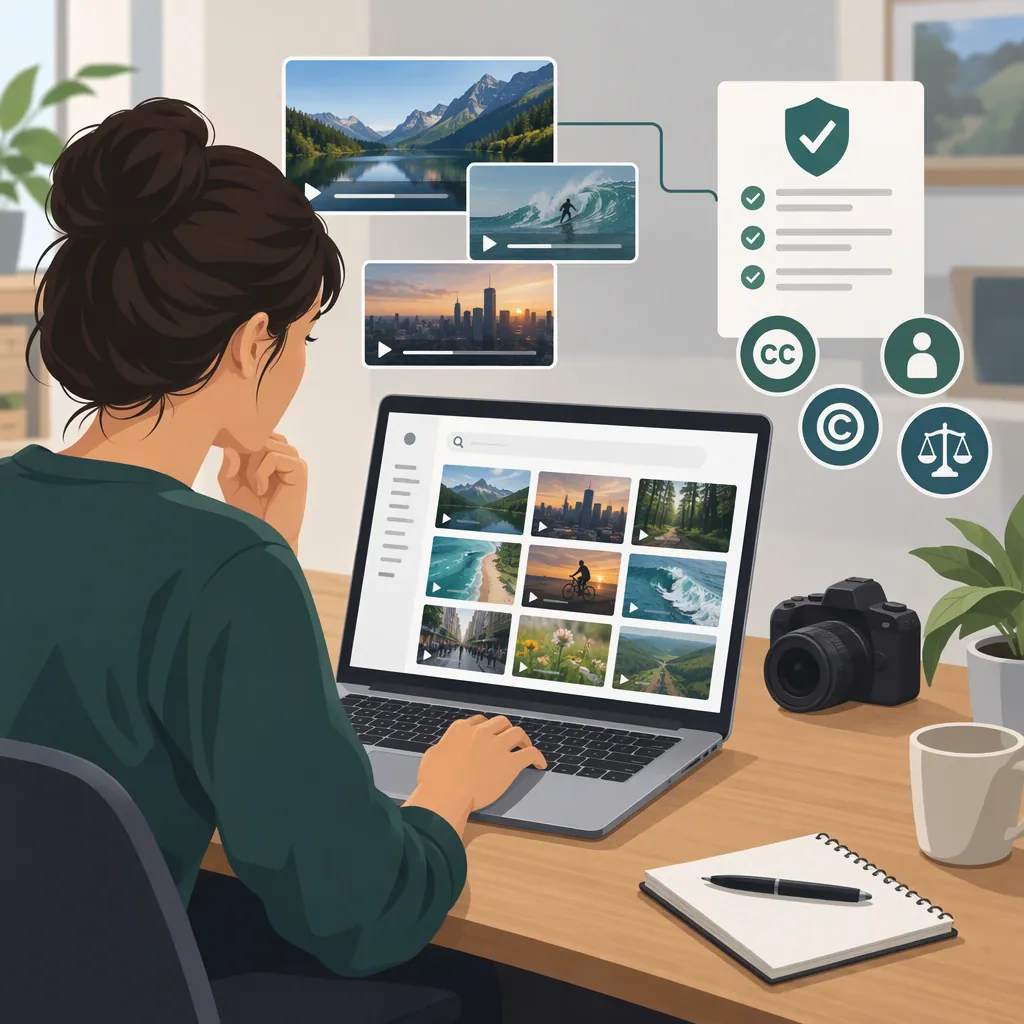
B-Roll Websites: Finding Footage and Checking Usage Rights
For B-roll footage, start with stock websites such as Pexels, Pixabay, or Mixkit for free sourcing options, or iStock, Shutterstock, and Artgrid for paid alternatives. For historical material, look at archives such as the Prelinger Archives or the Library of Congress. Riverside’s guide identifies these sources, but choosing a website is only the first step: check the specific asset’s license before publishing. [c1]
The comparison below draws on Riverside’s sourcing guide and the feature pages for Kapwing, Motionbox, and Gling—not hands-on testing. Stock libraries help you find existing footage; editor integrations and generators offer additional ways to obtain or place supporting visuals. Their feature descriptions do not establish complete usage rights for individual assets. [c1] [c2] [c3] [c4]
Choose the Kind of B-Roll You Need
B-roll is supporting footage that adds context or detail to the main footage, or A-roll. Examples include ingredient close-ups during a cooking explanation, workplace scenes during an interview, and establishing shots between locations. Riverside’s guide describes stock footage, archival material, close-ups, and atmospheric establishing shots. [c1]
Before choosing a website, identify what the shot must communicate:
- A general idea: Search for stock footage illustrating an action, setting, or mood.
- A particular product or process: Prefer footage that accurately shows the thing being discussed; consider recording it yourself.
- A historical event: Look for archival material with enough source information to evaluate its date, location, and relevance.
- An imagined scene: Consider generated visuals, but avoid presenting them as documentary evidence.
A visually attractive clip is not necessarily an accurate illustration of your narration. Choose the sourcing route around the shot’s purpose, not just its appearance.
Compare B-Roll Material Sources
Riverside distinguishes free stock options, paid stock libraries, historical sources, and open-license repositories. The table uses those categories as starting points, not as guarantees about current inventory, prices, or licensing permissions. [c1]
| Source Category | Websites Named in the Guide | When to Consider This Route | What to Verify |
|---|---|---|---|
| Free stock options | Pexels, Pixabay, Mixkit. [c1] | Start here when you need general supporting visuals and want to look for footage without a purchase budget. | Whether the clip accurately fits your narration, meets your frame requirements, and has terms covering your use. |
| Paid stock libraries | iStock, Shutterstock, Artgrid. [c1] | Expand your search here when free options do not provide the shot you need and you have a footage budget. | The available license, acquisition terms, and any restrictions for the selected asset. |
| Historical archives and collections | Prelinger Archives, the Library of Congress, and Wikimedia Commons are among the guide’s historical sourcing examples. [c1] | Look here for material intended to illustrate a real period, place, or event. | The item’s provenance, date, description, and rights information; do not assume every item in a collection has the same status. |
| Open-license and public-domain searches | Riverside names Vimeo, Flickr, YouTube Creative Commons, and Archive.org as places to look. [c1] | Consider this route when you can evaluate an item’s stated license and fulfill any conditions. | Whether the selected item is actually offered under the stated license, what attribution is required, and whether restrictions remain. |
These categories describe sourcing routes, not a ranking of the websites. The cited guide does not provide a detailed inventory or license comparison for each stock library, so it does not establish which one will have the best clip for a particular project.
A practical selection sequence: search free stock options for general footage, broaden to paid libraries if necessary, and use archives when historical authenticity matters. If the narration requires an exact product, person, or process, consider whether recording your own footage would be more accurate.
Supplemental Workflows: Editors and Generators
Editor-based sourcing can reduce the steps between finding footage and placing it in a timeline. Generation is a different route: it creates visuals rather than locating existing documentary footage.
| Tool | Workflow Described on Its Page | Main Decision Point |
|---|---|---|
| Kapwing | Describes transcript-based stock matching and automatic timeline placement, using footage from iStock, Pexels, and Pixabay. Custom generation is described separately. [c2] | Do you want automated stock selection for narrated footage, and are you prepared to review each match? |
| Motionbox | Describes searching a Pexels integration or uploading footage, choosing an overlay’s start time, and resizing it. The page also states that Motionbox now runs on Wireflow. [c3] | Confirm that the described workflow remains available in the current interface before relying on it. |
| Gling | Describes AI-created B-roll tailored to a video’s theme and identifies the software as desktop-based. [c4] | Does generated footage fit the visual purpose, and does desktop editing fit your workflow? |
Gling’s page does not provide a detailed B-roll search procedure, so it should not be treated as evidence of a browsable stock library. [c4] For any integrated or generated asset, check the applicable permission terms separately from the editing features.
Search for Shots That Support the Narration
Riverside recommends planning visuals around the story and describes both online sourcing and recording your own footage. [c1] A practical way to apply that advice is to turn each important sentence into a concrete shot request.
For example, replace a broad search such as “coffee” with “hands grinding coffee beans close-up” when the narration explains preparation. Try a wider alternative, such as “coffee preparation kitchen,” if the first query is too narrow. These are suggested search phrases, not claims about any website’s inventory.
Use this sequence to evaluate results:
- Check the subject and action. Does the clip show what the narration actually describes?
- Check the context. Look for mismatched products, locations, periods, or procedures.
- Check the frame. Review orientation, crop, camera movement, lighting, and room for captions.
- Check the timing. Make sure the useful action lasts long enough for the intended segment.
- Check the rights. Review the applicable license before committing the asset to the final edit.
For automated placement, review the selected clips rather than assuming a transcript match is enough. Kapwing’s page says inserted B-roll can be trimmed, swapped, repositioned, or removed. [c2]
B-Roll Search Brief
- Narration segment: Exact sentence or topic.
- Visual purpose: Explain, show detail, establish location, or cover an edit.
- Required subject and action: What must appear.
- Search phrase: Subject + action + setting or shot type.
- Alternative phrase: Broader or narrower wording.
- Accuracy exclusions: Wrong product, location, period, or process.
- Frame requirements: Orientation, crop, and caption space.
- Chosen asset and source: Identifier and source location, recorded after selection.
Check Usage Rights Before Publishing
Riverside explicitly advises checking license terms for open-license content. Its sourcing list is not a substitute for the terms governing a particular clip. [c1] Likewise, the Kapwing, Motionbox, and Gling feature pages do not provide complete permissions for every stock asset or generated output. [c2] [c3] [c4]
Understand the Terms You Are Checking
The following distinctions are general educational guidance, not authorization for any particular asset:
- Free access: A clip may be available without payment while still carrying conditions or restrictions. Cost and permission are separate questions.
- Editorial-only: This generally signals a restriction toward informational or reporting contexts rather than advertising or promotional use. Read the exact license; do not treat an editorial-only asset as cleared for an ad.
- Attribution: Some licenses require credit. Check the required wording, placement, and any accompanying license or source information.
- Asset license versus third-party rights: Permission to use the footage does not necessarily resolve every issue involving identifiable people, trademarks, artwork, or other depicted material. Check any release information and relevant restrictions.
Review the License Against Your Planned Use
For each selected asset, look for answers to these questions:
- Does the license cover your project type, including advertising or client work if relevant?
- Is the asset limited to editorial use?
- Is attribution required, and in what form?
- Are there restrictions involving identifiable people, trademarks, artwork, or sensitive contexts?
- Do the terms allow your planned edits and distribution?
- For generated footage, what do the applicable output terms say about permitted use?
Hypothetical example: You find a clip marked “editorial use only” and want to place it in a paid product advertisement. Do not mark it cleared simply because it is downloadable or available inside your editor. Check the restriction and seek appropriate permission, or replace the asset.
Hypothetical example: A clip is offered under a license requiring attribution. Before publication, record the required credit and plan where it will appear. If you cannot meet the condition, choose another asset or obtain separate permission.
These examples illustrate a checking process; they are not conclusions about assets on any named website. If an important permission question remains unresolved, seek clarification or choose another asset.
Keep an Asset Permission Record
Store the record alongside the project so the source and permission basis remain traceable:
- Asset title or ID: Identifier for the selected clip.
- Source location: Exact asset page.
- Provider or contributor: As listed.
- Acquisition date: When the asset was obtained.
- Applicable license and terms location: License name and where it was reviewed.
- Saved license or receipt: File location for supporting documentation.
- Planned use: Project, audience, platforms, and advertising status.
- Attribution: Required wording or documented absence of a requirement.
- Restrictions and unresolved questions: Relevant details.
- Permission decision: Confirmed, clarification needed, or replace asset.
FAQ
Where Can I Find Free B-Roll?
Riverside’s guide identifies Pexels, Pixabay, and Mixkit as free stock sourcing options. It also lists archival and open-license sources. Check the specific asset’s terms: free access does not by itself establish permission for your project. [c1]
When Should I Search a Paid B-Roll Website?
Consider paid libraries when free options do not provide footage that fits your shot requirements and you have a budget. Riverside names iStock, Shutterstock, and Artgrid as paid alternatives, but its guide does not establish that any one library has better inventory or broader permissions for your project. [c1]
Where Can I Look for Historical B-Roll?
Riverside names the Prelinger Archives, Wikimedia Commons, and the Library of Congress among historical sourcing options. Review the item’s description and provenance to confirm that it depicts the relevant period or event, then check its individual rights information. [c1]
Do B-Roll Generators Use Stock Footage or Create New Clips?
The approach depends on the tool. Kapwing describes Smart B-roll as matching stock footage and offers custom generation separately. Gling’s page describes AI-created B-roll tailored to a video’s theme. Those descriptions do not establish identical workflows or usage rights. [c2] [c4]
Can a Website Add B-Roll Automatically?
Kapwing’s page describes analyzing a transcript and automatically placing matching footage in the timeline. Its stated upload workflow requires spoken audio. The resulting clips remain editable, so review their accuracy and timing before export. [c2]
Is Footage Inside an Editor Automatically Cleared for Commercial Use?
No such blanket conclusion is established by the Kapwing, Motionbox, or Gling feature pages. Check the selected asset’s license and the applicable tool terms for your intended use. Riverside also advises checking license terms when sourcing open-license material. [c1] [c2] [c3] [c4]