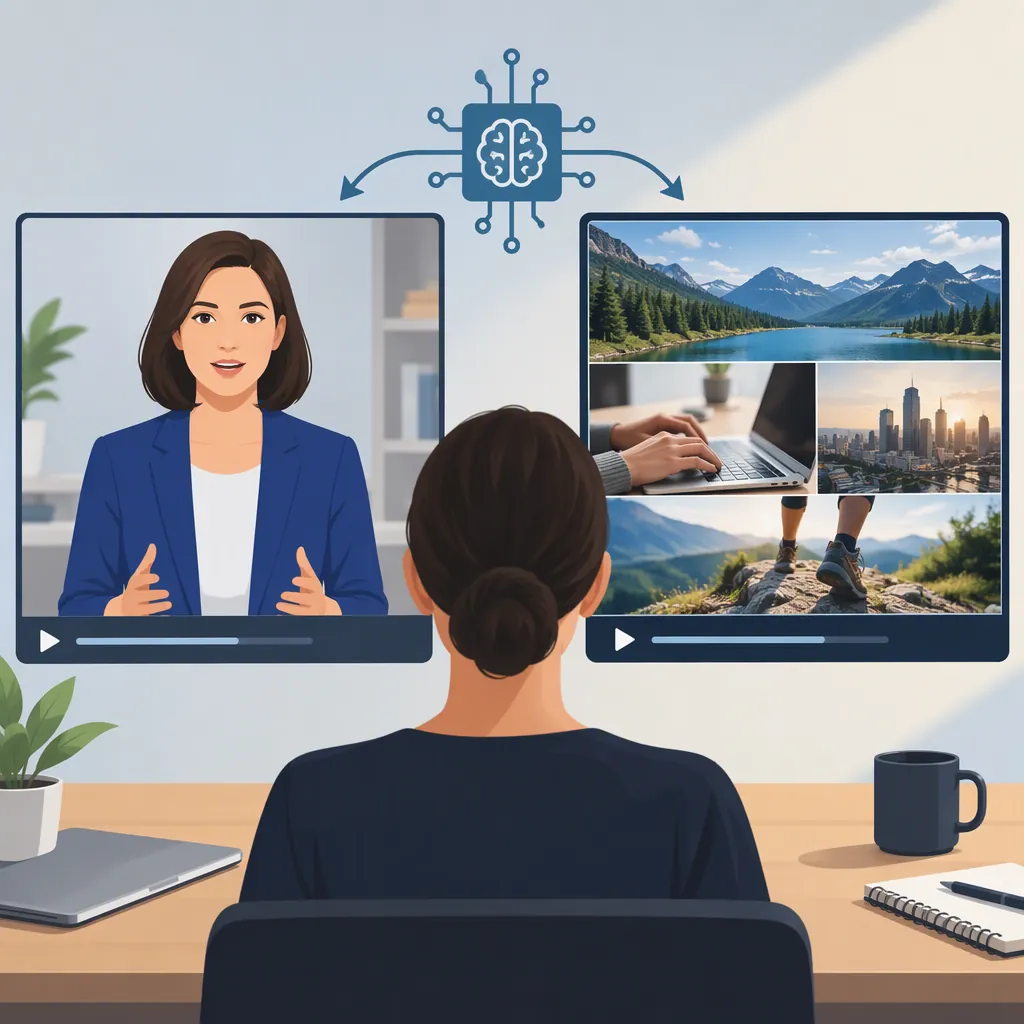
AI Talking Head Videos: Generating a Presenter and Planning B-Roll
AI talking head videos use a digital presenter to speak a script or supplied audio. Vidnoz and VisionStory describe workflows that begin with a photo or avatar, add speech, and generate a talking video. For an explainer, plan the presenter around the explanation and use B-roll or screen recordings where viewers need to see evidence or an action. These source descriptions do not establish output quality or a best tool. [c1] [c2]
Choose What the Viewer Needs to See
Start with the learning goal rather than the avatar. A presenter-led introduction can state the question and frame the explanation. When the script describes a specific interface, physical action, or result, plan a visual that actually shows it.
For this article, B-roll means supporting footage shown alongside or instead of the presenter. Treat these as editorial options, not measured performance claims:
| Format | Consider It When | Review Question |
|---|---|---|
| AI presenter | The speaker needs to explain or connect ideas | Does the face add useful context? |
| B-roll with narration | The subject itself should be visible | Does the footage support the spoken claim? |
| Screen recording | Viewers need to follow an interface action | Are labels and steps readable? |
| Hybrid | The explanation alternates between context and demonstration | Does each cut help the viewer understand? |
Do not use a generated presenter as evidence that a real person delivered a statement or personally used a product.
Understand the Documented Generation Workflows
The supplied pages describe two separate tools, not interchangeable interfaces:
- Vidnoz Talking Photo: Its instructions describe selecting, uploading, or generating a photo; preparing a script and choosing speech settings; previewing speech; and generating the video. The page also displays audio-upload and recording options. [c1]
- VisionStory AI Video: Its feature page describes using a stock avatar or a personal photo with a script. It also describes talking-video inputs that include audio and images. [c2]
These descriptions support the basic photo/avatar-to-speech workflow. They do not verify that either tool will produce convincing lip-sync, consistent expressions, or a publication-ready result for your material. Evaluate the generated clip rather than treating promotional examples as a quality guarantee.
Prepare the Portrait and Speech
Before uploading, confirm permission to use the portrait, voice recording, and other assets. Avoid presenting a real person's likeness as an endorsement they did not give. Consider a visible synthetic-presenter disclosure when the presentation could otherwise be mistaken for a recording of that person.
For Vidnoz specifically, the displayed photo requirements include a clear front-facing image, good lighting, a neutral expression with a closed mouth, no face occlusions, and a file size up to 10 MB. Its upload notice requires ownership or a legitimate right to use the image. Those are source-specific requirements, not universal rules for all generators. [c1]
Then prepare a short test passage:
- Write one idea per sentence.
- Include any difficult names, acronyms, or numbers in the test.
- Choose text-to-speech or supplied audio according to the documented input options.
- Preview the speech where that option is available.
- Generate a short sample before committing to the full explanation.
Check the current interface for duration and input limits. The supplied Vidnoz page contains different limits for different modes, so a single maximum should not be assumed to apply across them. [c1]
Pre-Generation Checklist
- [ ] Portrait and voice permissions confirmed.
- [ ] No implied endorsement or invented personal experience.
- [ ] Script facts checked against the material being explained.
- [ ] Difficult words included in a short test passage.
- [ ] Input and duration limits checked for the selected mode.
- [ ] Synthetic-presenter disclosure considered.
Plan B-Roll Around the Explanation
Mark the script wherever the viewer should see something other than the presenter. Keep the narration continuous if a visual demonstration is more useful than a talking face.
For example, an instructional video could show the presenter stating the goal, switch to an actual screen recording for the steps, and return to the presenter for a summary. This is a suggested editorial structure, not a claim that either cited generator performs those edits automatically.
Use real documentation or recordings for factual demonstrations. Label illustrative visuals when they might otherwise be mistaken for actual results.
Presenter and B-Roll Script Template
| Beat | Narration | Visual | Review |
| --- | --- | --- | --- |
| Goal | “This walkthrough explains [specific task].” | AI presenter; disclosure if needed | Does the wording match the scope? |
| Context | “[Requirement] matters because [verified reason].” | Relevant document or diagram | Is the reason supported? |
| Action | “Select [control], then [next action].” | Actual screen recording | Do the visible labels match? |
| Result | “Check for [observable result].” | Actual result or labeled illustration | Is the distinction clear? |
| Summary | “The key check is [review criterion].” | Presenter or summary card | Does it avoid unsupported promises? |
Review the Generated Clip Before Publishing
Review the sample with sound, then inspect the picture separately. Use the following as acceptance criteria rather than assumptions about what a generator can deliver:
- Speech: Check pronunciation, pacing, pauses, and unintended emphasis.
- Face and motion: Look for distracting mouth movements, unstable facial details, or gestures that conflict with the words.
- Visual evidence: Confirm that B-roll supports the narration and that screen recordings show the actual steps.
- Captions: Compare them with the spoken audio, including names and numbers.
- Presentation: Check cropping, readability, audio levels, and any watermark or background restrictions.
Budget for tests and revisions. VisionStory's feature page describes credit-based generation and states that the cost for selected settings is shown before submission. That does not establish a fixed cost for a finished, edited video. [c2]
Neither the supplied tool pages nor this article establish a quality winner. Compare tools using the same authorized portrait and test script, and judge the exported files against your own acceptance criteria.
FAQ
Do I Need to Film a Presenter First?
Not for the photo-based workflows described here. Vidnoz documents selecting or uploading a photo, while VisionStory describes turning a personal photo or stock avatar into a talking video. That does not guarantee that every photo will work well. [c1] [c2]
Can an AI Talking Head Replace a Demonstration?
Treat the presenter as the explanation, not proof of the process. If viewers need to see a real interface, physical action, or actual result, plan a recording or other appropriate evidence alongside the narration.
Which Tool Produces the Best AI Talking Head Videos?
The supplied sources do not establish a best tool. They describe workflows and features but do not provide an independent, controlled quality comparison. Use the same test inputs and compare pronunciation, lip-sync, visual stability, export restrictions, and the cost of revisions.