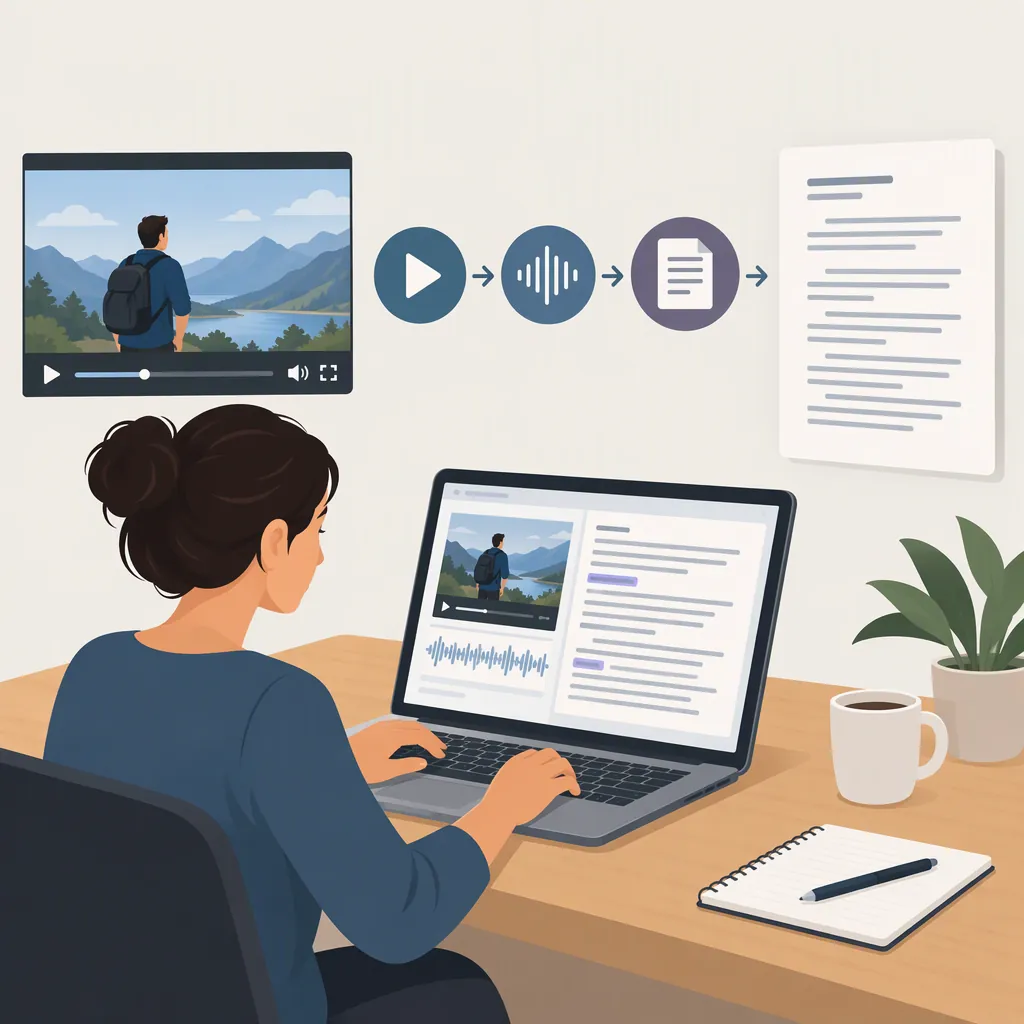
How to Get a Script from a Video
To get a script from a video, transcribe its spoken audio: import an authorized video file or supported link, generate a transcript, review it against the recording, and export the corrected text. The provided references describe this import–transcribe–export workflow. Treat the result as a transcript of what was said, not proof of the original written script. [c1] [c2]
Decide What You Mean by a Script
For this task, use transcript to mean a written record of the video's speech. The supplied video-to-text reference describes transcription as converting spoken audio into editable text, potentially with timestamps and speaker labels. [c1]
Choose your intended output before you begin:
- Verbatim transcript: Preserve the spoken wording, including repetitions and false starts that matter to your purpose.
- Readable transcript: Improve punctuation and paragraph breaks; document any removal of fillers or repetitions.
- Adapted script: Rewrite the reviewed transcript for a new production, clearly labeling it as an adaptation.
- Subtitles: Keep timing information rather than turning everything into continuous paragraphs.
Do not label a reconstructed transcript as the original production script unless you have that document. Also decide whether you need on-screen text or visual directions. Check those separately against the video rather than assuming speech transcription captures them.
Prepare the Video Source
Use a recording you own or are authorized to process. If an existing transcript or caption file is available to you, review it before creating another transcription.
For a new transcription, choose a workflow that accepts your file type or video link. The supplied references describe both local-file uploads and supported online-link imports; that does not establish that every website or private link will work. [c1] [c2]
Before uploading, check:
- Whether the file format, duration, and size meet the service's current limits.
- Whether the spoken language is supported and correctly selected.
- Whether the recording contains private or sensitive material you should not send to an external service.
- Whether you need timestamps, speaker labels, or a subtitle export.
The provided sources are vendor documentation, not independent tests. Verify current requirements and data-handling terms before relying on a particular workflow.
Generate a First-Pass Transcript
Follow this basic sequence:
- Import the source. Upload the video or paste a link that your chosen workflow supports.
- Set the spoken language. Do not select a translation language when your goal is to preserve the original speech.
- Run transcription. Treat the generated text as a draft requiring review.
- Keep a working copy. Preserve timestamps and speaker labels while checking the wording.
The provided references document importing media, transcribing it, and exporting the resulting text. [c1] [c2] Microsoft's supplied tutorial also describes creating a transcript from a prerecorded file, including MP4, through Transcribe in Word on the web. It is a documented alternative workflow, not confirmation of current account eligibility or usage limits. [c3]
Do not assume you must convert a video into a separate audio file first. Check whether your chosen workflow accepts the video directly; extract audio only if required. [c2] [c3]
Check the Transcript Against the Recording
Replay the recording while reading the draft. Pay particular attention to names, numbers, technical terms, speaker changes, and passages where voices overlap. Do not substitute a plausible sentence for words you cannot hear.
The supplied UniScribe reference identifies audio quality and selecting the correct language as factors in transcription accuracy. This supports reviewing the result rather than assuming that automated output is exact. It does not establish a universal accuracy rate. [c2]
Use a consistent uncertainty marker, such as [unclear at timestamp], and revisit those passages. For quoted material, check the actual recording before using the wording. Keep substantive edits separate from the transcript so readers can distinguish the recorded speech from your interpretation.
Transcript Review Checklist
- [ ] Confirm the transcription language.
- [ ] Replay the recording against the text.
- [ ] Verify names, numbers, dates, and technical terms.
- [ ] Check each speaker label against the recording.
- [ ] Mark unclear speech instead of guessing.
- [ ] Verify any passage intended for quotation.
- [ ] Record whether the output is verbatim, lightly edited, or adapted.
- [ ] Save a reviewed copy separately from the first draft.
Format and Export the Result
For a readable script-style document, organize the reviewed text into paragraphs or speaker turns. Remove timestamps only after checking the transcript if you no longer need them. Keep visual directions separate and add them only after inspecting the relevant video passages.
Choose the export according to your purpose:
- TXT: A plain-text working copy.
- DOCX: An editable document for further formatting.
- PDF: A document copy for review or distribution.
- SRT or VTT: A subtitle-oriented export when timing needs to be retained.
The supplied references list these document and subtitle export formats. Check availability in your selected workflow rather than assuming every export is included. [c1] [c2]
Before treating a subtitle file as final, play it with the video and check its wording and timing. Before sharing a script-style document, label it accurately—for example, “Reviewed Transcript” or “Adapted Script”—and resolve or visibly retain any uncertainty markers.
FAQ
Can I Recover the Original Script from a Finished Video?
Treat transcription as a record of the spoken audio, not as recovery of an original script document. The supplied reference describes converting speech into text. If you need the exact production script, obtain that document separately rather than labeling a transcript as the original. [c1]
Can I Get a Transcript from a Video Link?
The supplied references describe supported video-link imports. Check whether your specific link and access settings are accepted; support for some online sources does not mean every link can be processed. Use only content you are authorized to process. [c1] [c2]
Do I Need to Extract the Audio First?
Not always. The supplied references describe direct video-file transcription, and Microsoft's tutorial includes MP4 among accepted prerecorded file types. Check your chosen workflow's input requirements before adding an audio-conversion step. [c2] [c3]
How Do I Make the Transcript More Reliable?
Select the correct spoken language, use the clearest available authorized recording, and review the generated text against the audio. The supplied UniScribe reference identifies audio quality and language selection as accuracy factors; it does not justify assuming any transcript is error-free. [c2]